
Edit Markdown in the preview
Since 1.33 A note, a README.md or a skill reads best rendered — and you can change it right there. Switch the preview to Edit: the document keeps its look, a toolbar for formats appears below the header, and Snotra saves as you type.
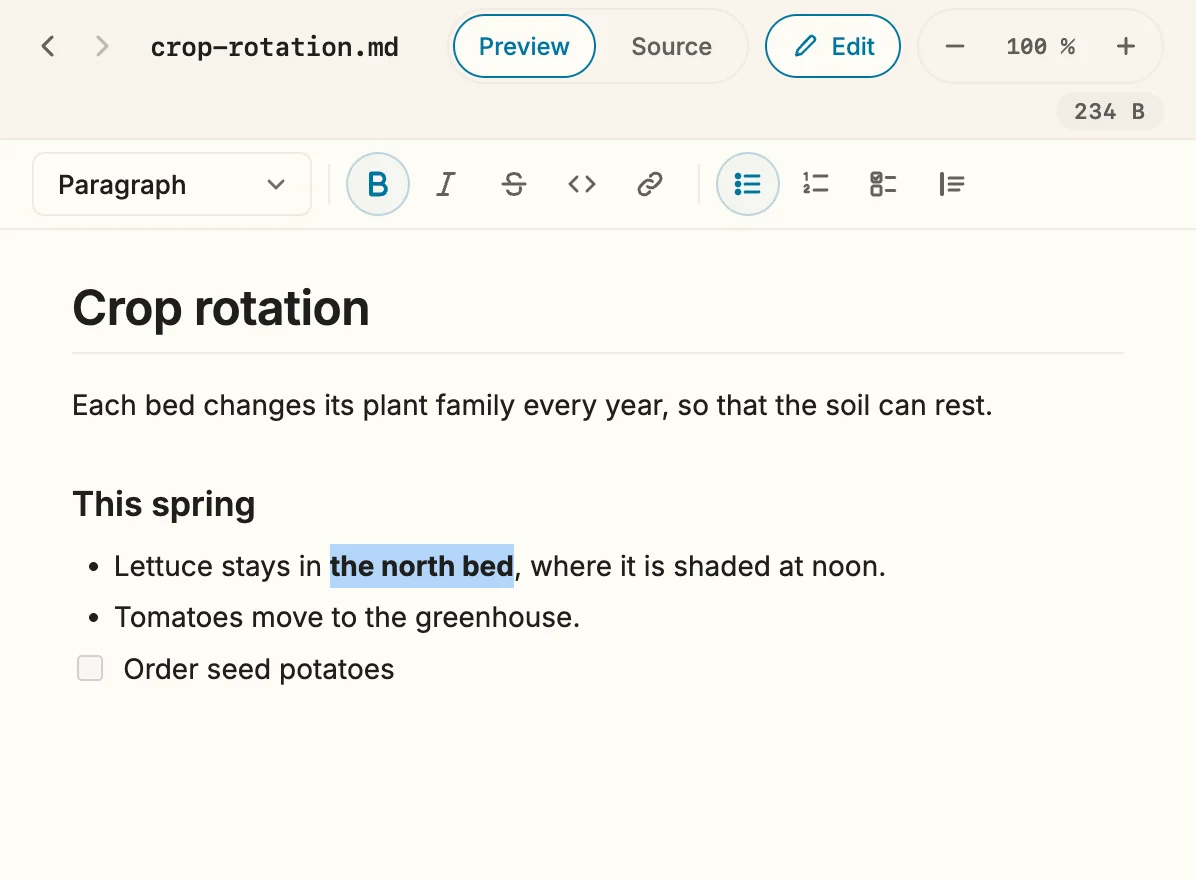
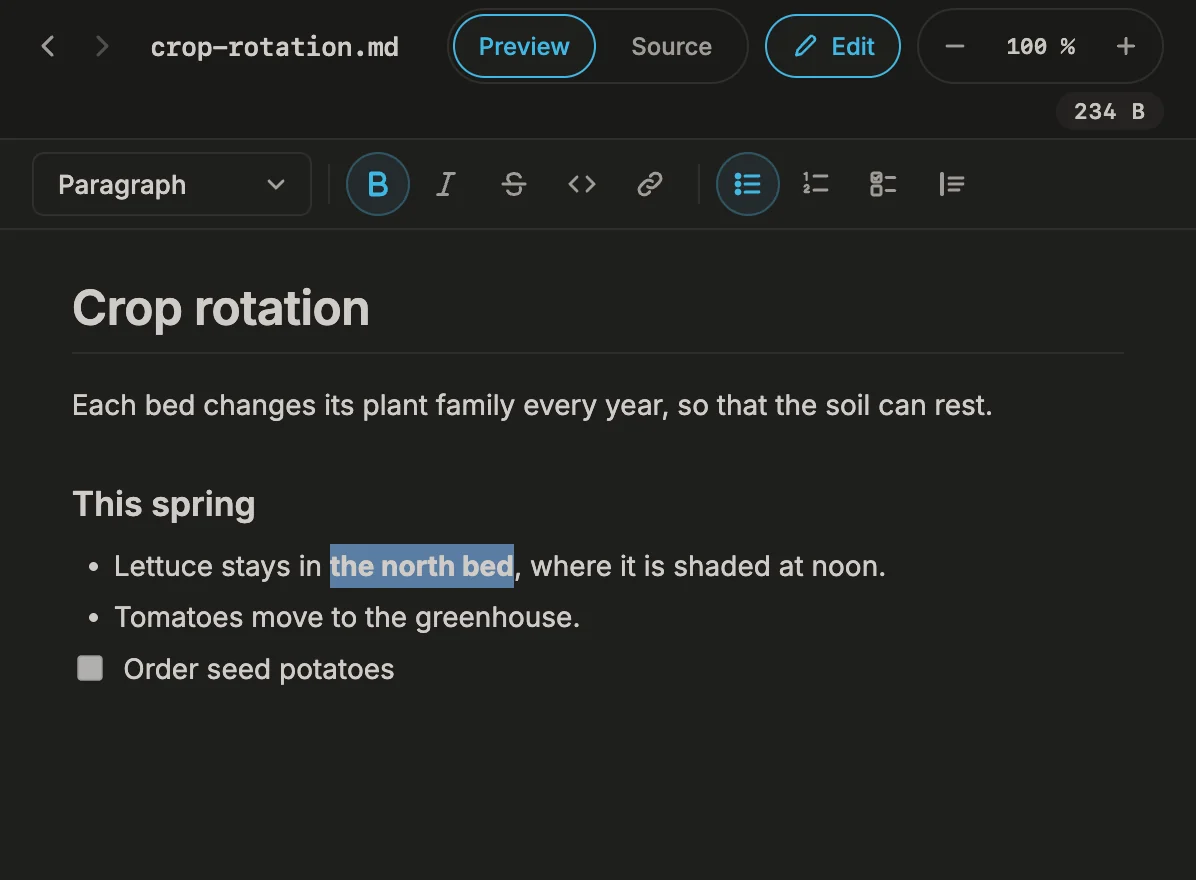
What you need
Section titled “What you need”- An open folder, and a Markdown file from it (
.md,.markdown,.mdx) in the preview, on its Preview side. - The file is UTF-8 text. That is what almost every text file is today.
- No chat answer is running. While the agent works, Edit is paused.
- Click the file in the tree. The preview shows it formatted.
- Click Edit in the header, next to Preview | Source. The toolbar appears below the header, and the caret stands in the text.
- Type, delete, press
Enterfor a new paragraph — as in a word processor.Shift+Enterstarts a new line within the paragraph. - To format, select the text or put the caret into a word, and pick the format in the toolbar or press its keys. From left to right the toolbar holds the paragraph format, then bold, italic, strikethrough, code and link, then bulleted list, numbered list, checklist and quote.
- To stop, click Edit again or press
Esc.
There is no save button. Snotra saves a second after you stop typing, when you stop editing and when you open another file. Cmd+S / Ctrl+S saves at once.
| Format | macOS | Windows / Linux |
|---|---|---|
| Paragraph · heading 1 · 2 · 3 | Option+Cmd+0 · 1 · 2 · 3 | Ctrl+Alt+0 · 1 · 2 · 3 |
| Bold | Cmd+B | Ctrl+B |
| Italic | Cmd+I | Ctrl+I |
| Strikethrough | Shift+Cmd+X | Ctrl+Shift+X |
| Code | Cmd+E | Ctrl+E |
| Link | Cmd+K | Ctrl+K |
| Bulleted list | Shift+Cmd+8 | Ctrl+Shift+8 |
| Numbered list | Shift+Cmd+7 | Ctrl+Shift+7 |
| Checklist | Shift+Cmd+9 | Ctrl+Shift+9 |
The keys follow the key, not the character on it: Shift+Cmd+7 works on a German keyboard, where Shift+7 types a slash. A button pressed again takes its format off.
What happens
Section titled “What happens”- Only what you changed is written. Snotra writes back the paragraphs, headings and lists you touched. Everything else in the file stays exactly as it was: the blank lines, the way a list was written, comments in HTML. One changed word is one changed paragraph in the file, nothing more.
- The toolbar shows the format at the caret: a pressed button for bold or a list, and the menu says Paragraph or Heading 2. In a heading, Bold is off — a heading is bold already.
- Tables, code blocks, images and HTML stay as they are. The preview could not write them back without losing something, so they can’t be edited here. On hover a dashed edge shows where such a part ends, and its tooltip sends you to Source. Edit them there.
- Comments stay. Text you change inside a commented passage keeps its comment. While you edit, the speech bubbles are hidden; they come back when you stop. Delete the whole passage and its comment goes with it.
- Pasting brings the text, not its formats. What you paste from a web page or another app arrives as plain text; format it with the toolbar.
- Undo works for every step:
Cmd+Z/Ctrl+Z. - Links: while you edit, a click puts the caret into a link;
Cmd-click /Ctrl-click follows it. The link button orCmd+K/Ctrl+Kopens a small form for the address — a web address or a path in the folder. Remove link takes the link off and keeps the text. - From the text to the toolbar:
Alt+F10. The arrow keys move between its controls,Escgoes back to the text. - Saving, conflicts and the agent work as when you edit a text file: the header says Saving… and Saved, a file another program changed is never overwritten silently, and a chat answer that starts saves your text and ends editing.
If it doesn’t work
Section titled “If it doesn’t work”- Edit is greyed out: This document can only be edited in the source. Something in it can’t be traced back to its place in the file — rare, usually HTML that renders as several blocks. Switch to Source and edit it there.
- Edit is greyed out and says the agent is working. Wait until the chat answer is finished, or stop it.
- A table or a code block doesn’t take the caret. That is on purpose, see above. Switch to Source.
Cmd+B/Ctrl+Bhides the sidebar. The key means bold only while the caret is in the document you edit. Anywhere else it shows or hides the sidebar, as always.- A changed paragraph is written differently from before. In a paragraph you changed, Snotra writes Markdown its own way:
**for bold,*for italics,-for a new list. A list that was already there keeps its marker. Paragraphs you did not touch are never rewritten.