
Snotra Agent Manual
Snotra Agent is an open-source desktop agent built around your folder. You open one folder, the file tree stays in view, and the chat works inside it. Nothing changes in that folder without asking you first. It works with cloud and local models, needs no account and sends no telemetry.
Snotra Agent is the desktop app of the Snotra AI platform. Since 1.17 Up to version 1.16 the app itself was called Snotra AI; its settings and chats carried over unchanged.
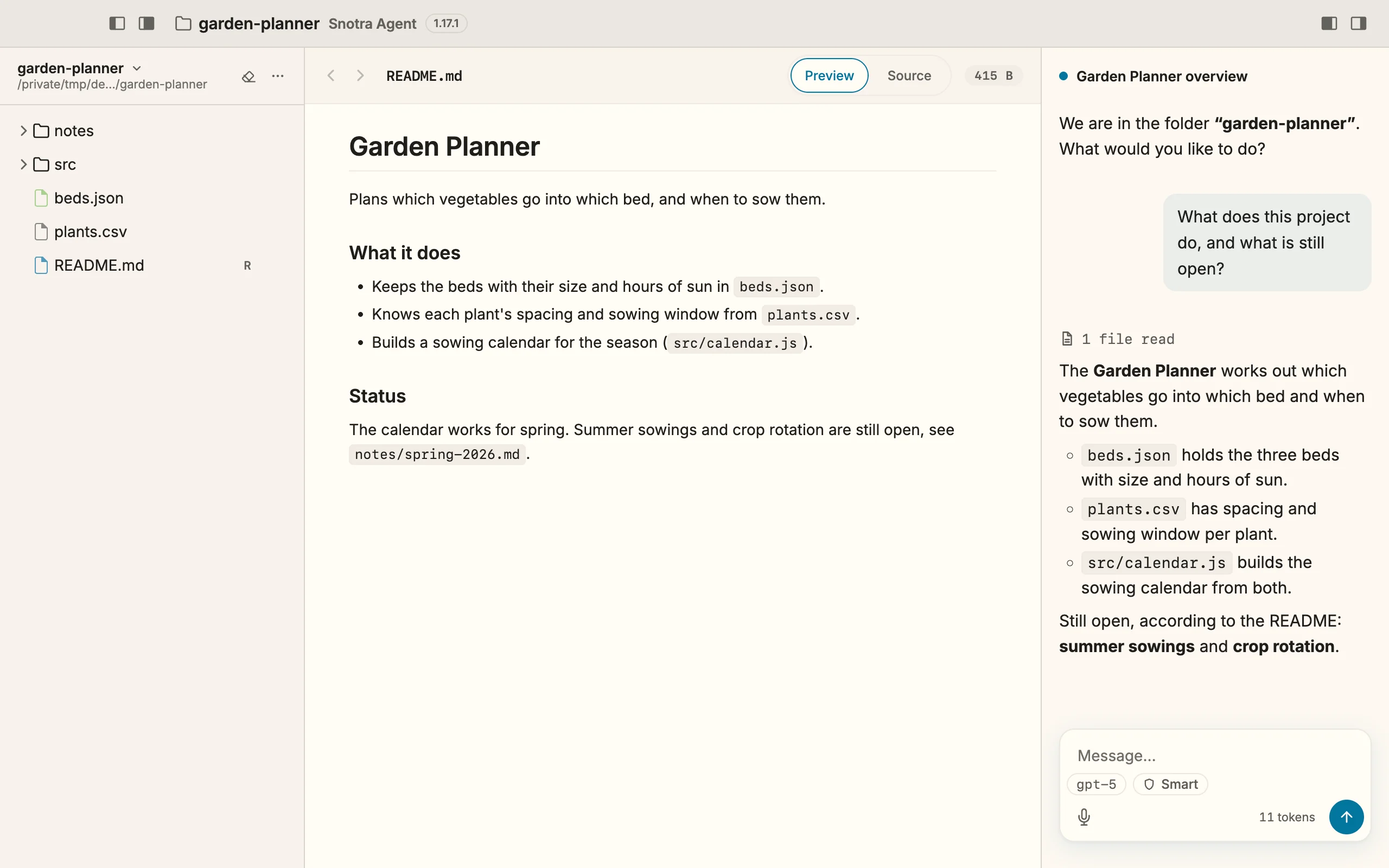
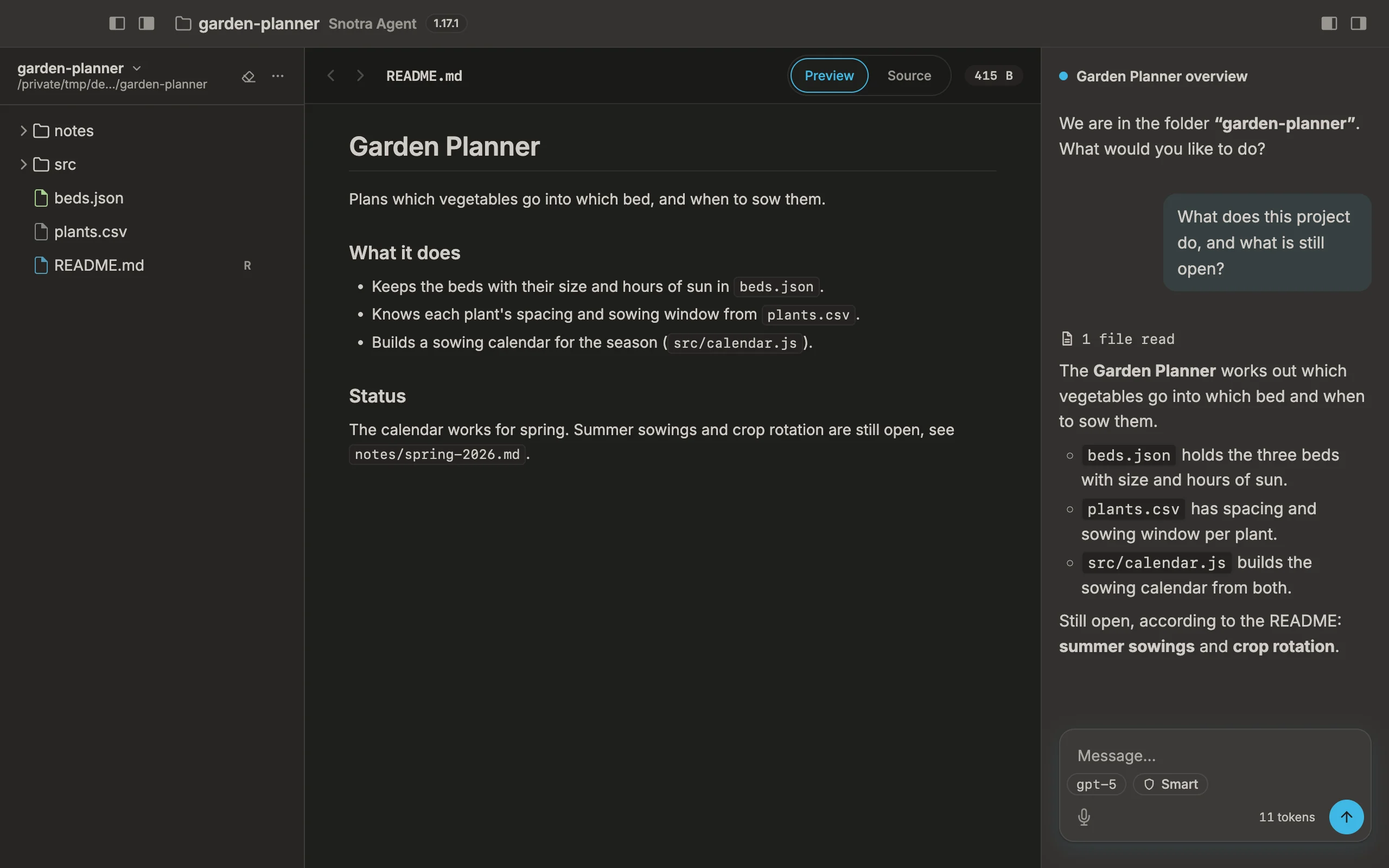
This manual explains how to use it: how to get started, how to work with files and chats, how Snotra decides what it may do on its own, and how to adapt it to your needs. The version it describes is shown next to the title at the top of every page.
Where to start
Section titled “Where to start”- New to Snotra: install it, connect a model and open a folder. The chapter Getting started takes you from the download to the first chat.
- Chatting: write a message, see what Snotra changed and continue an earlier chat.
- The workspace: find your way around the window, find a file and look at it.
- Safety: why Snotra asks before it acts, and how to choose a mode for a chat or a folder.
- Customising: manage your models, give a project its instructions, let Snotra remember facts and follow rules, and add skills or MCP servers.
- When something goes wrong: what to do about an error from the model or a keychain question, and how to report a problem.
- Reference: every keyboard shortcut, where Snotra keeps its files and a glossary.
- Download: the latest release for macOS, Windows and Linux is on the releases page.
- Problems and ideas: report them as an issue on GitHub.
The manual inside Snotra
Section titled “The manual inside Snotra”Since 1.19 Help › Snotra User Manual — or F1 — opens this manual in a window of its own inside Snotra. It is the copy that came with your version of the app, so it describes exactly what you have installed and works without an internet connection. It follows the language and the light or dark theme you chose for Snotra.
- The chapters are on the left; on a narrow window they move behind Contents. On this page on the right jumps to a section.
- Search sits above the chapters — or press
Cmd+F/Ctrl+F. Type a few words: the pages that contain all of them take the place of the chapters, each with the section and a line of text around the match. Capitals and accents do not matter.↑↓choose a result,Enteropens the page at that section,Escbrings the chapters back. On a narrow window, the magnifier next to Contents opens it. ‹and›go back and forward through the pages you read, with the same keys as in the preview:Cmd+[andCmd+]on macOS,Alt+←andAlt+→on Windows and Linux.−and+— orCmd/Ctrlwith+,−and0— make the text larger or smaller.- Open on the web shows the same page on docs.snotra-ai.dev, which always describes the latest release.
- From the settings, the
?next to a section or a heading opens the manual right at the part about it.
Help improve this manual
Section titled “Help improve this manual”On docs.snotra-ai.dev, every page has an Edit page link at the bottom. The manual lives in the same repository as the app, in English and German, and changes go through a pull request like any other change.