
Find a file
In a large folder, the quickest way to a file is to type part of its name. The filter above the tree searches every file and folder of the open folder.
What you need
Section titled “What you need”An open folder.
- Press
Cmd+P/Ctrl+P— from anywhere in the window, the chat input included. Or choose Filter files in the⋯menu at the top of the tree, or View › Filter Files…. A closed sidebar opens with it. - Type part of the name. The match is fuzzy:
rlsefindsdocs/release.md, andcalfindssrc/calendar.js. - Choose a match with
↑and↓and open it withEnter, or click it.
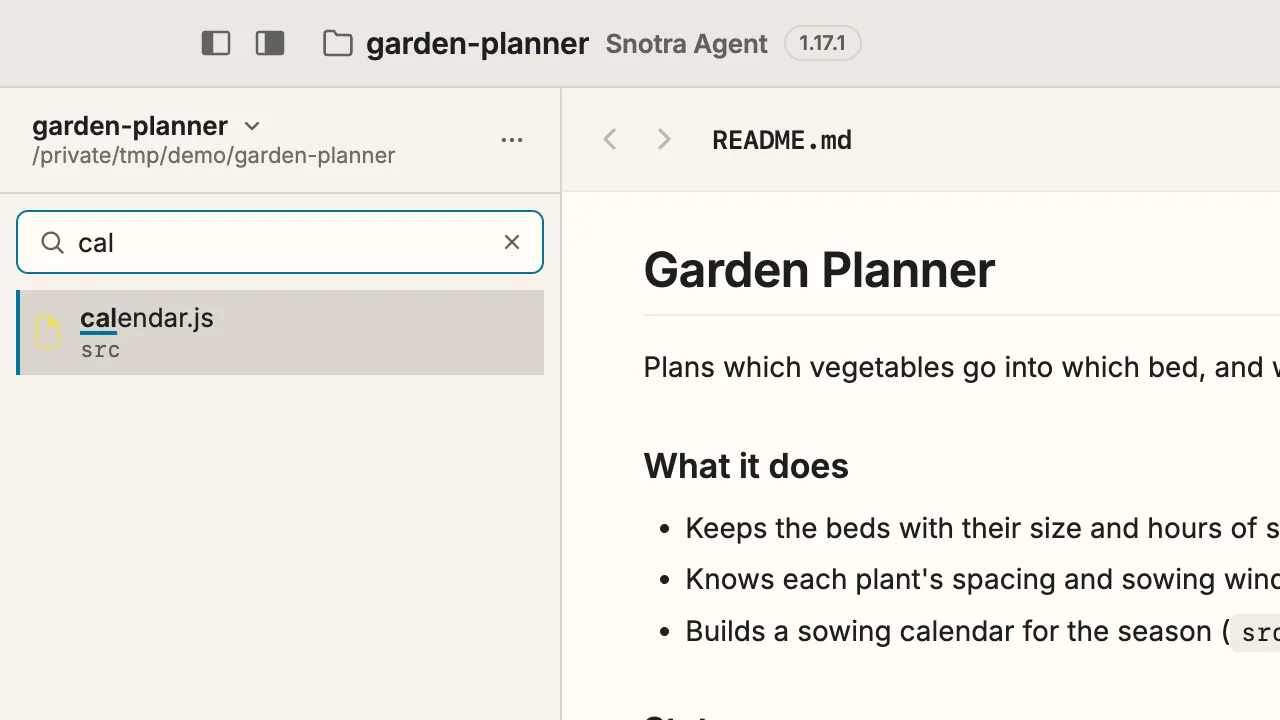
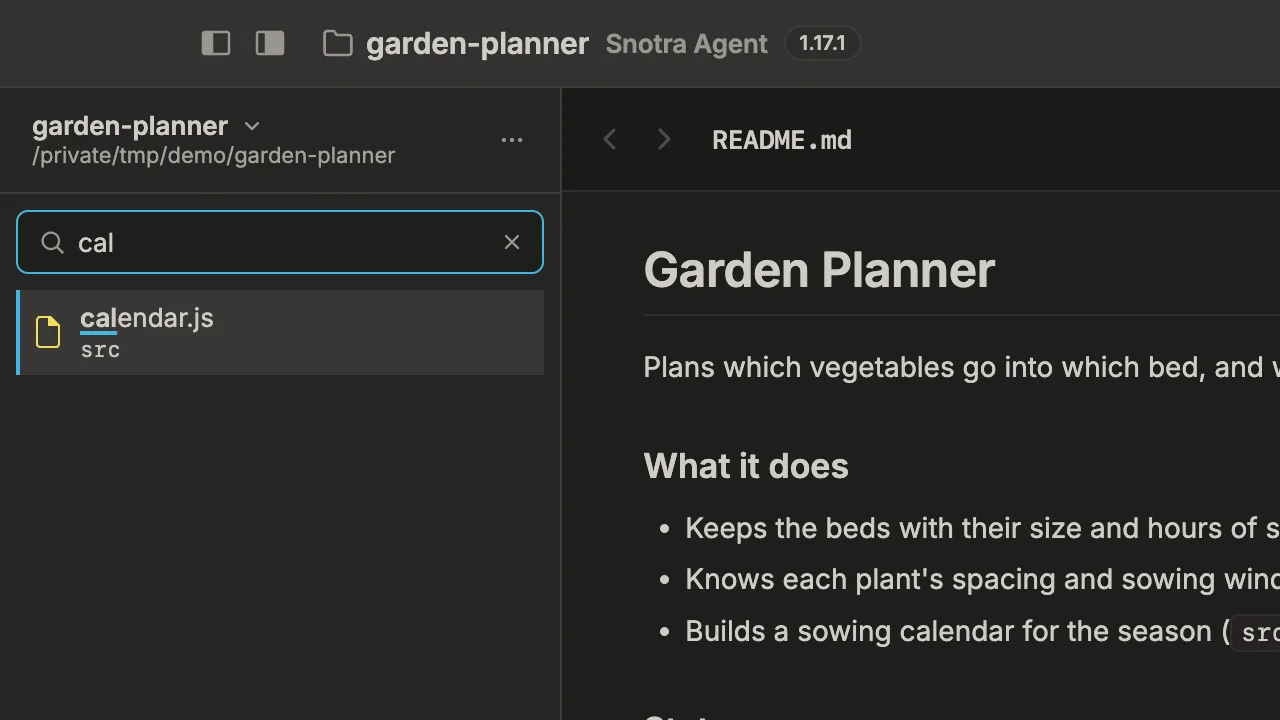
When the tree has the focus, simply typing a letter starts the filter with it.
What happens
Section titled “What happens”- As soon as the field holds something, a flat list of matching files and folders takes the tree’s place. Each match shows the folder it is in, with the matched letters underlined.
- Opening a file shows it in the preview and leaves the list standing for the next one.
- Choosing a folder closes the filter and shows the folder in the tree, opened.
Esccloses the filter and brings the tree back as it was, opened down to whatever you opened.
The filter finds the same entries, in the same order, as @ in the chat: Refer to a file.
If it doesn’t work
Section titled “If it doesn’t work”- No file or folder matches … The filter searches names and paths, not what is in the files. Ask Snotra in the chat to search the contents.
- A file you know is there does not show up. Hidden files only match while they are shown in the tree, and the filter leaves out what the folder’s
.gitignoreexcludes. - The list ends with First … of … matches. Type more letters to narrow it down.