
Look at a file
Click a file in the tree and the middle column shows it. Each kind of file gets a view of its own; the header above it names the file and offers what that view can do.
What you need
Section titled “What you need”An open folder. The preview shows files from that folder only.
Back and forward
Section titled “Back and forward”Since 1.18 The preview remembers the files it showed, like a browser. ‹ and › in front of the file name go back to the file before and forward again; the tree selects the file along with it.
- Every way counts that brings a file into the preview: a click in the tree, Filter Files…, a link in a Markdown document, a link in a chat answer, Show changes.
- Shortcuts:
Cmd+[andCmd+]on macOS,Alt+←andAlt+→on Windows and Linux — also in View › Back and View › Forward. The side buttons of a mouse work over the tree and the middle column. - The whole list: right-click
‹or›— or pressShift+F10on it — for every file on that side; pick one to jump straight there. - Where you were: going back lands where you left the file — the same scroll position, and in a Markdown file the same side of Preview | Source.
- A new step cuts off what lay ahead. Go back twice and open another file, and the files you went back from are no longer ahead of you.
- The list belongs to the open folder. Switching folders or restarting Snotra starts it empty.
Markdown
Section titled “Markdown”A .md file opens formatted: headings, lists, tables, code. Preview | Source in the header — or Cmd+Shift+M / Ctrl+Shift+M, or View › Preview or Source — switches to the plain text and back. The front matter of a SKILL.md shows as a compact block above the text.
- Images from the open folder are shown. Images from the web are never loaded: a placeholder, Image from the web, not loaded, says where they point.
- A link to another file of the folder opens that file and selects it in the tree.
‹takes you back to where you followed it. - Since 1.19 Zoom with
−and+in the header, or withCmd/Ctrland+,−,0while the preview has the focus. The whole document grows — text, images and tables — and every Markdown file opens at the size you chose last, after a restart too. The source is not zoomed.
Code and text
Section titled “Code and text”Source code and configuration files open with colours — JavaScript and TypeScript, JSON, YAML, Python, shell scripts, HTML and CSS and many more, chosen by the file name. The colours follow the light and dark theme. What you select and copy is the file exactly as it is.
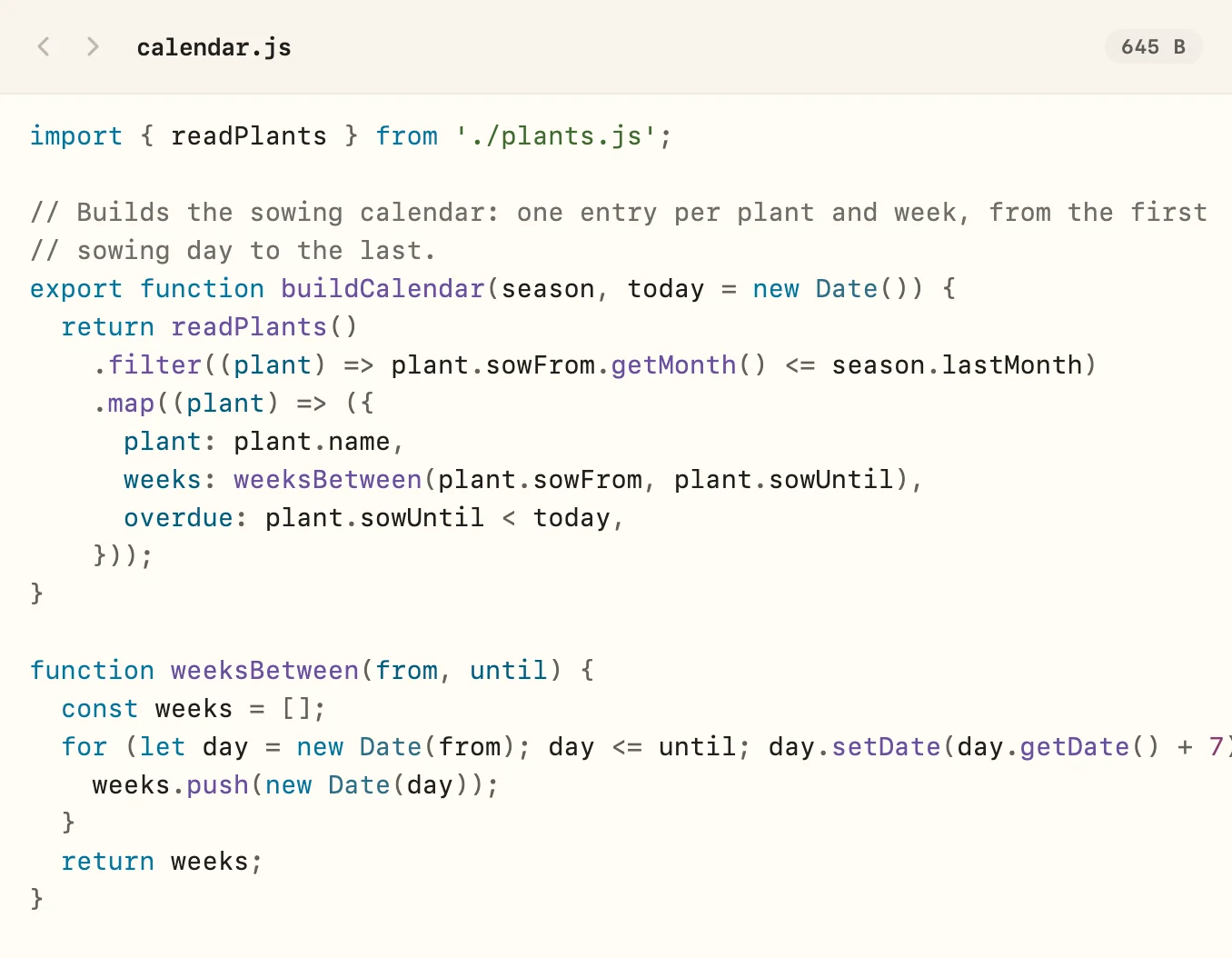
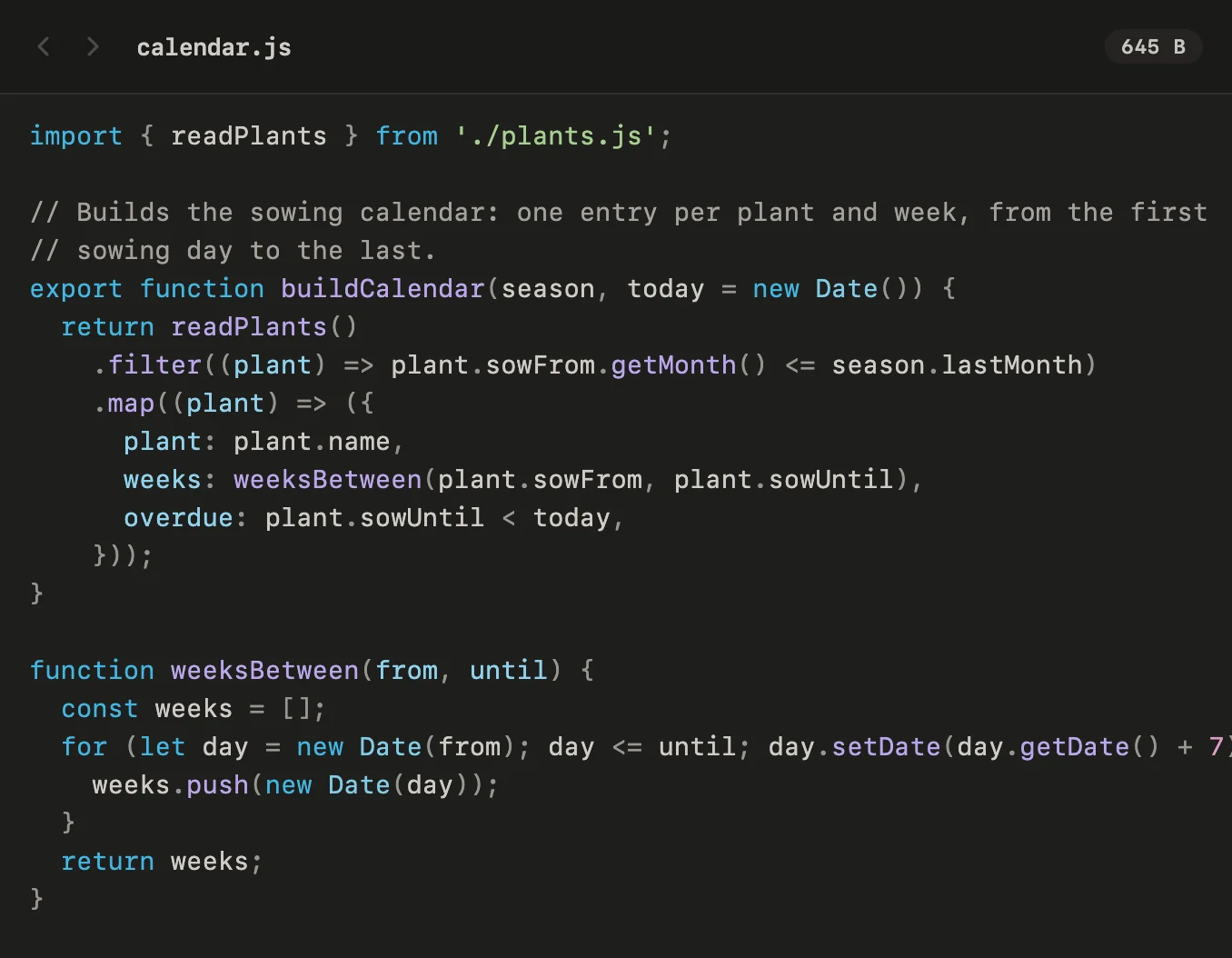
Plain text and logs stay plain. A file larger than 512 KB is shown without colours, so that it opens at once.
Images
Section titled “Images”PNG, JPEG, GIF, WebP and SVG open as images, fitted to the column.
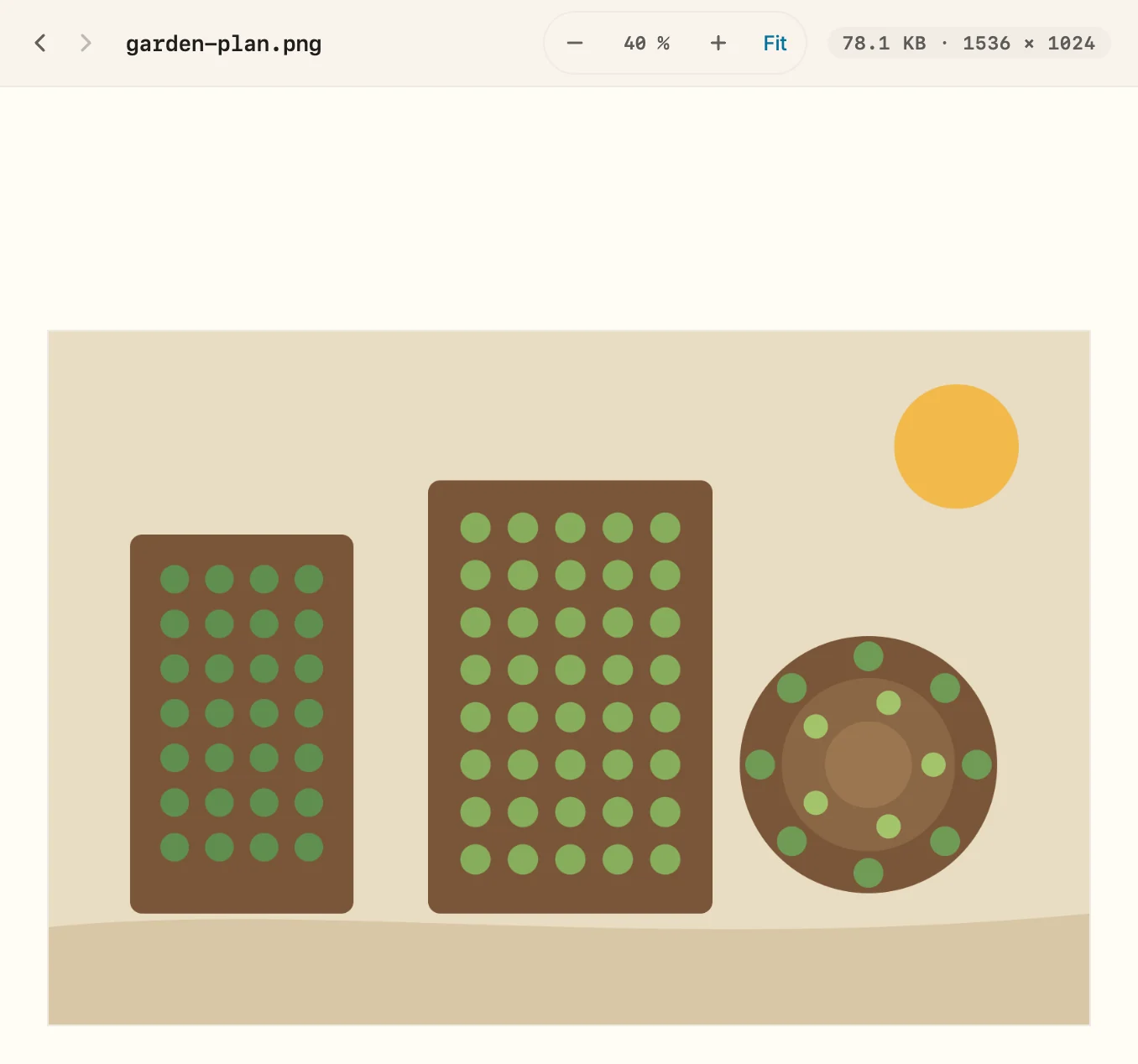
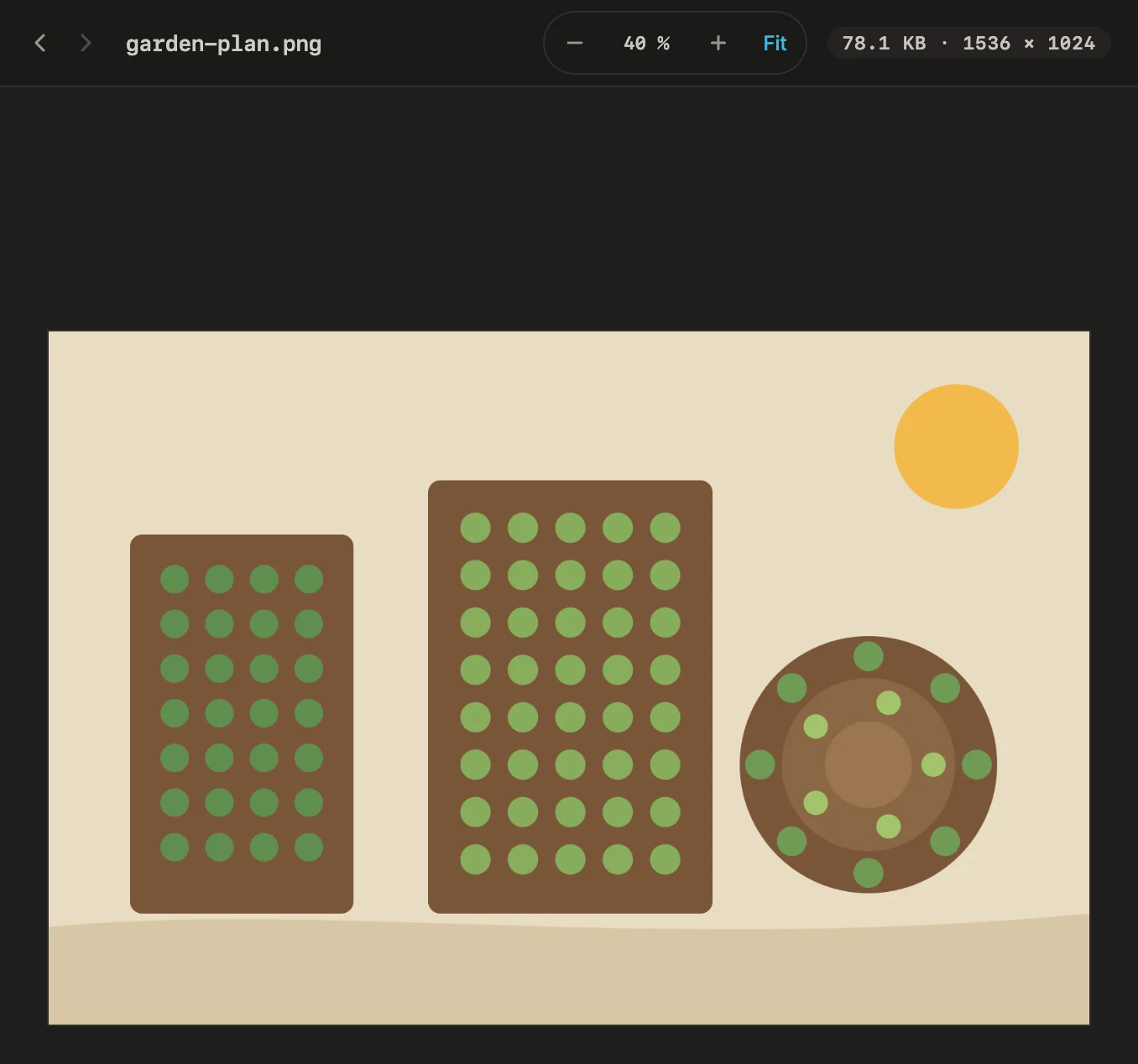
- Zoom with
−,+and Fit in the header, or withCmd/Ctrland+,−,0. - An image larger than the column is moved by dragging it, or with the arrow keys.
- The header gives the size in pixels; a checkerboard behind the image shows where it is transparent.
- An SVG has Preview | Source, like a Markdown file.
A PDF opens page after page, fitted to the column width. The header shows the page you are on — type a number to jump there — and zooms with −, + and Width. A password-protected PDF asks for its password right there; it is not stored. Scripts inside a PDF never run, and its links do nothing.
HTML pages
Section titled “HTML pages”An .html file opens as the page it is. Scripts run, so an interactive mockup or a report works as in a browser. Preview | Source switches to the text.
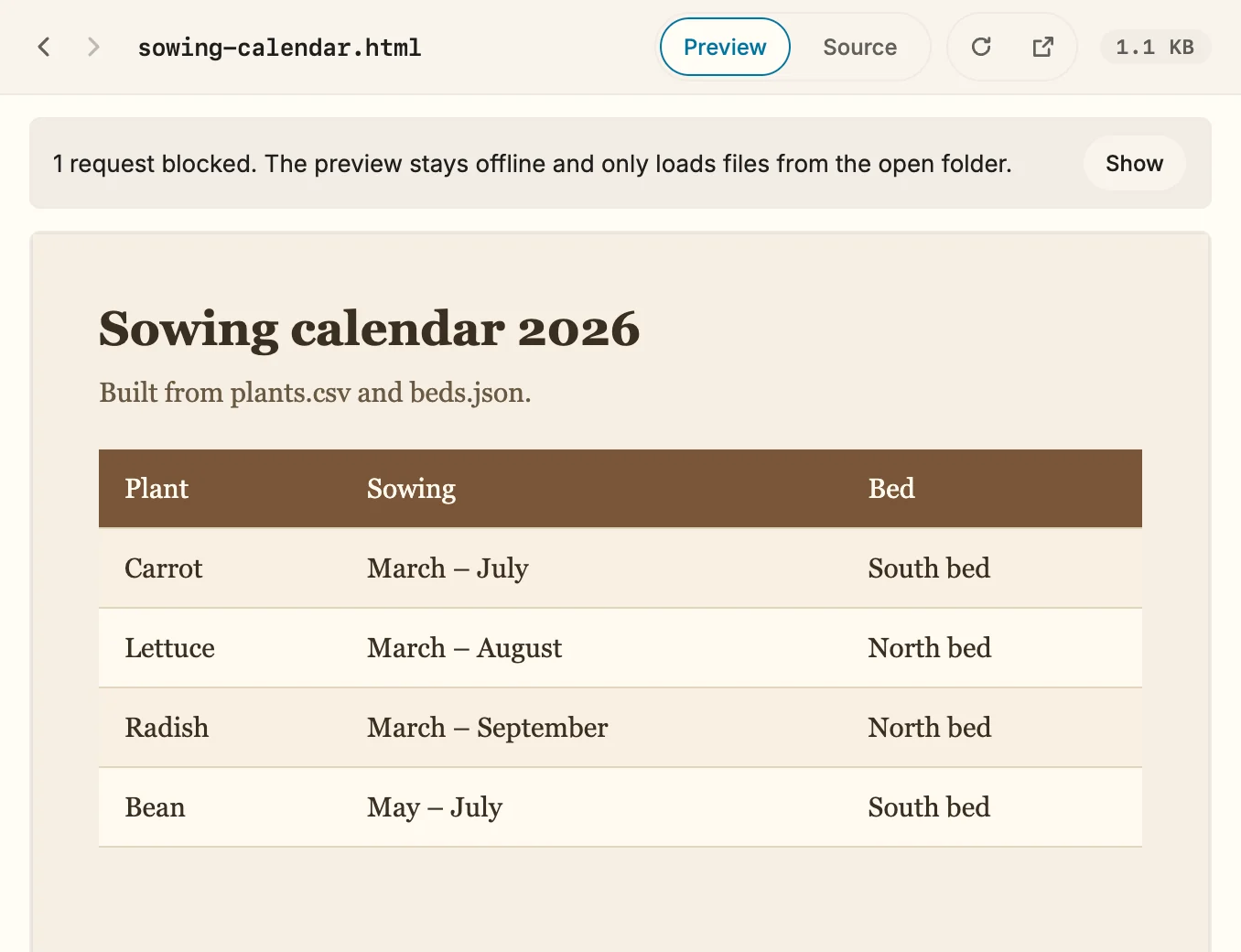
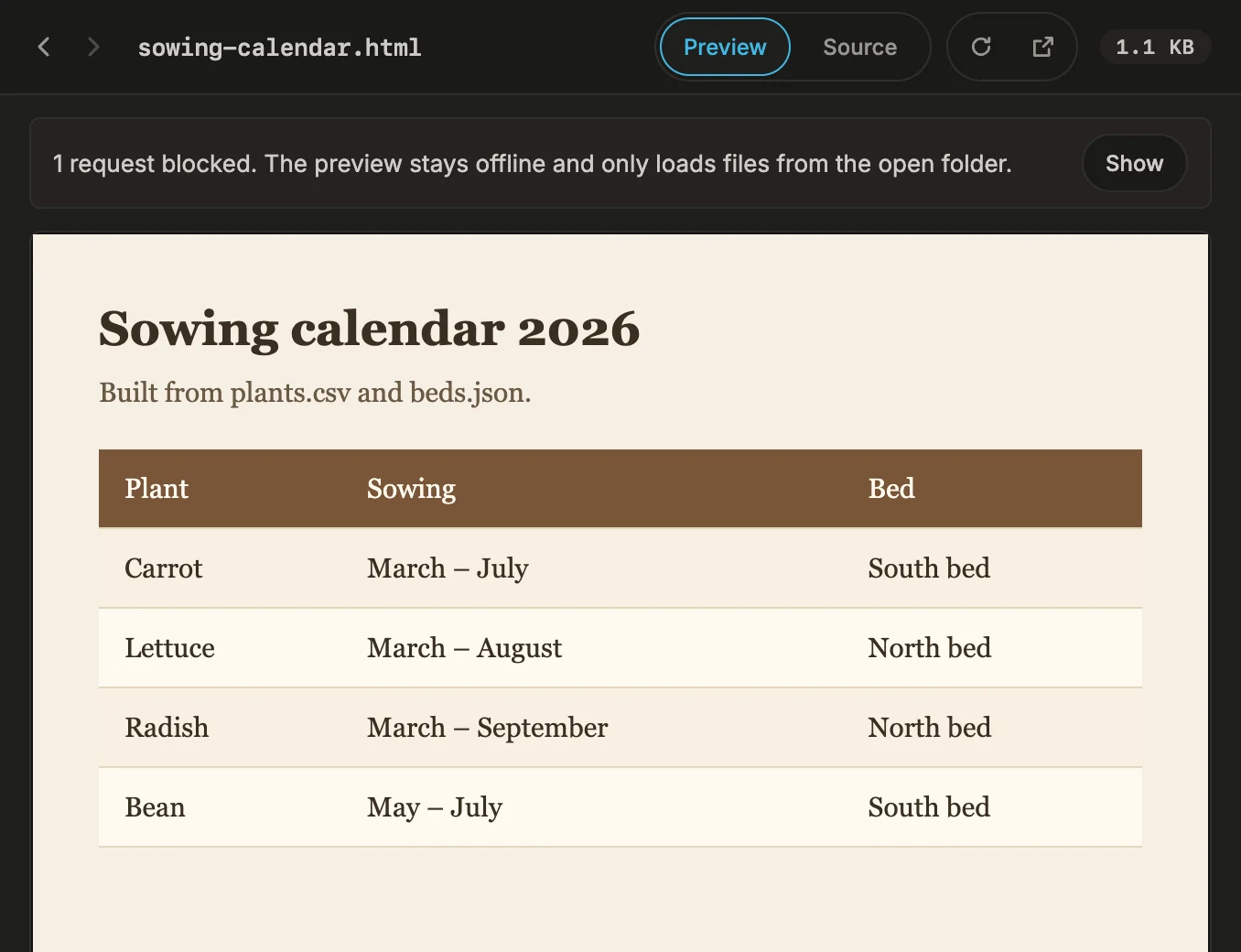
- It stays offline. The page loads only files from the open folder — a stylesheet or a script next to it works. Anything from the web or from outside the folder is blocked, and a notice above the page says how much; Show lists it.
- Links need a click. A link to another HTML file of the folder opens it in the preview, a web link opens in your browser — only when you click it, never by itself.
- It keeps up. The page reloads when it or one of its files changes. Reload and Open in browser are in the header.
- Keyboard:
Tabmoves into the page,F6back out of it.
A link to an HTML file in a chat answer opens it here as well.
If it doesn’t work
Section titled “If it doesn’t work”- Too large to preview. The preview shows images up to 10 MB, PDFs up to 50 MB and HTML files up to 1 MB. Open in browser still works for an HTML file; any file opens in its own app from the tree’s context menu.
- The file points out of the open folder through a link, so it is not shown. The preview shows nothing from outside the folder.
- Not a readable image or Not a PDF. The content does not match the file name. The view checks what is inside, not the extension.
- The page is not responding. A script in the page keeps it busy. Snotra stays usable; Reload starts the page again.
‹skips a file, or the list shows it greyed out. The file was deleted, or moved outside Snotra, since you looked at it. A file you rename or move in the tree stays in the list under its new name.Cmd/Ctrland+makes the whole window larger, not the document. The keys zoom the document only while the preview has the focus — click into the text first. View › Actual Size puts the window back.