
Connect a model
Snotra Agent comes without a language model of its own. You connect one: a cloud model from OpenAI, Anthropic or Google with your own API key, or a model that runs on your own computer. You can connect several and switch between them in the chat.
What you need
Section titled “What you need”One of these:
- An API key from OpenAI, Anthropic or Google AI Studio. The provider bills you for what you use; Snotra itself costs nothing.
- A model server on your computer: Ollama, LM Studio, or another server with an OpenAI-compatible interface, such as llama.cpp, MLX-LM or vLLM.
Open the model settings
Section titled “Open the model settings”- Open the settings: Snotra Agent › Settings… on macOS, View › Settings… on Windows and Linux, or
Cmd+,/Ctrl+,. - The settings open on Models. The list Preferred models holds every model Snotra offers you in the chat.
On the first start the list already holds one entry: OpenAI · gpt-5-mini, still without a key.
With an OpenAI key
Section titled “With an OpenAI key”- Click the pencil next to OpenAI · gpt-5-mini. The dialog Edit model opens.
- Paste your key into API key.
- If you want a different model, click Load models and pick one under Model.
- Click Apply changes, then Apply at the bottom of the settings.
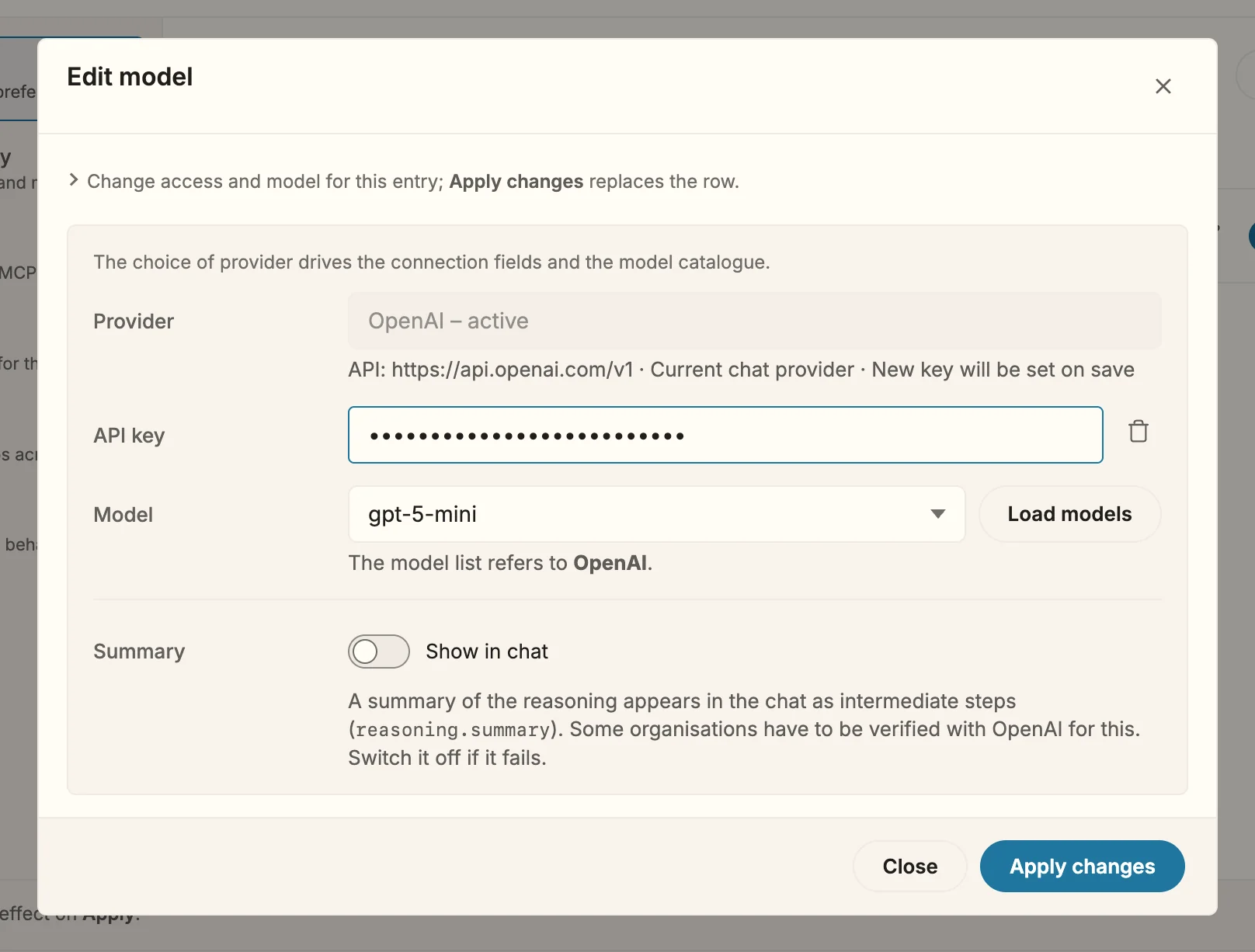
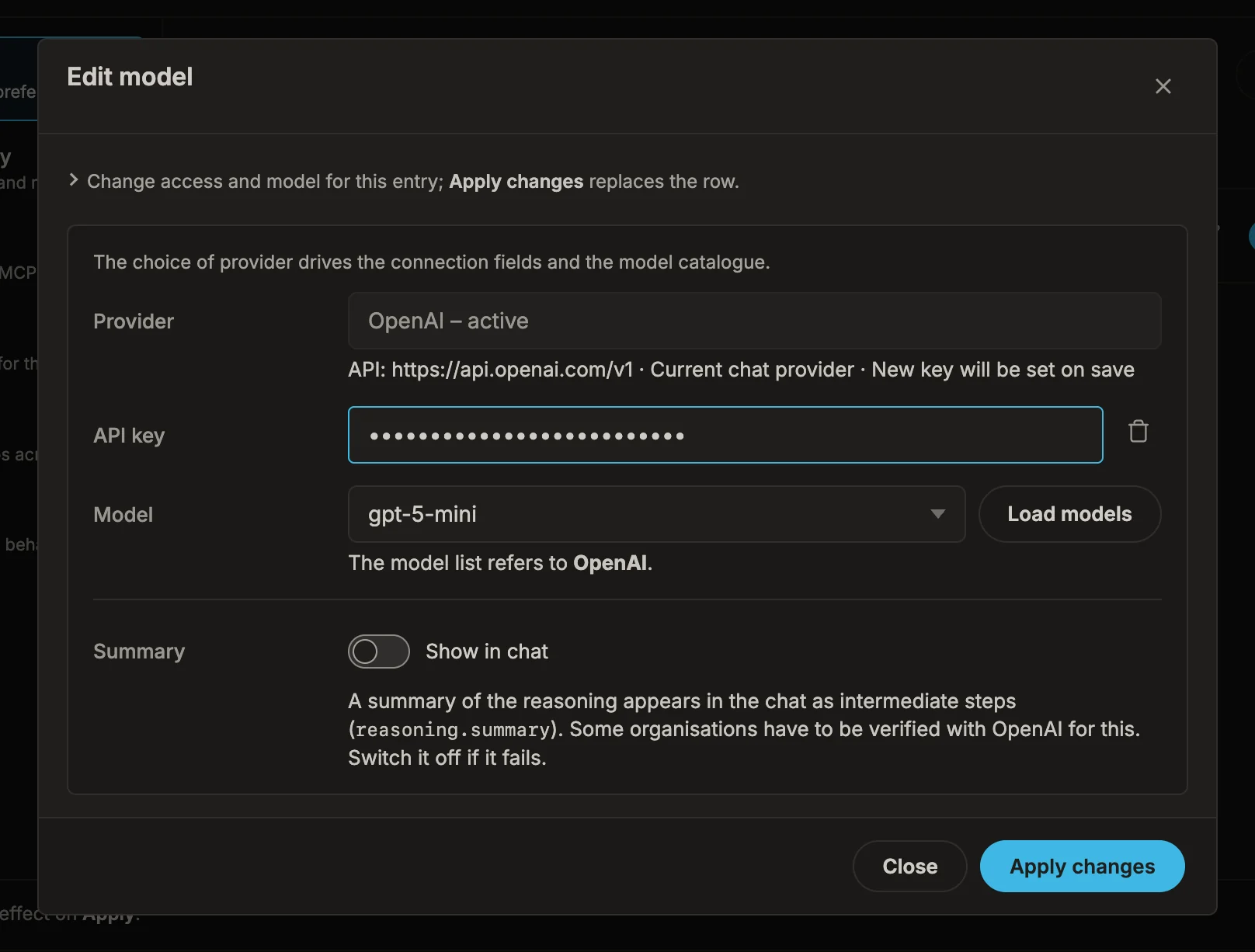
Add model with provider OpenAI and model gpt-5-mini gets you to the same place: since that entry is still missing its key, the dialog gives it yours instead of adding a second one. Once the key is in, Add model is the way to add more OpenAI models: they all share the one key.
With Anthropic or Google
Section titled “With Anthropic or Google”- Click Add model.
- Under Provider, choose Anthropic (Claude) or Google (Gemini).
- Paste your key into API key.
- Click Load models and pick a model under Model.
- Click Apply, then Apply at the bottom of the settings.
With a model on your computer
Section titled “With a model on your computer”Ollama
- Make sure Ollama is running and has at least one model, for example after
ollama pull llama3.2. - Click Add model and choose Ollama (local) under Provider. The Server URL is already filled in:
http://localhost:11434. - Click Load models and pick a model.
- Click Apply, then Apply at the bottom of the settings.
LM Studio and other OpenAI-compatible servers
- Start the server in your tool and load a model there.
- Click Add model and choose OpenAI-compatible under Provider.
- Under Template, choose your server: LM Studio, MLX-LM, llama.cpp, vLLM, Ollama (/v1) or OpenRouter. The template fills in the Server URL, for LM Studio
http://localhost:1234/v1. For anything else, choose Custom endpoint and enter the address yourself. - Leave API key empty for a server on your computer.
- Click Load models and pick a model. If the list stays empty, type the model name into the field by hand.
- Click Apply, then Apply at the bottom of the settings.
Not every local model can use tools, and Snotra needs tools to read and write files. If a model only ever answers in text, try one that supports tool calls.
What happens
Section titled “What happens”- The hint above the chat input disappears, and the send button becomes active.
- Next to the input field a pill names the model, for example
gpt-5-mini · medium. The part after the dot is the reasoning level, for models that have one. Since 1.15 Click the pill to switch the model or the level for the current chat. - Snotra stores your key encrypted on this computer, with the operating system’s own protection. It never ends up in your project folder, and it leaves the app only in requests to the provider it belongs to.
If it doesn’t work
Section titled “If it doesn’t work”- Please enter an API key first. Load models needs the key to ask the provider. Paste it into API key first.
- OpenAI · gpt-5 is already in the list. The message names the entry that is already there, with the same provider and model. Close the dialog and change that entry with its pencil instead.
- The model list stays empty on an OpenAI-compatible server. That is not an error: the line under the field says why, and a model name typed by hand works just as well. Check that the server is running and that the Server URL ends in
/v1. - Encrypted storage is not available on this system. Snotra does not store a key without the system’s encryption. A local server that needs no key still works.
- The chat shows an error from the provider. An invalid key, a used-up credit or an unknown model name are reported by the provider itself. Check the key and your account with the provider.