
Find your way around the window
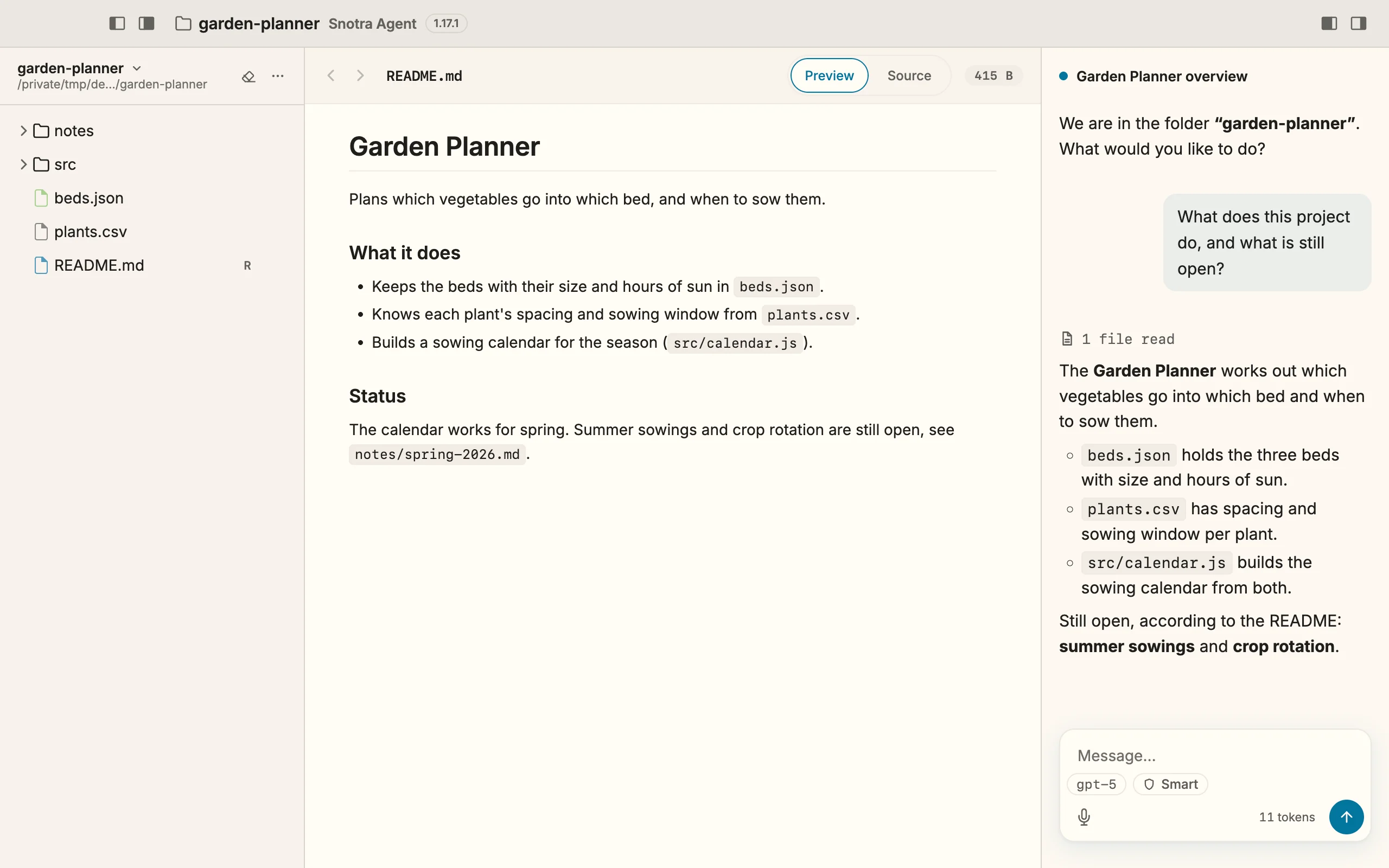
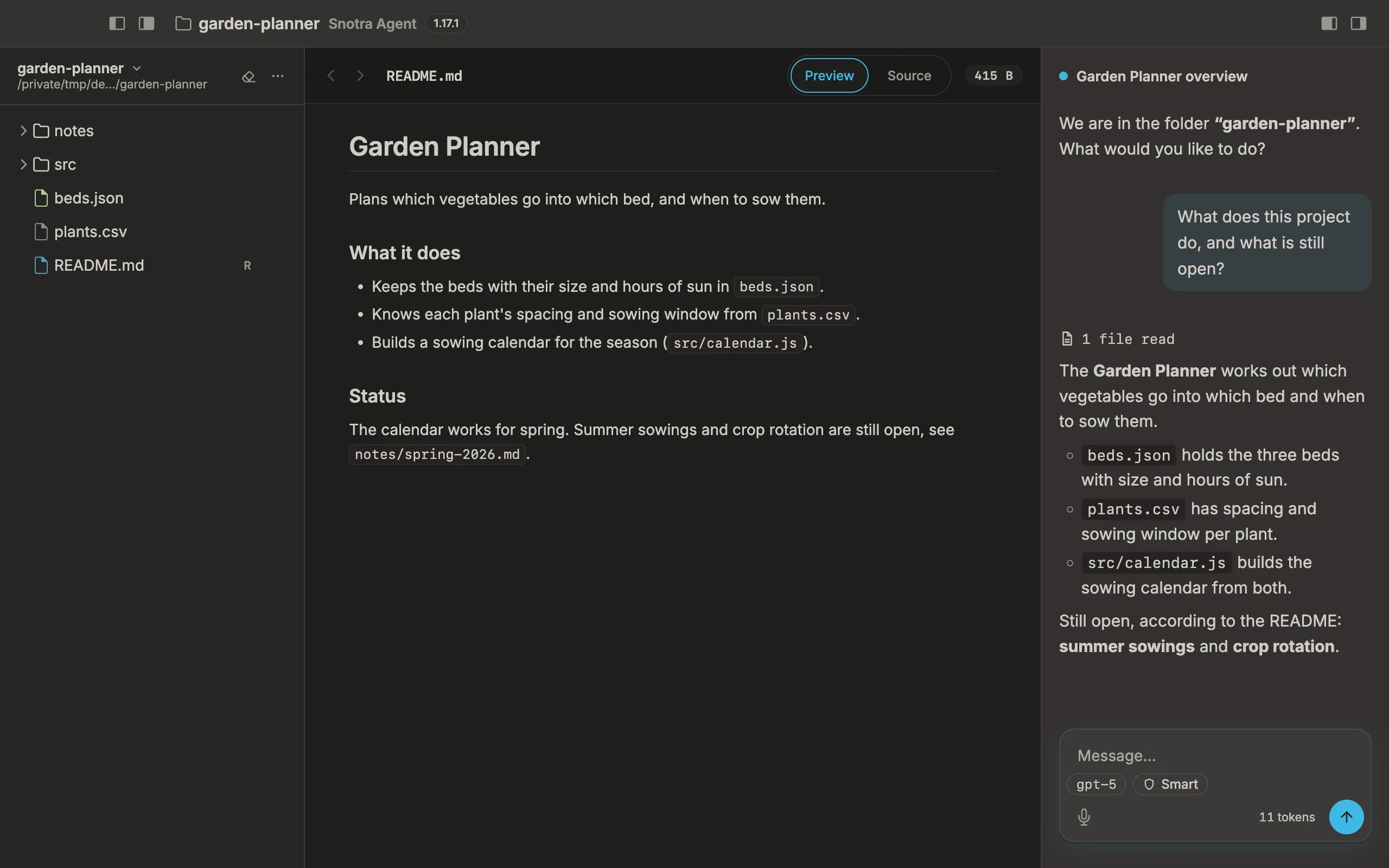
The Snotra window has up to four columns side by side: the file tree, the preview, the chat and the chat history. You decide which of them you see.
The four columns
Section titled “The four columns”| Column | What it holds |
|---|---|
| Sidebar | The open folder’s name and path, and its file tree. See Work in the file tree. |
| Middle column | The preview of the file you picked, or the welcome page. See Look at a file. |
| Chat | The conversation, with the input field at the bottom. See Write a message. |
| History | Your earlier chats. See Continue an earlier chat. |
The title bar names the open folder first, in every layout, and the window’s title carries it too — so the Dock, the window menu and the app switcher show which folder this is.
Show and hide a column
Section titled “Show and hide a column”Each column has its own switch in the title bar, all four with the same picture of a window in which the part they control is filled in:
- On the left, Show sidebar / Hide sidebar and Show preview pane / Hide preview pane.
- On the right, mirrored, Show chat / Hide chat and Show chat history / Hide chat history.
Cmd+B / Ctrl+B or View › Toggle Sidebar show and hide the sidebar as well. A column comes back by itself when you need it: clicking a file in the tree opens the middle column, clicking a chat in the history opens the chat.
To change a column’s width, drag the line between two columns. With the keyboard, focus the line and use ← and →, with Shift for larger steps, and Home / End for its end positions.
What the middle column shows when you open a folder
Section titled “What the middle column shows when you open a folder”- The folder has a
README.md: the middle column opens and shows it, rendered — what the project is, before you ask. That happens every time you open or switch to a folder. - It has none: the middle column stays closed, and the chat gets the room.
- You land in a chat you left: after a restart Snotra brings back the folder’s most recent chat, and the middle column stays closed so that the conversation has the room.
- You used the switch: once you have shown or hidden the middle column with its switch, that choice wins, also at the next start.
The README is shown, not selected; the tree stays as it was. Without any folder open, the middle column holds the welcome page.
What happens
Section titled “What happens”Every column’s state, its width and the window itself — its size, its position, whether it was maximised or full screen — come back at the next start. If the window last sat on a screen that is no longer connected, it comes back centred on the main screen.
If it doesn’t work
Section titled “If it doesn’t work”- The history column disappears. The window is too narrow for all four columns; the history gives way and returns when there is room.
- The README does not open. Only a file named
README.mdat the top of the folder counts — notREADME.txt, not one in a subfolder — and only when you have not switched the middle column off.