
Connect an MCP server
Through the Model Context Protocol (MCP) Snotra gets tools from other systems: Jira and Confluence, GitHub, a database, an internal service. An MCP server is a small program that offers such tools; Snotra starts it and passes its tools to the model.
What you need
Section titled “What you need”- The start command of the server, from its documentation — for example
npx -y @modelcontextprotocol/server-github. - Whatever it needs to log in, usually a token as an environment variable.
- The program behind the command on your computer, such as Node.js for
npxor Docker fordocker.
Snotra supports servers that run locally as a process. Servers that are only reachable over HTTP or SSE do not work yet.
An MCP server is someone else’s code, started on your computer with your rights. Only add servers you trust.
Add a server
Section titled “Add a server”- Open Settings › Tool setup and click Add server under MCP servers.
- Fill in the form; the fields are explained below.
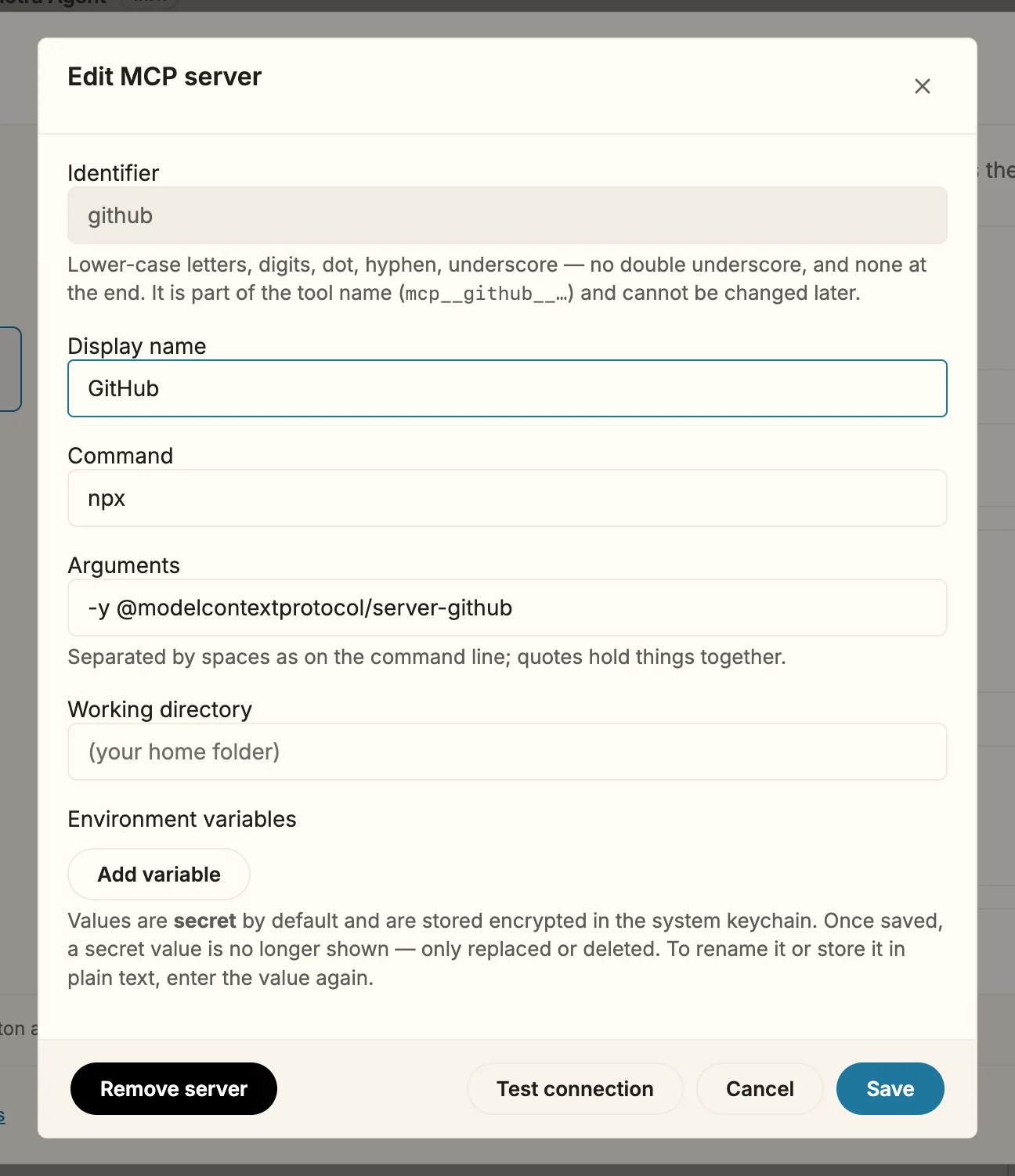
- Click Save, then Test connection. It starts the server once and shows the tools it offers — or the error, with what the server printed.
| Field | What goes in |
|---|---|
| Identifier | Lower-case letters, digits, ., - and _. It becomes part of the tool names and cannot be changed later. |
| Display name | Any name, for the list. |
| Command and Arguments | What is started, for example npx and -y @modelcontextprotocol/server-github. |
| Working directory | Optional; empty means your home folder. |
| Environment variables | Add variable for each one. |
Environment variables are secret by default: stored encrypted, and not shown again once saved — only replaced or deleted. Untick secret for a value that may stay readable, such as LANG=en_GB.
Import from another app
Section titled “Import from another app”If you use MCP servers in Claude Desktop, Claude Code or Cursor already, click Import and paste their mcpServers block. Snotra shows what it recognised: each server with its start command, the values it will keep secret, placeholders not filled in yet, and servers that would replace one you have. Entries that cannot work are listed with the reason. Untick what you do not want, then import.
Imported servers start switched off. Snotra reads only what you paste, never another app’s configuration files.
What happens
Section titled “What happens”- The server’s tools appear under Settings › Tools & security, in the row External services, grouped by server. Each one can be switched off on its own, and each group says how its server is doing: connected with its number of tools, not connected yet, switched off, or failed to start, with the reason.
- In the chat, a tool shows where it comes from:
mcp__github__create_issue. - An MCP tool always counts as running a program and reaching an external service, so in Smart Snotra asks before every call. A server that marks a tool as destructive makes it stricter still.
- A server starts only when it is needed. It remembers the tools it reported last time, so you can switch one off before the model is ever offered it.
A server that does not start or crashes does not break the chat; the error is reported and everything else carries on.
If it doesn’t work
Section titled “If it doesn’t work”- … could not be started … — the command is not found or exits at once. Test connection shows what the server printed; often the program behind the command (Node.js, Docker) is missing, or a token is.
- Test connection uses the saved configuration — save your changes first. Click Save, then test.
- A tool is missing. Tool names longer than 64 characters together with the server’s identifier are left out; the list under the servers names them. A shorter identifier helps.