
See and change what Snotra may do
One page in the settings shows everything that decides a tool call in the open folder: which tools Snotra has, whether it asks first, and where or what exactly it may touch. It is worked out from the same rules that decide every call, so it cannot show something different from what happens.
Open the page
Section titled “Open the page”Open the settings — Snotra Agent › Settings… on macOS, View › Settings… on Windows and Linux, or Cmd+, / Ctrl+, — and choose Tools & security. The link at the bottom of the mode menu in the chat leads there as well.
What it shows
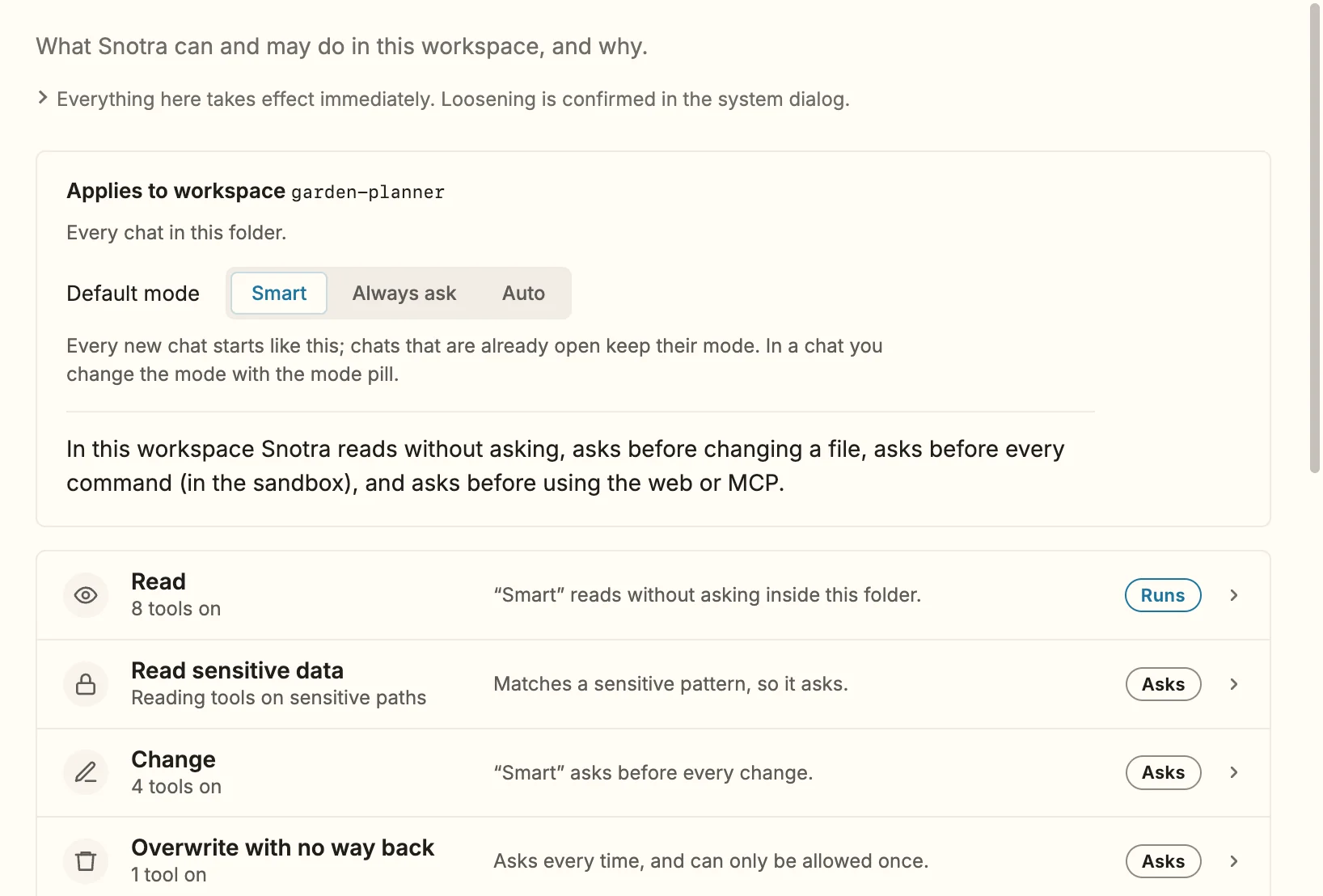
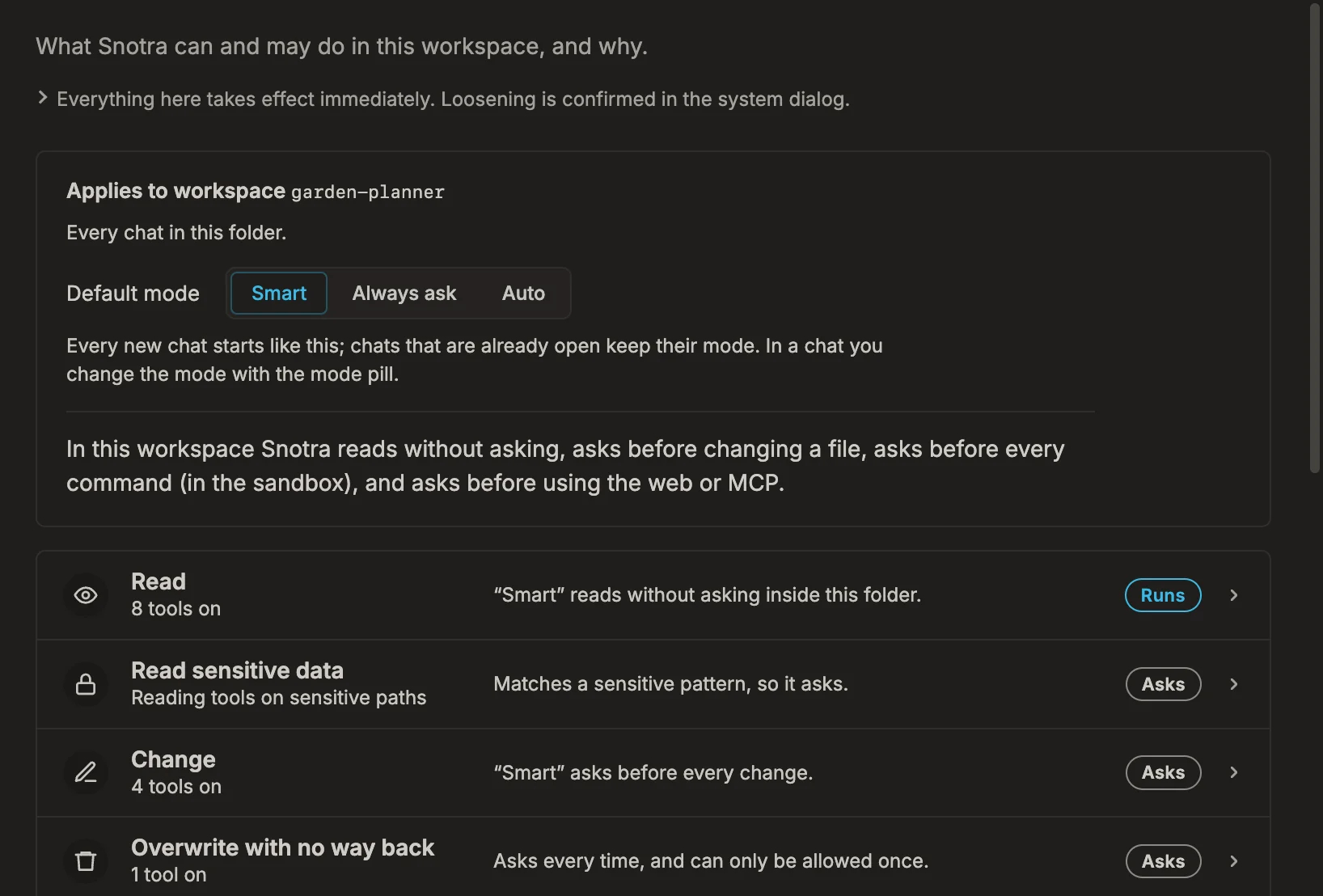
Section titled “What it shows”- At the top, the folder it applies to, its Default mode and one sentence that sums up what Snotra does there. How the default mode works is on Choose a mode.
- Six rows, one per risk class — Read, Read sensitive data, Change, Overwrite with no way back, Execute, External services. Each says how many tools it has, why it behaves as it does, and whether its calls Run, Ask or are Off.
- An opened row answers three questions: May Snotra do this (the tools, each with its switch)? Does it ask first (the mode, your allowances, remembered commands, session allowances)? And where or what exactly (the folders, the sensitive patterns, the sandbox, your blocks, what leaves your computer)?
- At the bottom, the Session allowances still in force and the two ways to reset.
Everything on this page takes effect at once. Anything that loosens protection is confirmed in a dialog of the operating system first.
Switch a tool on or off
Section titled “Switch a tool on or off”Open the row and use the tool’s switch. Two tools are off until you switch them on, both in the row Execute: Allow shell commands and Allow Python execution. Read what they can do first: Run commands in the sandbox.
Block something
Section titled “Block something”- Open the row, for example Change, and click Add a block…. The form opens in place, with the risk class already chosen.
- Choose whether the block applies to This workspace or All workspaces, and whether it covers one tool or the whole risk class.
- Enter a path pattern:
*stays inside one folder,**also crosses subfolders.docs/**covers everything underdocs. - Click Create rule.
A block wins over everything, in every mode, Auto included. Deleting one again is confirmed in a system dialog.
Allow something for good
Section titled “Allow something for good”In the rows Read and Change, Allow for good… opens the same form for an allowance: calls that match it no longer ask in Smart. The operating system asks you to confirm it with Create allowance. Everything else — sensitive files, overwriting with no way back, commands, external services — can only be allowed per call or, where the card offers it, for a session. A single command is remembered from its card instead: see Answer an approval request.
Mark more files as sensitive
Section titled “Mark more files as sensitive”The row Read sensitive data lists the built-in patterns — .env*, *.pem, *.key, id_*, credentials*, secrets*, *.p12, *.pfx, .netrc, .npmrc, .pypirc and the folders .ssh/, .aws/, .gnupg/, .kube/. Under Your own patterns, type a pattern such as personal/** into New sensitive path pattern and click Add. Removing one of your patterns asks in a system dialog, because the files it covers can then reach the model without asking.
Revoke an allowance or reset
Section titled “Revoke an allowance or reset”- Session allowances lists every Allow for this session still in force, grouped by chat, with what it covers and when you gave it. Revoke them one by one or with Revoke all.
- Reset workspace rules deletes the blocks and allowances of the open folder only, switches its sandbox back on and sets its default mode back to Smart.
- Reset all permissions deletes every rule, your own sensitive patterns, every program allowance and session allowance, switches the sandbox back on everywhere and restores Smart, also as the default of every folder. It always asks in a system dialog that lists the protection that goes.
If it doesn’t work
Section titled “If it doesn’t work”- The page says No workspace open. It shows what applies in every folder until you open one. Rules for This workspace need an open folder.
- A row says Off. No tool of that kind is switched on, or a block covers every path.
- The page says the permissions file was damaged or altered. Snotra then runs in Smart, or in Always ask if that was set; allowances are discarded, blocks stay in force. Set up what you need again.