
Use skills
A skill tells the model how to do a particular kind of task: write a meeting protocol, review code by your team’s rules, advise on what to sow. It is a folder with a SKILL.md in the open Agent Skills format — so skills written for other agents work in Snotra too.
What you need
Section titled “What you need”A skill. Snotra ships three; the others come from you or from a project.
Where skills come from
Section titled “Where skills come from”| Source | Folder | On by default |
|---|---|---|
| System skills | built into the app | yes |
| The open folder | .agents/skills/<name>/ | no |
| Your own | ~/.snotra/skills/<name>/ | no |
| Your own, older place | ~/.agents/skills/<name>/ | no |
The three system skills let Snotra answer questions about itself (snotra-capabilities), remember things (snotra-memory) and write skills (snotra-skill-authoring). Folders of other tools, such as .claude/, are not read.
Switch a skill on
Section titled “Switch a skill on”- Open Settings › Skills.
- Tick the skills you want. They are grouped by where they come from.
- Click Apply.
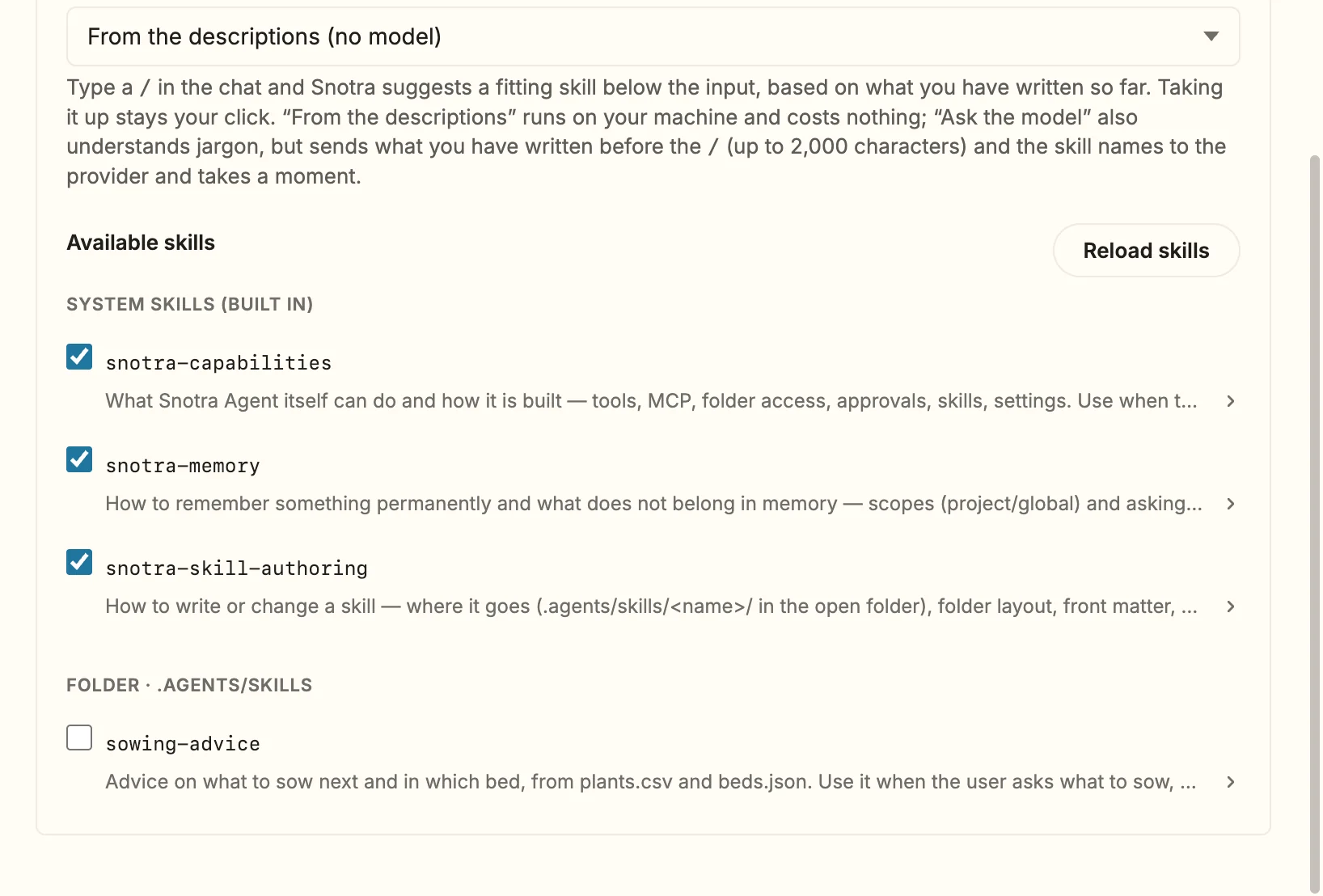
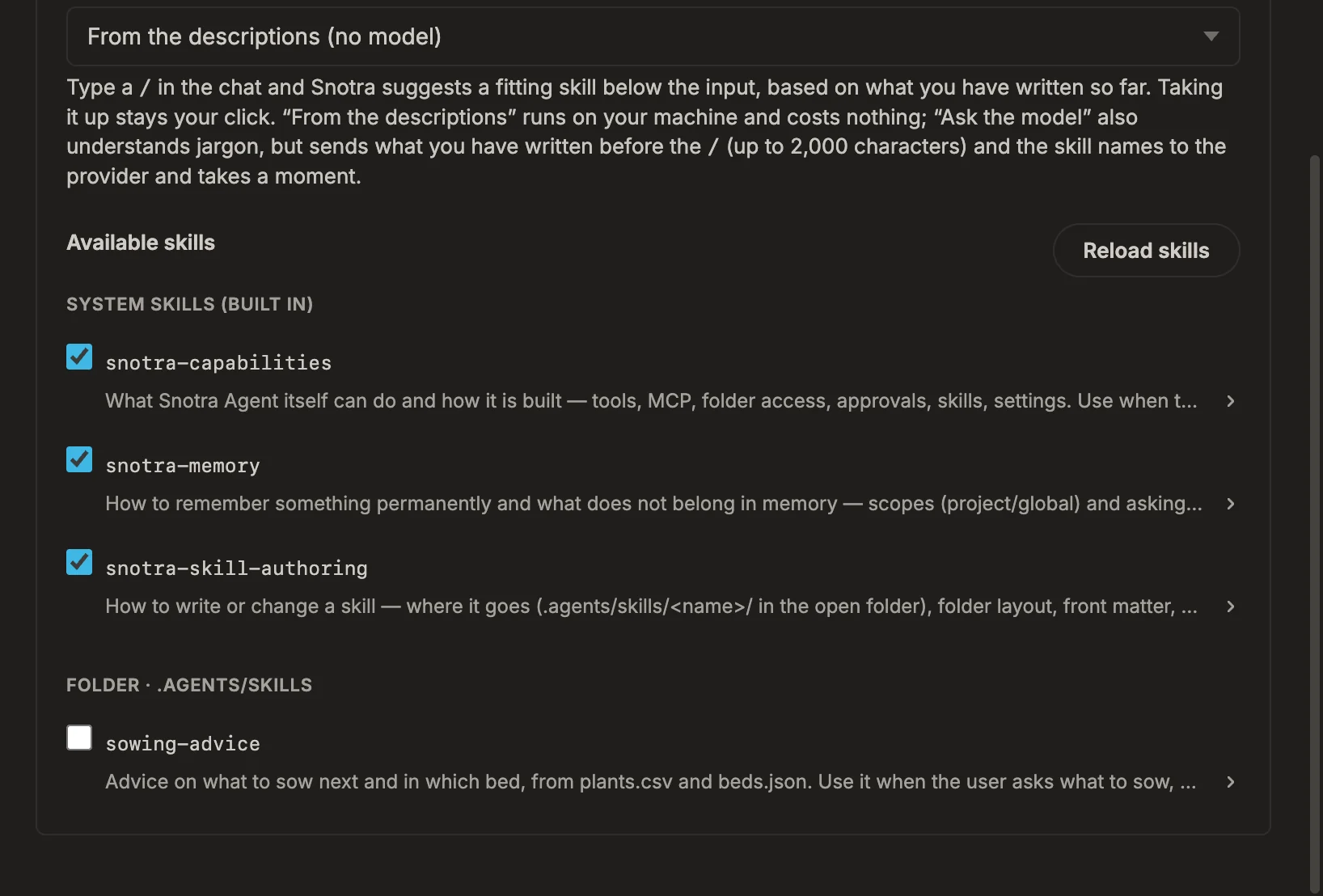
A skill from a folder is never on by itself: it is someone else’s content, so switching it on is your decision — and it applies to that folder only. Ticking a review skill in one project does not switch on a review skill in the next.
Call a skill for one chat
Section titled “Call a skill for one chat”Type / in the input field: a list of every available skill opens, also those that are off. Type to narrow it down — it searches names and descriptions — and take one with Enter or Tab.
The text /name stays in your message and the skill applies for the rest of this chat. Your selection under Settings › Skills stays as it was. Only what you type counts: a /name in an answer or in a file switches nothing on.
Let Snotra suggest a skill
Section titled “Let Snotra suggest a skill”Write your request, then type /. Below the input field Snotra suggests a fitting skill, for example Fits here: /sowing-advice. Click it to take it; × hides it. How it finds one is set under Settings › Skills › Suggestions in the chat:
- From the descriptions (no model) — compares your line with the skill descriptions, on your computer and at no cost. The default.
- Ask the model — also understands jargon, but sends your line and the skill names to the provider and takes a moment.
- No suggestions.
A suggestion is never switched on by itself.
What happens
Section titled “What happens”The model reads a switched-on skill’s instructions when it needs them, together with the files next to its SKILL.md, such as references/ or assets/. Those are read-only: what a skill wants to keep, it writes into .agents/data/ in the open folder, like any other change you approve.
Snotra watches the skill folders, so a new or changed skill shows up in the settings and in the / list by itself. Reload skills is there for the rare case it does not, on a network drive for example.
If it doesn’t work
Section titled “If it doesn’t work”- A skill is greyed out with a reason. Its
SKILL.mdis missing, has no front matter, or itsnamedoes not match its folder. The reason is shown next to it. - A skill is marked Shadowed by …. Another skill of the same name comes first — the folder’s before your own ones. The path says which.
- Your own skill is off in a project. That project has a skill of the same name; it shadows yours there and needs its own tick.