
Run commands in the sandbox
Snotra can run shell commands and Python code: git status, a build, a test run, a script that sorts your data. Both are off until you switch them on. On macOS and Linux every run then happens in a sandbox, which keeps a command inside your project folder.
What you need
Section titled “What you need”- macOS: nothing; the sandbox is built in.
- Linux: the packages
bubblewrap,socatandripgrep. The.debinstalls them; with the AppImage or the tarball runsudo apt install bubblewrap socat ripgrep. - Windows: there is no sandbox yet. Every command and every Python run has your full rights — it can read and write anywhere, reach the network and start programs. Snotra says so on every card, and the card shows you the complete command before it runs.
Switch on commands and Python
Section titled “Switch on commands and Python”- Open Settings › Tools & security and open the row Execute.
- Switch on Allow shell commands, Allow Python execution, or both.
Commands run in your login shell on macOS and Linux (zsh, bash …), with the PATH from your shell profile, and in PowerShell or cmd.exe on Windows. Python is looked for automatically; to use a particular interpreter — a virtual environment with the packages you need, say — set it under Settings › Tool setup.
What the sandbox allows
Section titled “What the sandbox allows”A command or a Python run in the sandbox
- writes only in the project folder and a temporary folder,
- cannot read your keys, cloud credentials, shell histories or browser data,
- reaches the network only for the domains the call names. You approve them on the card; in Auto they are not asked about.
pip installandnpm installget their package registry automatically. Since 1.18 A connection to any other host waits until you allow or deny it.
What it does not do: it does not stop a run from reading your other files, and what it read can reach a domain you allowed. Snotra also blocks recursive forced deletion such as rm -rf, disk operations and rewriting Git history — an extra safeguard, not complete protection, since a script in between gets around any list of patterns.
See whether a run is isolated
Section titled “See whether a run is isolated”On the card. A card for a command carries the badge Isolated or, in amber, Not isolated with the reason and a link to the sandbox setting. It also lists the shell, the working folder and the network access.
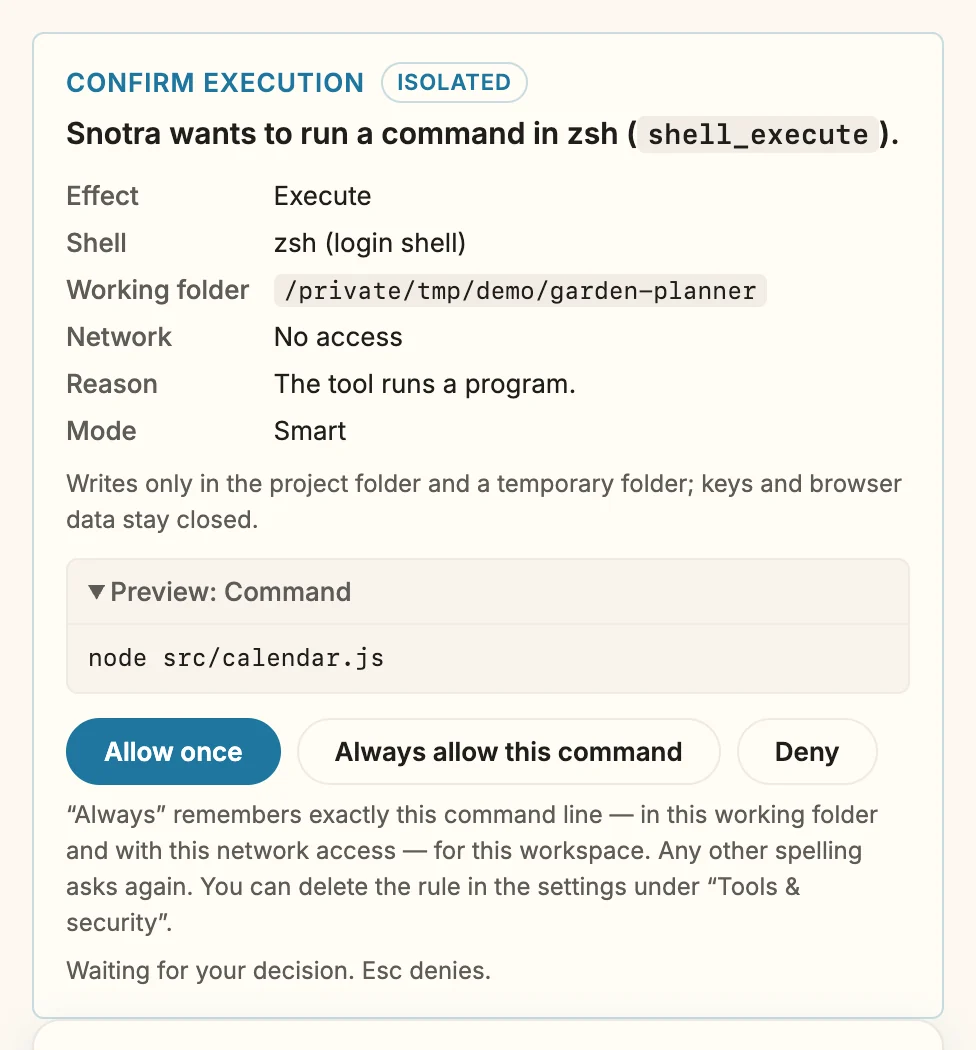
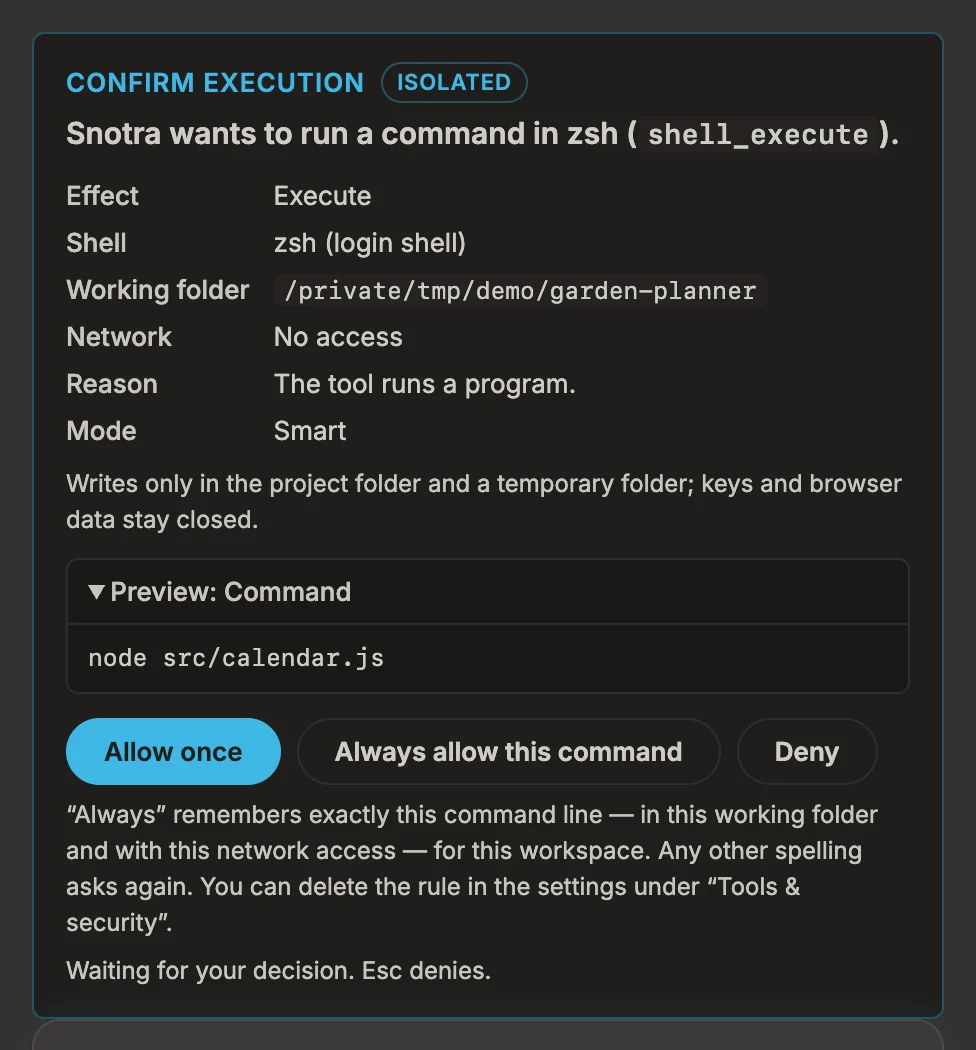
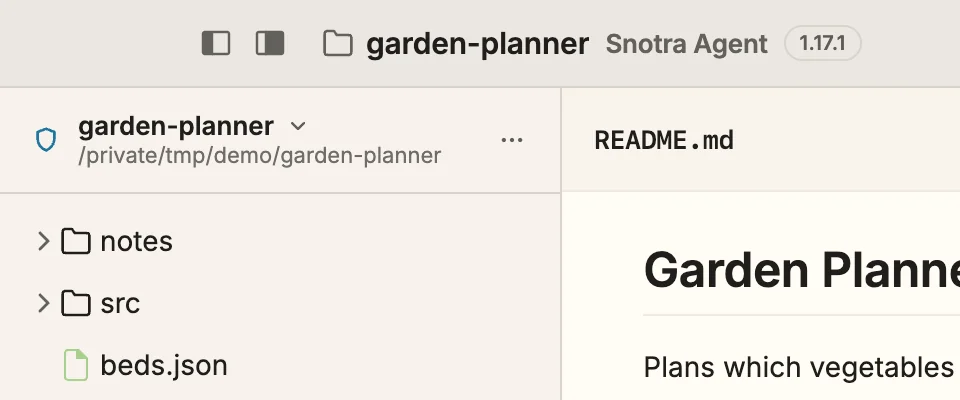
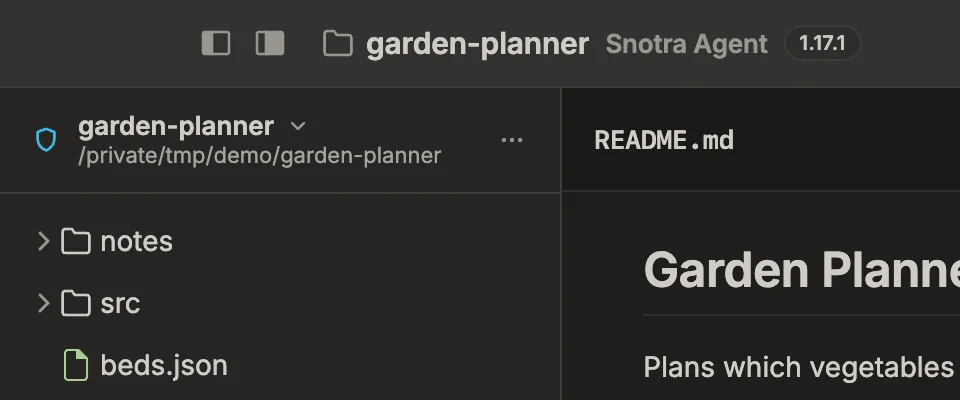
Next to the folder name. While commands or Python are switched on, a shield stands next to the name of the folder at the top of the sidebar: a plain shield while runs in this folder are isolated, a struck-through amber one while they are not. Click it to get to the sandbox setting.
When the sandbox blocks something
Section titled “When the sandbox blocks something”Since 1.18 Sometimes a command needs more than the sandbox allows: a build tool writes its cache under ~/Library/Caches, git fetch reads ~/.ssh/known_hosts, pip wants a host the call did not name. The sandbox refuses it, and Snotra shows you what was refused instead of leaving the model to guess.
What you see. Right under the tool steps of the answer, a box lists what was blocked — a write, a read of a protected location or a connection — with the path or host and why. The raw lines of the sandbox are folded away underneath. The box stays with the chat when you open it again later.
Allow a write or a read. For a write outside the project folder or a read of a protected location, a card appears right after the run — in every mode, Auto included:
- Check what was blocked, how the run went and what the command reported.
- Under Allow writing in, choose exactly what was blocked or the folder one level up — the program’s cache rather than the subfolder of one version.
- Under How long, choose Only this run or For this session.
- Click Allow and run again, or Deny. Esc denies as well.
What happens. Allowed, the command runs a second time, from the start, with exactly that path opened; the sandbox stays on for everything else. Whatever the command already did the first time happens again. The box then says how the second run went. Allowed for this session, later commands and Python runs in the same chat get the path without asking; it is listed under Settings › Tools & security among the session allowances, where you can revoke it, and it ends with the chat, a change of mode or a restart. Denied or not answered, the command does not run again, and the model is told to tell you what was blocked instead of working around it.
Allow a connection. Since 1.18 When a command connects to a host outside the network domains of its call, the connection waits, and a card Sandbox · connection waiting appears while the command is still running — in every mode, Auto included:
- Check the host, how long the connection has been waiting, which hosts are open already and what the command has printed so far.
- Under Allow connections to, choose exactly this host or every host of its domain —
*.pytorch.orginstead ofdownload.pytorch.org:443. A domain that many unrelated sites share, such asamazonaws.comorgithub.io, is offered host by host only. - Under How long, choose Only this run or For this session.
- Click Allow connection, or Deny. Esc denies as well.
What happens then. Allowed, the connection goes through and the command simply carries on; nothing runs twice. Allowed for this session, later commands in the same chat reach the host without asking, listed among the session allowances like a path. Denied, the connection stays closed and the command fails on its own; it is not asked about any further host, and the model is told not to work around it. If the command gives up before you decide — pip does after 15 seconds — the card says Stopped waiting, and a second card after the run offers the host with Allow and run again.
What cannot be allowed. A connection a program makes directly instead of through the sandbox’s proxy — psql, ssh — can only be shown: the sandbox cannot open a single host for it. Snotra’s own storage, your home folder as a whole and the files the sandbox always keeps closed, such as .bashrc or .git/hooks, are never offered.
Switch the sandbox off for one folder
Section titled “Switch the sandbox off for one folder”When the sandbox gets in the way of something legitimate in one project — writing to a sibling repository, a tool that needs the network, an older pip in a virtual environment:
- In Settings › Tools & security, open the row Execute.
- Under Sandbox for this workspace, switch it off.
- The operating system asks: Run without sandbox in this workspace? Confirm with Run without sandbox.
It applies to that one folder only, never to all of them, and it is stored with your permissions, not in the folder. From then on every card in the folder says Not isolated, the model is told so as well, and in Auto the mode pill reads Auto · not isolated. Reset workspace rules switches the sandbox back on.
Give one program more room
Section titled “Give one program more room”Often it is a single program that needs more — a tool whose login has to be refreshed, or gh and terraform on macOS, which cannot reach the network inside the sandbox. Give that program an allowance instead of switching the sandbox off:
- In the row Execute, under Program allowances, click Add program.
- Under Program, enter its name as you type it in the terminal, or its full path. Snotra shows which file it found.
- Add the Domains it may reach, one per line, and under Folders it may also write in any folder it keeps its data in.
- On macOS, tick Check certificates through macOS for programs written in Go, such as
ghandterraform. It weakens the isolation a little; the dialog says how. - Click Save and confirm in the system dialog.
The allowance applies in every folder, but only when a command runs that program on its own — without chaining, pipes or redirection — and only to the very file you chose, not to a file of the same name in a project. The card names the allowance, or says why it does not apply.
If it doesn’t work
Section titled “If it doesn’t work”-
A command fails, and its output does not say why. Look under the tool log of the answer: the box The sandbox blocked … lists what the run tried to reach and was refused — see Follow what Snotra does. A write, a protected read or a connection through the proxy can be allowed on a card; for anything else, a program allowance or, for this one folder, switching the sandbox off gives it the room.
-
There is a box, but no card. What was blocked cannot be allowed on a card: a direct connection, Snotra’s storage or a file the sandbox always keeps closed — or you denied a connection of the same command while it ran. When a program needs it regularly, give it a program allowance, or switch the sandbox off for the folder.
-
The second run is blocked again. The box shows what the second run ran into; a program often needs a second place, such as a config file next to its cache. Allow that one on the next run.
-
Linux: the card says the sandbox needs packages. Install
bubblewrap,socatandripgrepand restart Snotra. -
Linux: the sandbox does not start on this system. Ubuntu 24.04 and later restrict unprivileged user namespaces, which the sandbox needs. Lifting that is a system-wide decision and yours to make:
Terminal window sudo sysctl -w kernel.apparmor_restrict_unprivileged_userns=0It lasts until the next reboot; to keep it, put the same setting into a file under
/etc/sysctl.d/. An AppArmor profile that grants user namespaces tobwrapworks as well. Restart Snotra afterwards. -
macOS:
gh,terraformor another Go program cannot reach the network. Give it a program allowance with Check certificates through macOS. -
Sandbox for this workspace cannot be switched off. That needs the system’s encrypted storage; where there is none, the setting stays on and says why.