
Find your way around the settings
Everything you can set up in Snotra is in one place: the settings. They open over the window and leave your chat where it is.
Open the settings
Section titled “Open the settings”Snotra Agent › Settings… on macOS, View › Settings… on Windows and Linux, or Cmd+, / Ctrl+,. There is deliberately no button in the window for it: a button in a column would be gone whenever you hide that column.
The six sections
Section titled “The six sections”| Section | What it holds |
|---|---|
| Models | The models Snotra offers in the chat, with their access. See Manage your models. |
| Tools & security | What Snotra can and may do in the open folder. See See and change what Snotra may do. |
| Tool setup | The Python interpreter, the web search key, the image model and the MCP servers. See Set up the built-in tools and Connect an MCP server. |
| Skills | The skills the model works with. See Use skills. |
| Memory | What Snotra remembers across chats. See Let Snotra remember. |
| General | Instructions for every chat, the look, the language — see below. |
When a change takes effect
Section titled “When a change takes effect”The line at the bottom of each section says it, because it differs:
- Models and Skills take effect when you click Apply. Close without Apply leaves them as they were.
- Tools & security and Memory take effect at once.
- In Tool setup, a key is saved with its own button and an MCP server at once; the interpreter and the image model wait for Apply.
- In General, switches, the appearance and the language take effect at once; the text fields wait for Apply.
The section General
Section titled “The section General”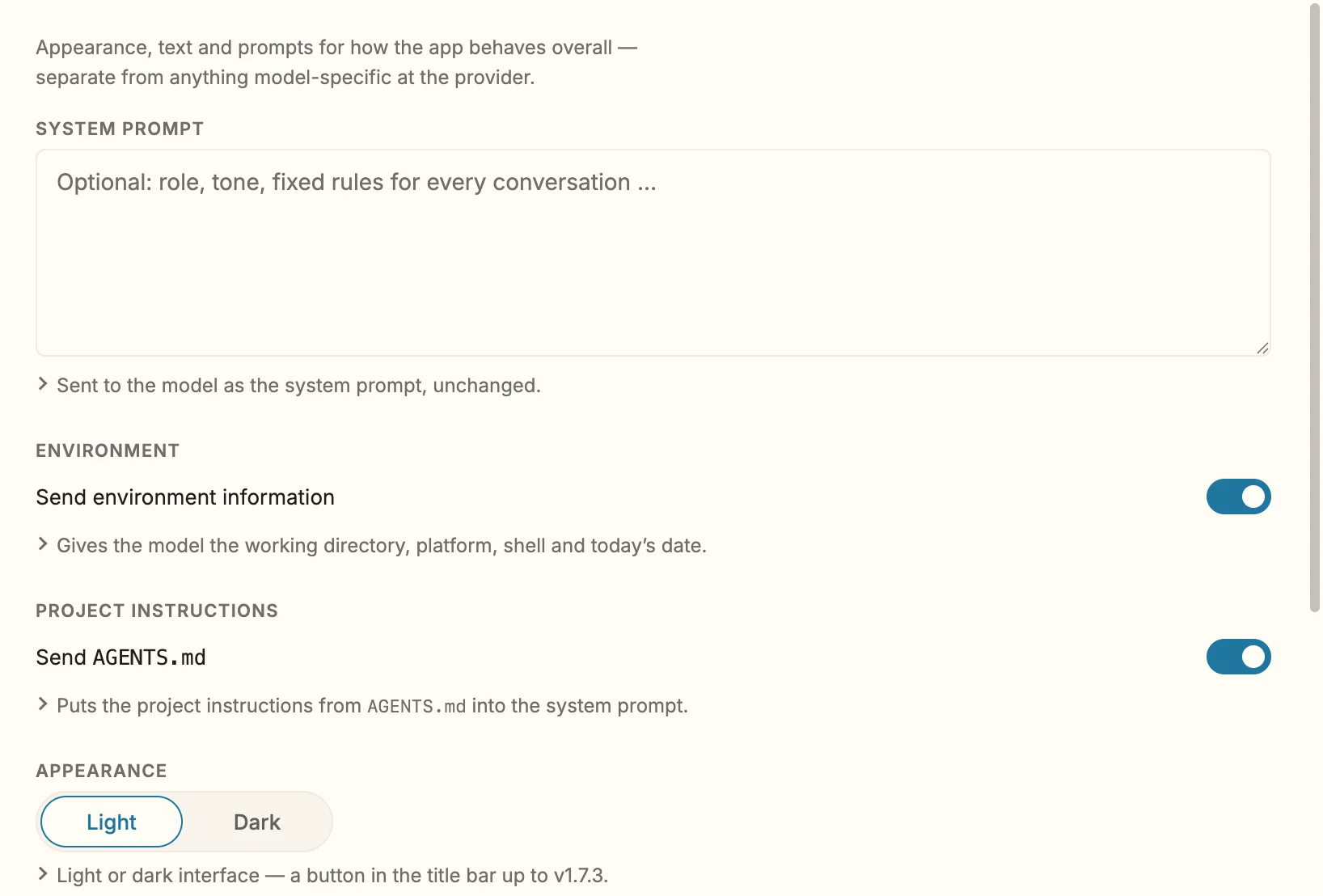
- System prompt — your own instructions for every conversation: a role, a tone, fixed rules. Sent to the model unchanged. Empty by default; Snotra sets none of its own here.
- Send environment information — tells the model the full path of the open folder (which contains your user name), whether it is a Git repository, your platform, the shell and today’s date. Without it the model guesses the platform for commands and dates “last week” by when it was trained. On by default.
- Send AGENTS.md — the project instructions; see Give a project its instructions. On by default.
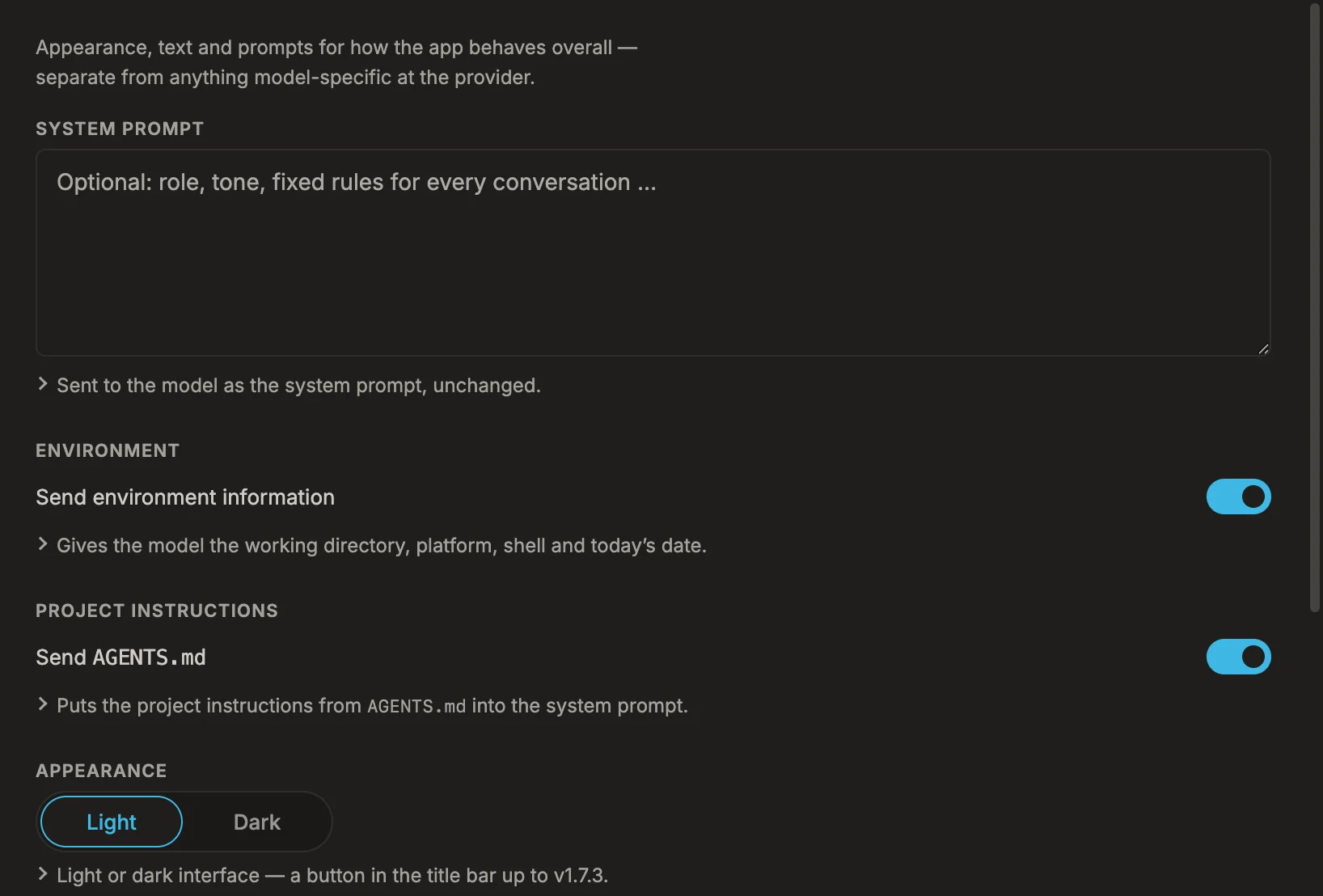
- Appearance — light or dark. This choice stays on this computer.
- Interface language — English or German, switching at once. It covers the window and the menu bar; what goes to the model stays English.
- Notify me when Snotra waits for my approval — Since 1.18 a system notification when an approval card waits while Snotra is in the background or the card is in another chat. It names the chat and what waits; a click brings Snotra up with that chat. On by default.
- Max. tool rounds — how often the model may call tools in a row before the chat stops. A guard against endless loops; 14 by default, at most 500.
Where settings are kept
Section titled “Where settings are kept”In your profile folder, outside the app and outside your projects: ~/Library/Application Support/Snotra AI on macOS, %APPDATA%\Snotra AI on Windows, ~/.config/Snotra AI on Linux. Keys are stored there encrypted. You do not need to touch the files; everything is set in the app.
If it doesn’t work
Section titled “If it doesn’t work”- A change has no effect. In Models, Skills and the text fields of General, click Apply.
- Settings could not be loaded. Close the settings and open them again. If it stays, the message names the file that could not be read.
- No notification appears. Check the switch above, and the system’s own notification settings for Snotra Agent (on macOS System Settings › Notifications). The chat’s row in the history says Needs your approval either way.