
Continue an earlier chat
Snotra keeps your chats. You can start a new one at any time, go back to an earlier one and continue where you left off.
What you need
Section titled “What you need”Nothing; every chat you send a message in is saved.
Show the history
Section titled “Show the history”Click the rightmost button in the title bar, Show chat history. The history appears as a column next to the chat, newest chat first. Click the button again to hide it.
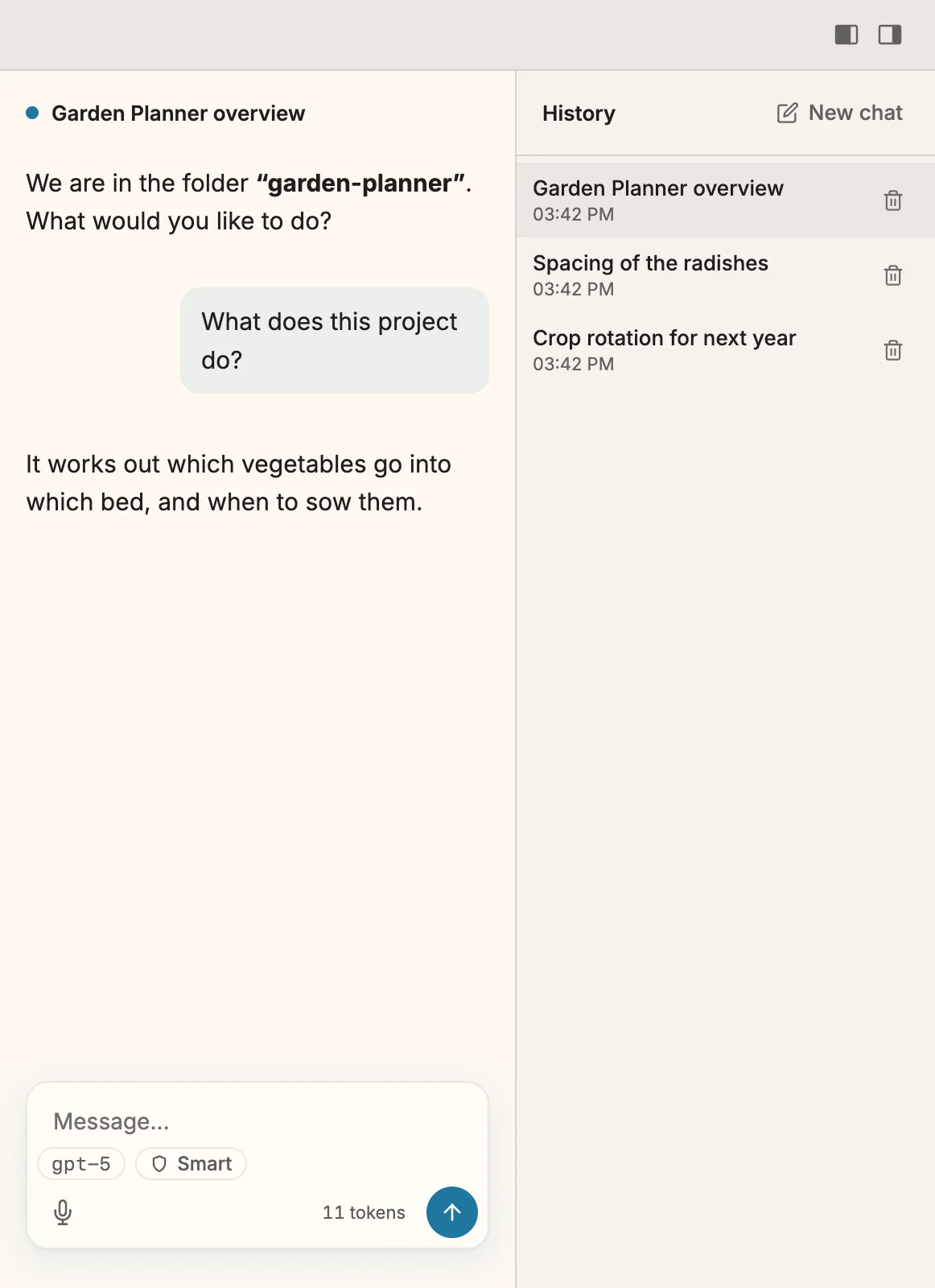
- Start a new chat: New chat at the top of the history, File › New Chat, or
Cmd+N/Ctrl+N. - Go back to a chat: click it in the history. It comes back with its messages, its model, its reasoning level and its mode.
- Delete a chat: click the bin next to it and confirm Delete this chat? with Delete. Images you attached to it go with it.
What happens
Section titled “What happens”- A chat works on in the background. Switch to another chat while Snotra is still answering, and the answer carries on. The history marks that chat Working…, or Needs your approval when a card waits for you there; Since 1.18 a system notification says so as well.
- Snotra picks up where you left off. At the next start it opens the folder’s most recent chat.
- A new chat starts fresh: without the earlier conversation, without marks in the tree, in the folder’s default mode.
The history is stored encrypted in your profile, not in the project folder.
If it doesn’t work
Section titled “If it doesn’t work”- The history column is missing. The window is too narrow for all columns; the history gives way and comes back in a wider window. Hide the sidebar or the middle column to make room.
- An image in an answer of an older chat shows a placeholder. The image lies in another folder than the one open now, or the file is gone. In answers, Snotra shows images only from the open folder.