
Open a folder
Snotra always works in one folder: a code project, a set of documents, a collection of notes. It reads and writes inside that folder, and the file tree on the left shows it all the time.
What you need
Section titled “What you need”A folder on your computer that you want to work on. Any folder will do; one with a README.md makes for a good first conversation.
- Click Open folder on the welcome page.
- Choose the folder in the dialog and confirm.
A folder you opened before is listed under recently opened on the welcome page; click it to open it again.
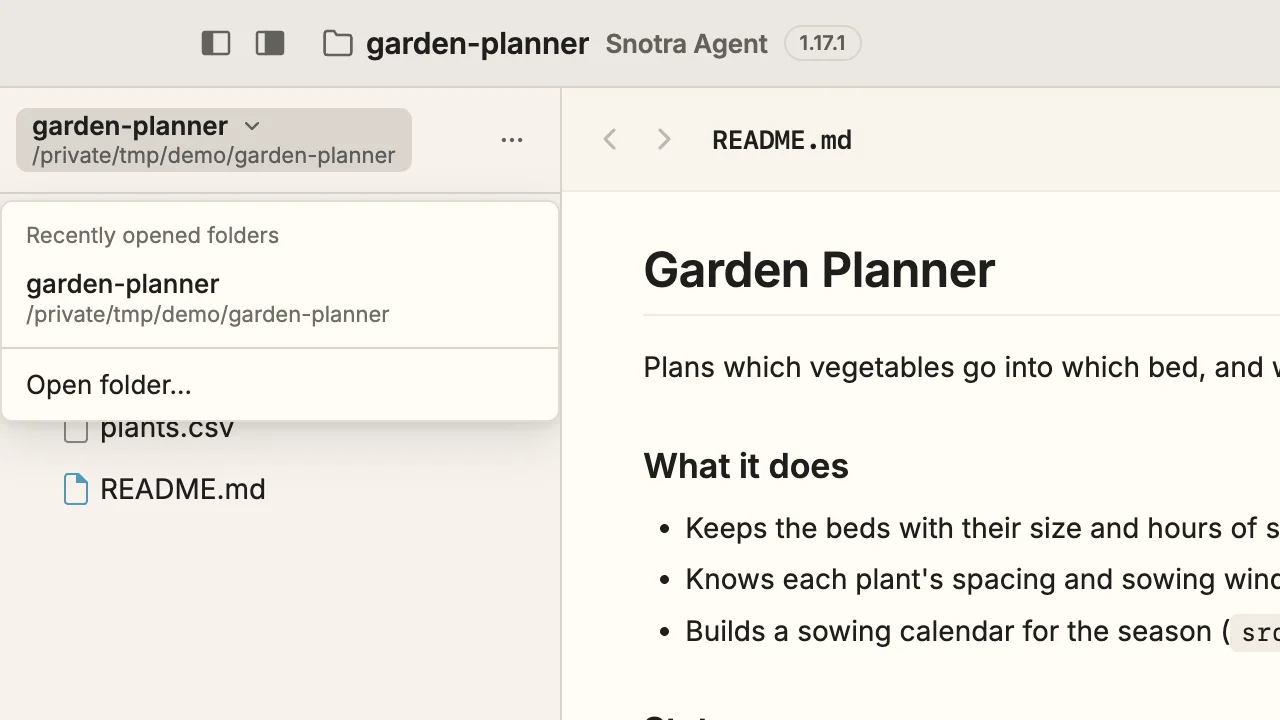
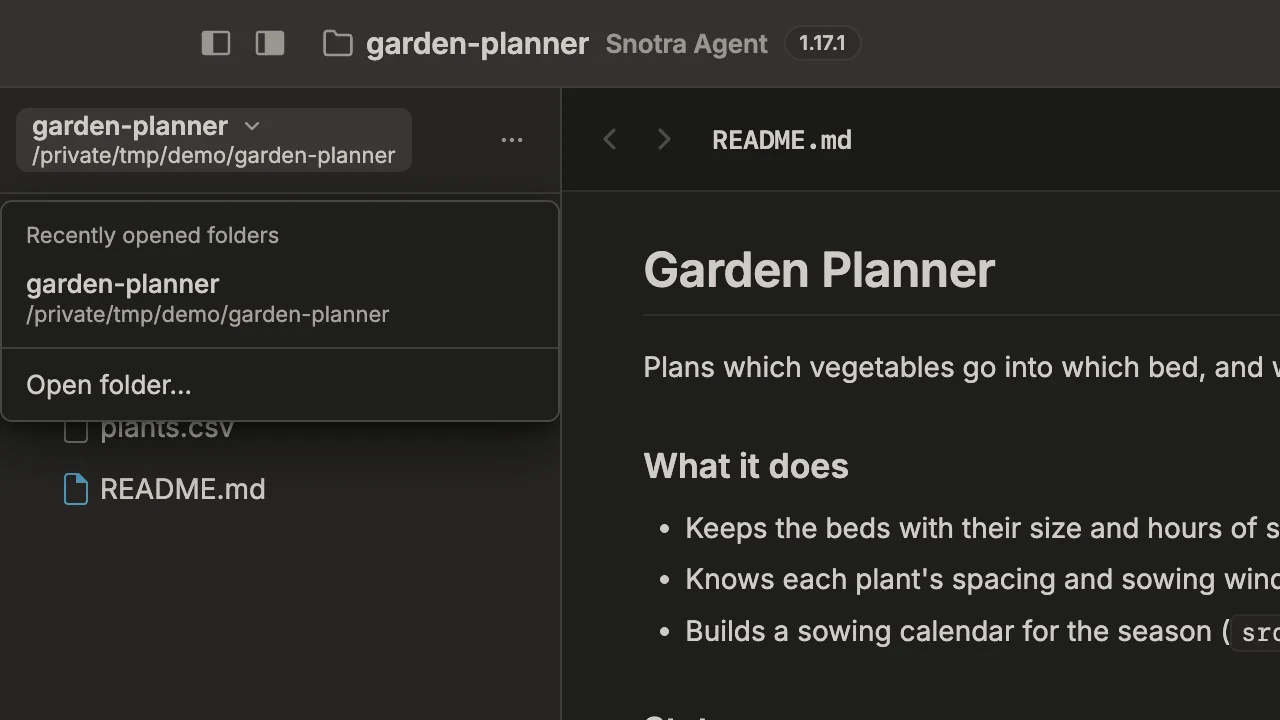
To switch later, click the name of the folder at the top of the sidebar. The menu lists the folders you opened recently; pick one, or choose Open folder… for a new one.
What happens
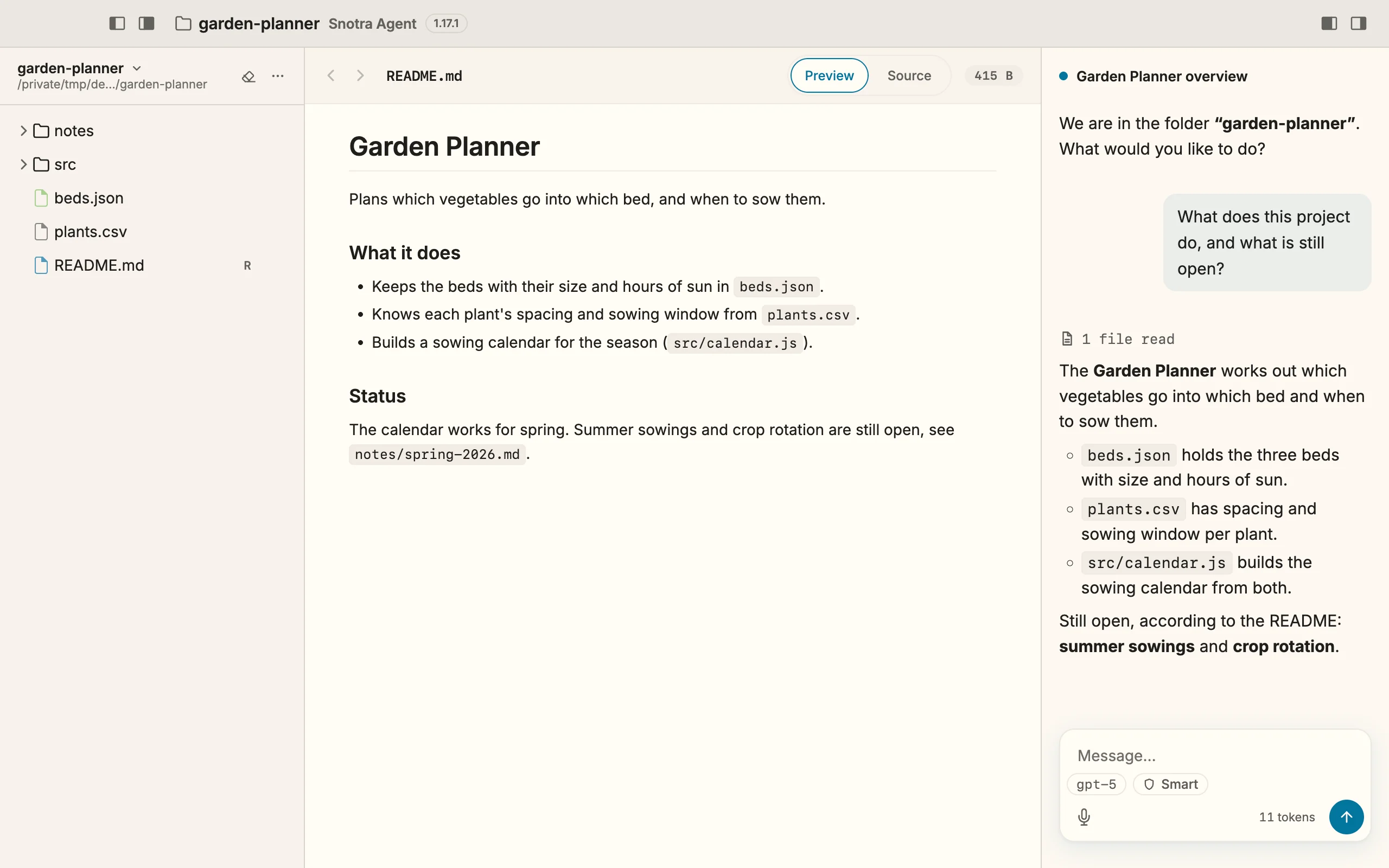
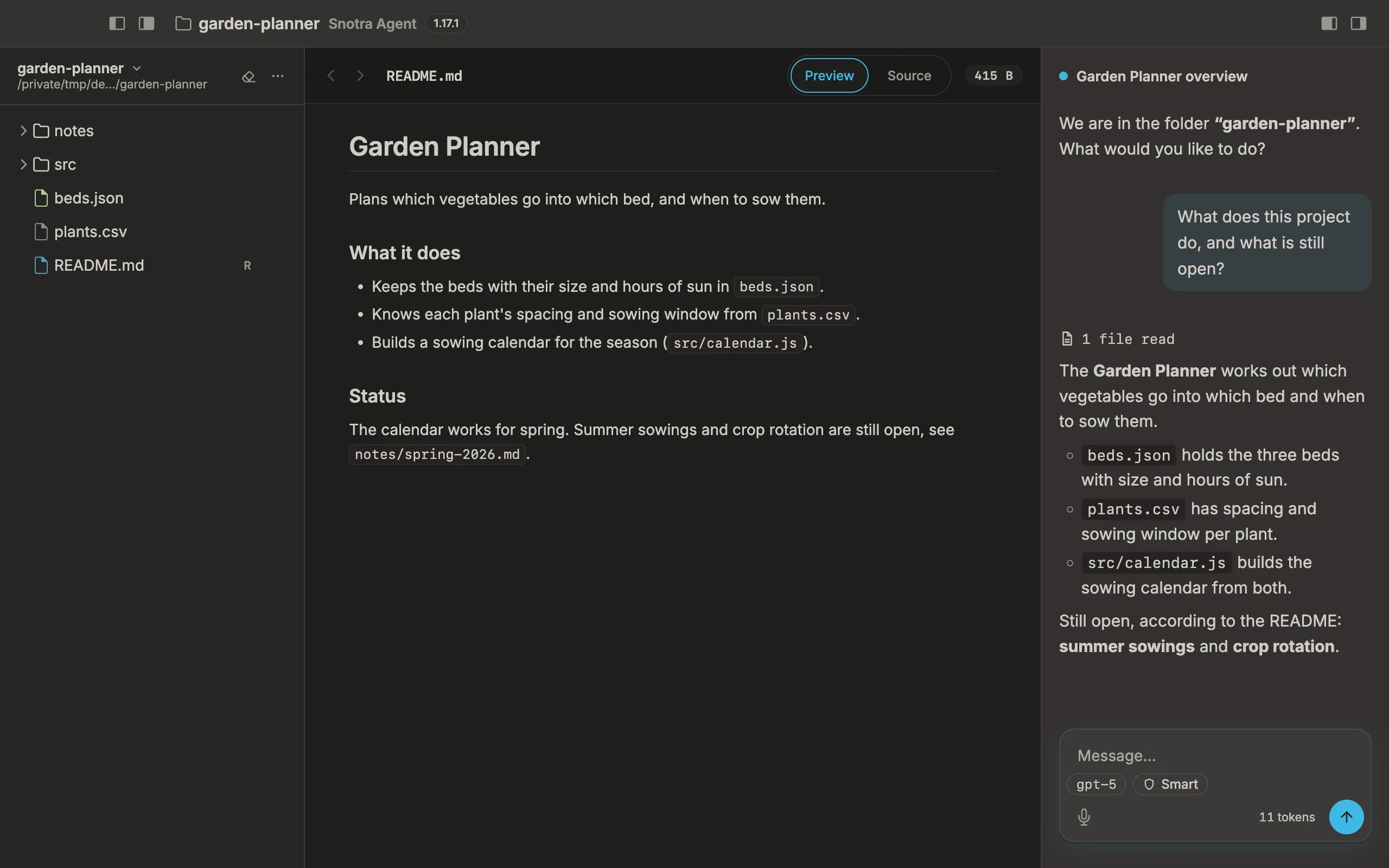
Section titled “What happens”- The file tree of the folder appears on the left — a hidden sidebar comes back for it. Hidden files, such as
.gitignore, stay out of sight until you show them withCmd+Shift+./Ctrl+Shift+.. - If the folder has a
README.md, it opens in the middle column. Otherwise the middle column stays closed and the chat gets the room — see Find your way around the window. - The chat on the right greets you with the name of the folder. From now on it works inside this folder.
- Snotra remembers the folder and opens it again on the next start.
Start the first chat
Section titled “Start the first chat”Type a question into the input field and press Enter; Shift+Enter starts a new line. What is in this folder? is a good first question.
While the welcome page is in the middle, its quick-start suggestions are another way in: Explain the repo structure, Start a code review, Suggest tests and Summarise the docs each write a prompt into the chat and send it, as soon as a folder is open and a model is connected.
To answer, Snotra reads files in the folder by itself. Before it changes, creates or deletes anything there, it asks you first. That is the default mode, Smart, shown in the pill below the input field; Choose a mode explains the others.
If it doesn’t work
Section titled “If it doesn’t work”- The file tree stays empty. The folder is empty, or holds only hidden files. Show them with
Cmd+Shift+./Ctrl+Shift+.. - The send button stays disabled. No model is connected yet: see Connect a model.
- The menu lists a folder you no longer need. Move to it with the arrow keys and press
DeleteorBackspaceto remove it from the list. The folder itself stays untouched.