
See what Snotra changed
Before Snotra changes a file it asks you, and the card shows the change. Afterwards, you can look at every change again — in the chat, in the file tree and side by side with the file.
What you need
Section titled “What you need”A chat in which Snotra changed files.
-
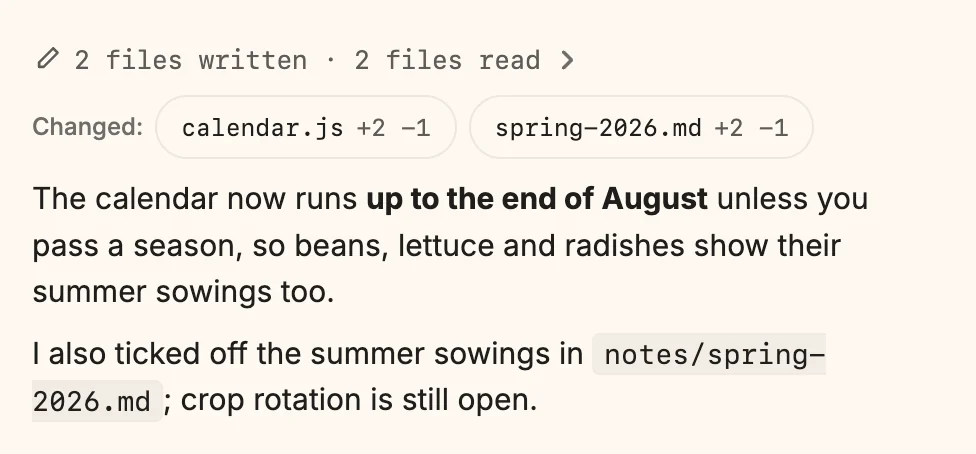
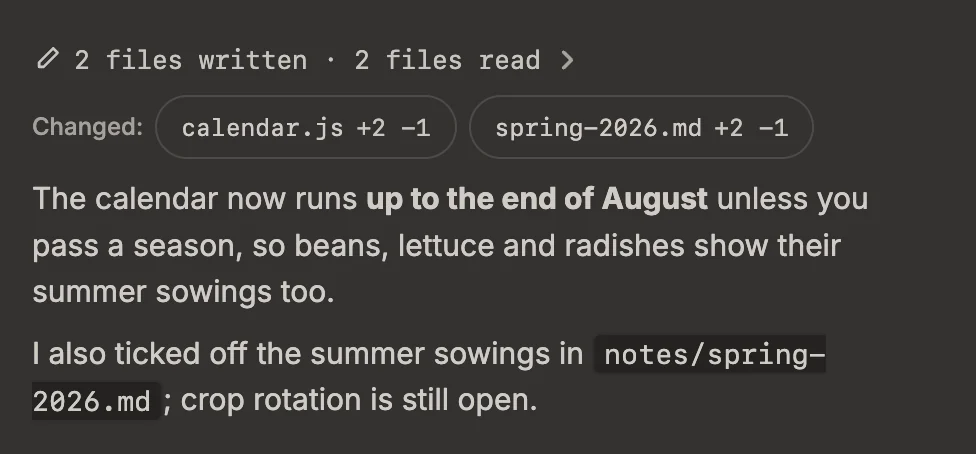
Under the answer, the line Changed: lists every file Snotra changed in it, each with its count of added and removed lines.
-
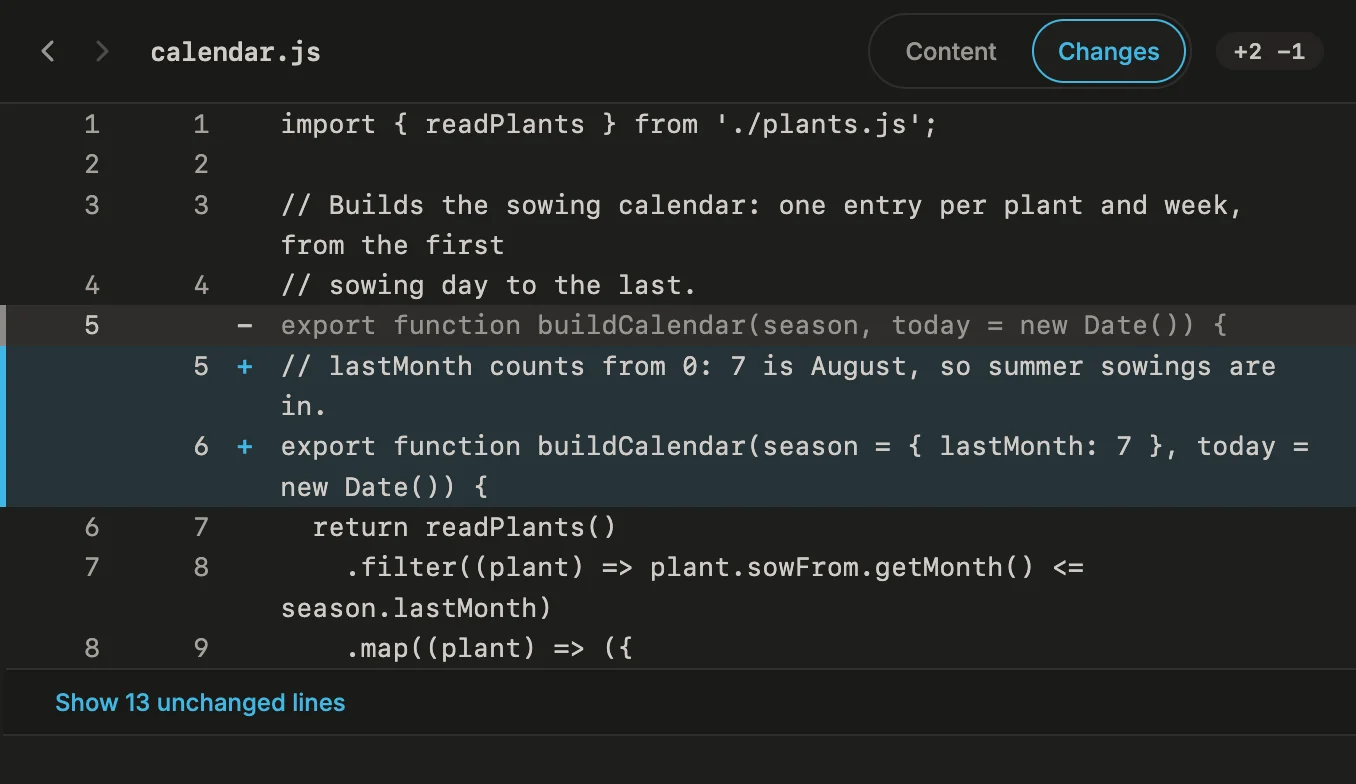
Click a file. The change opens in the middle column: removed lines with
−, added lines with+, three unchanged lines around each change. Show … unchanged lines unfolds the rest.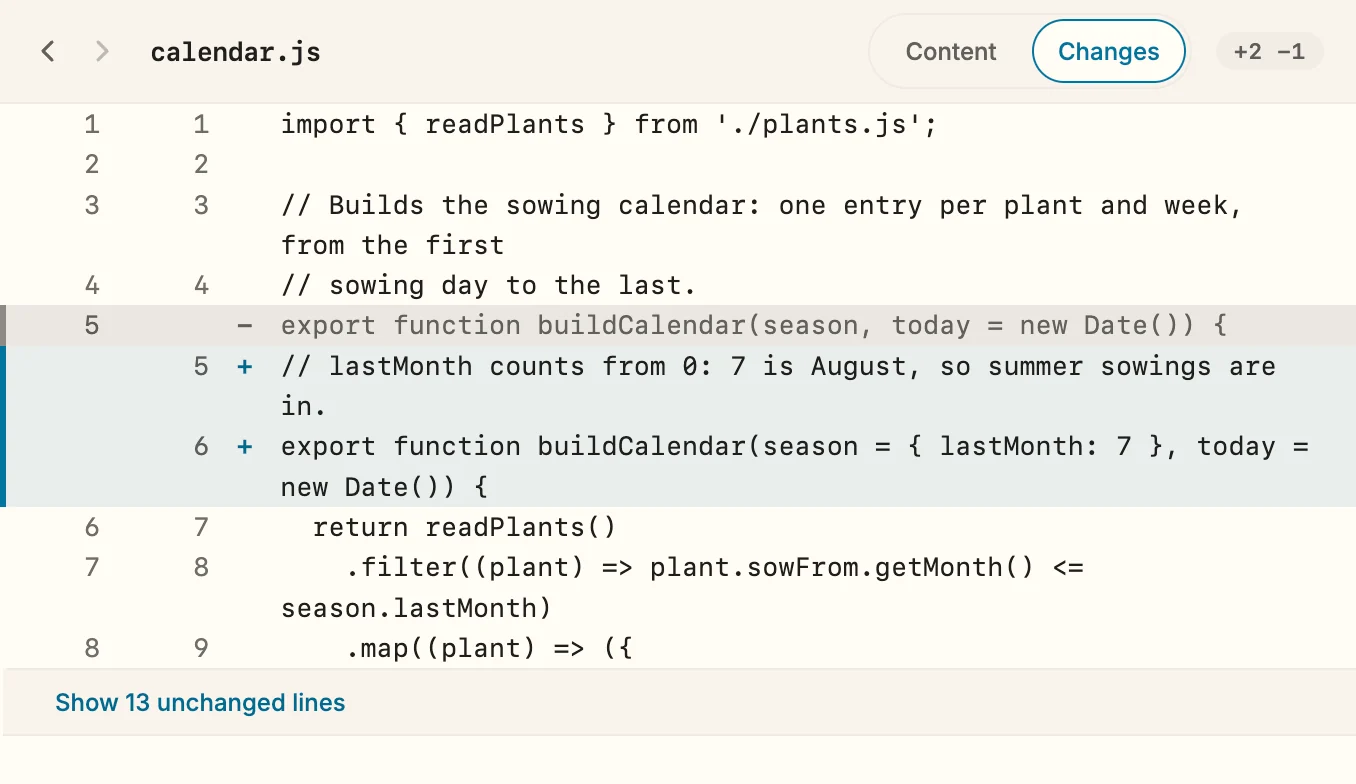
-
Content | Changes in the header switches between the file as it is and its change. When the chat changed the file several times, the header also lets you pick a single change.
From the file tree
Section titled “From the file tree”While Snotra works, the tree marks the files it touched, at the right edge of the row:
- A filled M marks a file Snotra changed that you have not looked at yet. Once you open it, only the outline of the M stays — until Snotra changes the file again.
- A grey R marks a file Snotra only read.
- A closed folder carries the mark of what lies inside it, so a change deep down is not hidden.
Right-click a marked file and choose Show changes to see everything this chat changed in it. The marks belong to the chat: another chat shows its own, a new chat starts without any. Remove mark in the same menu clears one; the eraser at the top of the tree clears them all.
What happens
Section titled “What happens”The change view always shows what Snotra wrote. If the file changed again since — because you edited it, or another program did — the view says so above the change.
If it doesn’t work
Section titled “If it doesn’t work”- Changes are no longer available (app restarted). Snotra keeps the changes in memory only, never on disk. After a restart the line under the answer stays, but the changes themselves are gone.
- The change view shows a sentence instead of lines. That is the case for a new file, a file in which every line changed, one where only the line endings changed, a binary file such as an image, and a very large file. The sentence says which.