
Work in the file tree
The file tree on the left shows the open folder as it is on disk. It follows changes as they happen — a file Snotra or another program writes appears right away.
What you need
Section titled “What you need”An open folder — see Open a folder.
Open a file
Section titled “Open a file”Click a file to show it in the middle column; click a folder to open or close it. Everything that can be shown — text, code, Markdown, images, PDFs, HTML pages — opens in the preview: Look at a file.
Show hidden files
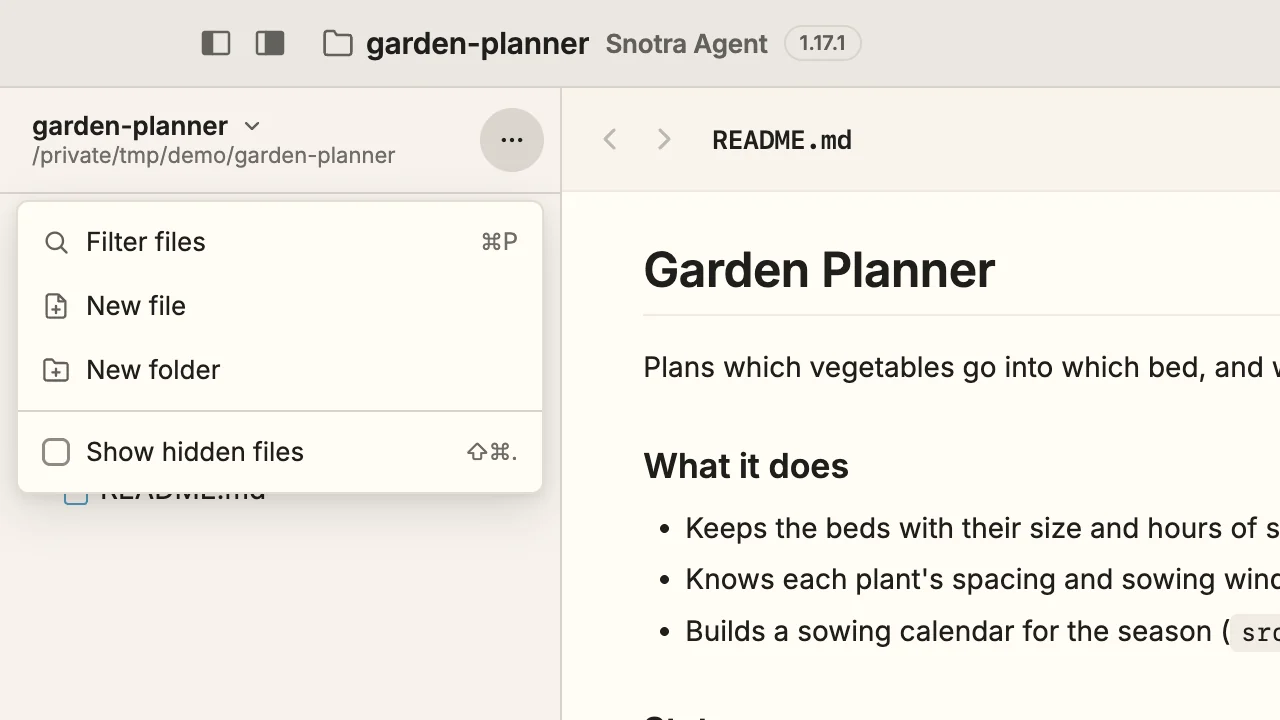
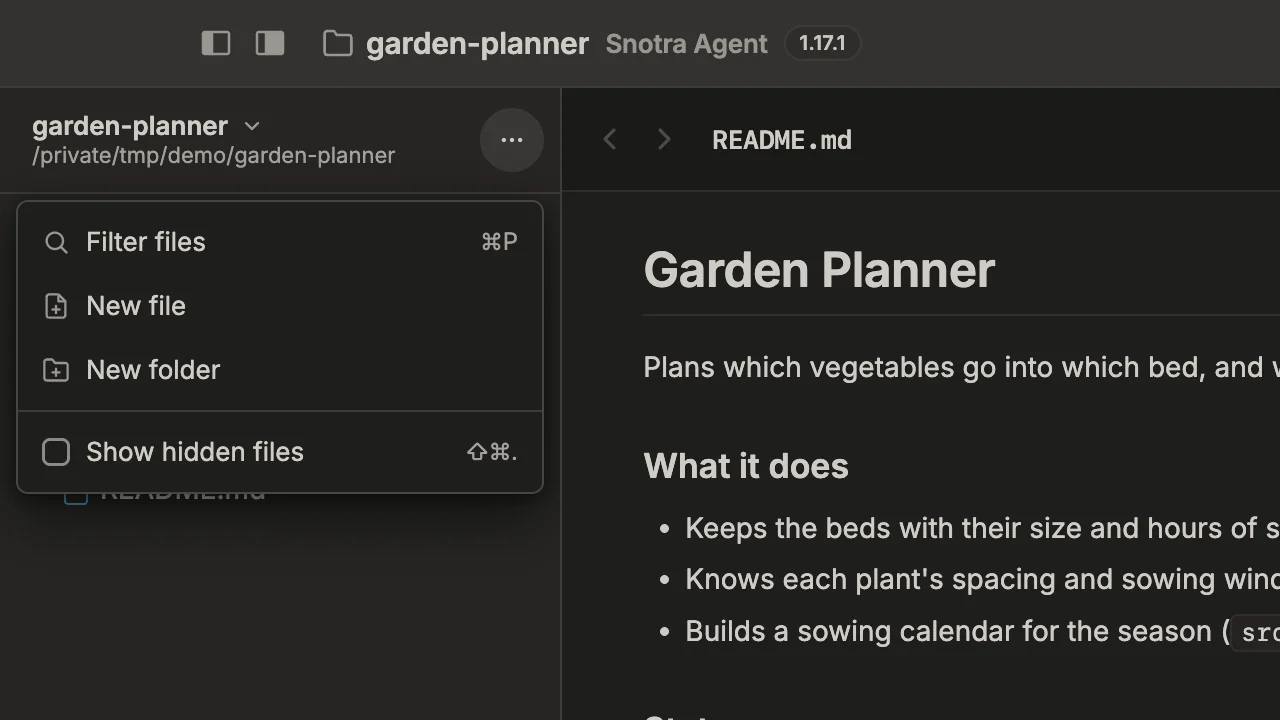
Section titled “Show hidden files”Files and folders whose name starts with a dot — .github, .gitignore, .env — are hidden at first. Show them with Show hidden files in the ⋯ menu at the top of the tree, with Cmd+Shift+. / Ctrl+Shift+., or with View › Show Hidden Files. They appear dimmed in their usual place. The setting applies to every folder and stays set after a restart. .git, .DS_Store, Thumbs.db and desktop.ini stay out either way.
The context menu
Section titled “The context menu”Right-click a row — or Cmd-click / Ctrl-click it, or press Shift+F10 on a focused row — for what you can do with it:
- Open opens the file in the app your system uses for it. For a program or a script —
setup.bat, an.app, a file marked executable — opening means running it, with your rights and outside Snotra’s sandbox, so Snotra asks first, with Cancel preselected. - Reveal in Finder (Show in Explorer on Windows, Show in file manager on Linux).
- Information opens a small window about the entry: the name with its type and size at the top, the full path below it, then the dates and the app Open would use. The button next to the path copies it to the clipboard; Reveal in Finder at the bottom shows the entry in its folder. For a folder it counts the entries directly inside it.
Escor OK closes the window. Since 1.19 - New File…, New Folder… and Rename… — see Create, rename, move and delete.
- Delete… moves the file or folder to the trash, after you confirm it.
- Show changes and Remove mark for files Snotra changed — see below.
Use the keyboard
Section titled “Use the keyboard”The tree works without a mouse. Click into it, or move there with Tab, then:
| Keys | What they do |
|---|---|
↑ ↓ | Move from row to row |
→ | Open a folder; on an open one, move to its first entry |
← | Close a folder; on anything else, move to the folder it is in |
Home End | First or last row |
Enter | Open the file, or open or close the folder |
F2 | Rename the row |
Shift+Enter | Insert the row as @path into the chat input |
Shift+F10 | Open the context menu |
| A letter | Start the filter with it — see Find a file |
The marks Snotra leaves
Section titled “The marks Snotra leaves”While Snotra works in a chat, the tree marks what it touched, at the right edge of the row: a filled M for a file it changed that you have not looked at yet, its outline once you have, and a grey R for a file it only read. A closed folder carries the mark of what lies inside. Hover over a mark to have it said in words. The marks belong to the chat; the eraser at the top of the tree clears them. What they lead to is on See what Snotra changed.
If it doesn’t work
Section titled “If it doesn’t work”- A folder ends with a line saying how many entries are not shown. The tree lists at most 2,000 entries per folder. Use the filter to reach the others.
- A file does not open in its app. No app on your system is set up for this type; the message says so.