
Answer an approval request
When a tool call needs your approval, Snotra pauses and shows a card in the chat. The run waits until you decide; there is no time limit, and no button is preselected. Since 1.18 If you are in another app or another chat when the card appears, a system notification says so, and a click on it opens the chat — the switch is under Settings › General.
What you need
Section titled “What you need”A chat in Smart or Always ask and a request from the model that needs approval, for example a change to a file. Which calls ask is explained in Why Snotra asks before it acts.
What the card shows
Section titled “What the card shows”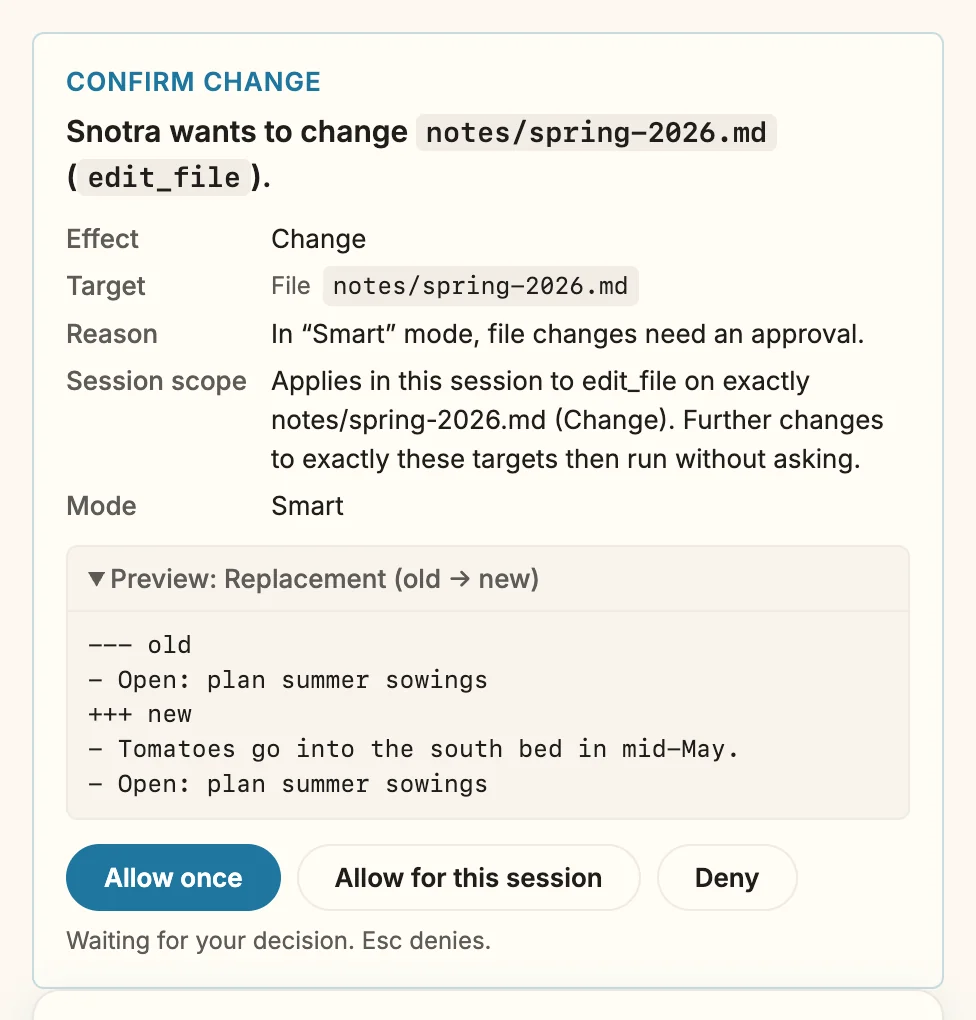
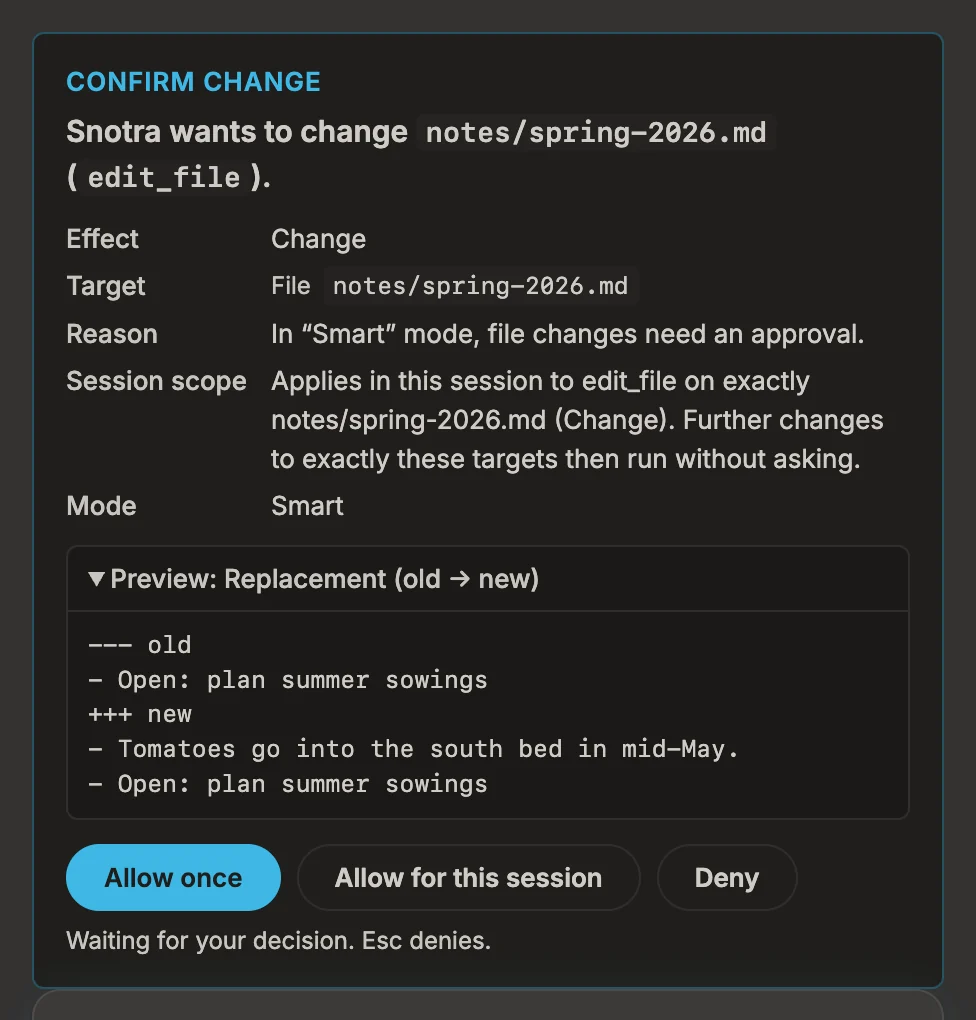
- The title names the kind of request: Confirm change, Confirm execution, Confirm file access or Confirm external access.
- The headline says what Snotra wants to do, on which target, with which tool.
- The details list the effect, every target, the reason it asks and the mode. For a sensitive file the card names the provider the content would go to. For a command it adds the shell, the working folder, the network access and whether the run is isolated — see Run commands in the sandbox.
- The preview shows exactly what would happen: the new content, the replacement from old to new, the patch, the Python source or the full command. Characters you cannot see, such as direction marks, are shown as
⟨U+202E⟩where they sit, with a warning.
Read the card, then choose one of its buttons:
- Allow once runs this one call.
- Allow for this session runs it, and lets the same tool on exactly the same targets run without asking for the rest of this chat. The card’s Session scope line says what that covers. It ends when you leave the chat, change its mode or a rule, or restart Snotra.
- Always allow this command appears instead on a card for a shell command. It remembers exactly this command line, in this working folder and with this network access, for the open folder. The operating system asks you to confirm it once. Any other spelling of the command asks again.
- Deny — or
Esc— refuses the call. The model is told that you said no and can answer without it.
What happens
Section titled “What happens”The tool line in the chat shows how it ended, for example denied or blocked, also later in the chat history. An allowance for the session shows up under Settings › Tools & security at the bottom of the page, where you can revoke it; a remembered command is listed in the row Execute. See See and change what Snotra may do.
A file outside the open folder
Section titled “A file outside the open folder”Since 1.18 When a file tool wants to read or write a file or folder outside the open folder — a note in ~/notes, a data set in /opt/data — a card Outside the project · approval needed appears before the call, in every mode, Auto included. It stands in for the card above: one card, with the preview when something would be written.
- Check the tool, the target and, for a change, the preview.
- Under Allow for, choose exactly this file or folder, or the folder around it. A folder many programs share, such as
~/Documents, is offered as the exact file only. - Under How long, choose Only this call or For this session.
- Click Allow — Allow and write for a change — or Deny. Esc denies as well.
Allowed, the call runs with exactly that opened; everything else outside stays closed. Allowed for this session, later calls in the same chat reach it without this card, and the mode decides about them as inside the open folder; the allowance is listed under Settings › Tools & security with the session allowances. Denied, the call does not run, and the model is told not to work around it; the same call again ends the run. The box under the tool steps keeps what you decided.
Never offered: your home folder as a whole, the root of a disk, Snotra’s own storage, the global skill folders, and for writing places with credentials such as ~/.ssh and shell start-up files such as .zshrc. A file in a place with credentials can be read; the card marks it sensitive and names the provider its content would go to.
If it doesn’t work
Section titled “If it doesn’t work”- Allow for this session is missing. It only exists for reading, reading sensitive data and ordinary changes, and not in Always ask. Overwriting with no way back, commands and external services can only be allowed one call at a time.
- Always allow this command is not available. The line below the buttons says why: only a simple command can be remembered — one program with plain arguments, without chaining, pipes, redirection, variables or quotes. It also needs an open folder and the system’s encrypted storage.
- The card says Request expired. The chat, the folder, the mode or a rule changed while the card was open. The run ends; ask again if you still want it.
- A path outside the open folder is refused without a card. It is one that is never offered — the home folder as a whole, a disk’s root, Snotra’s storage, or for writing a place with credentials. Name a folder inside it, or open that folder in Snotra.