
Keychain questions and encrypted storage
Snotra keeps your API keys, your chat history and your permanent permissions encrypted. The key for that encryption belongs to your system: the keychain on macOS, your Windows account, the keyring of your Linux desktop. When the system asks about it, or does not offer it, this page tells you what is going on.
What you need
Section titled “What you need”Nothing beyond the app. On Linux, a desktop with a keyring — GNOME Keyring or KWallet — which most desktops bring along.
macOS asks for the keychain
Section titled “macOS asks for the keychain”macOS may ask whether Snotra Agent may use the keychain item Snotra AI Safe Storage. The item carries the name of the platform, Snotra AI; it holds the key that encrypts your API keys and your chats. macOS asks when it does not recognise the app yet — after an update that changed the app’s signature, after installing it anew, or after you moved it.
- Enter the password you use to log in to your Mac.
- Choose Always Allow.
Allow alone works for this start only, and macOS asks again the next time. Deny leaves Snotra without its key; see below what that looks like and how to undo it.
What happens
Section titled “What happens”With the key, Snotra reads what it stored before: the models keep their keys, the history shows your chats, the permissions stay as they were. Nothing has to be entered again.
When encrypted storage is not available
Section titled “When encrypted storage is not available”If the system offers no encrypted storage — a Linux desktop without a keyring, or a Deny on macOS — Snotra does not fall back to storing keys in plain text. It says so instead, in red at the top of Settings › Models:
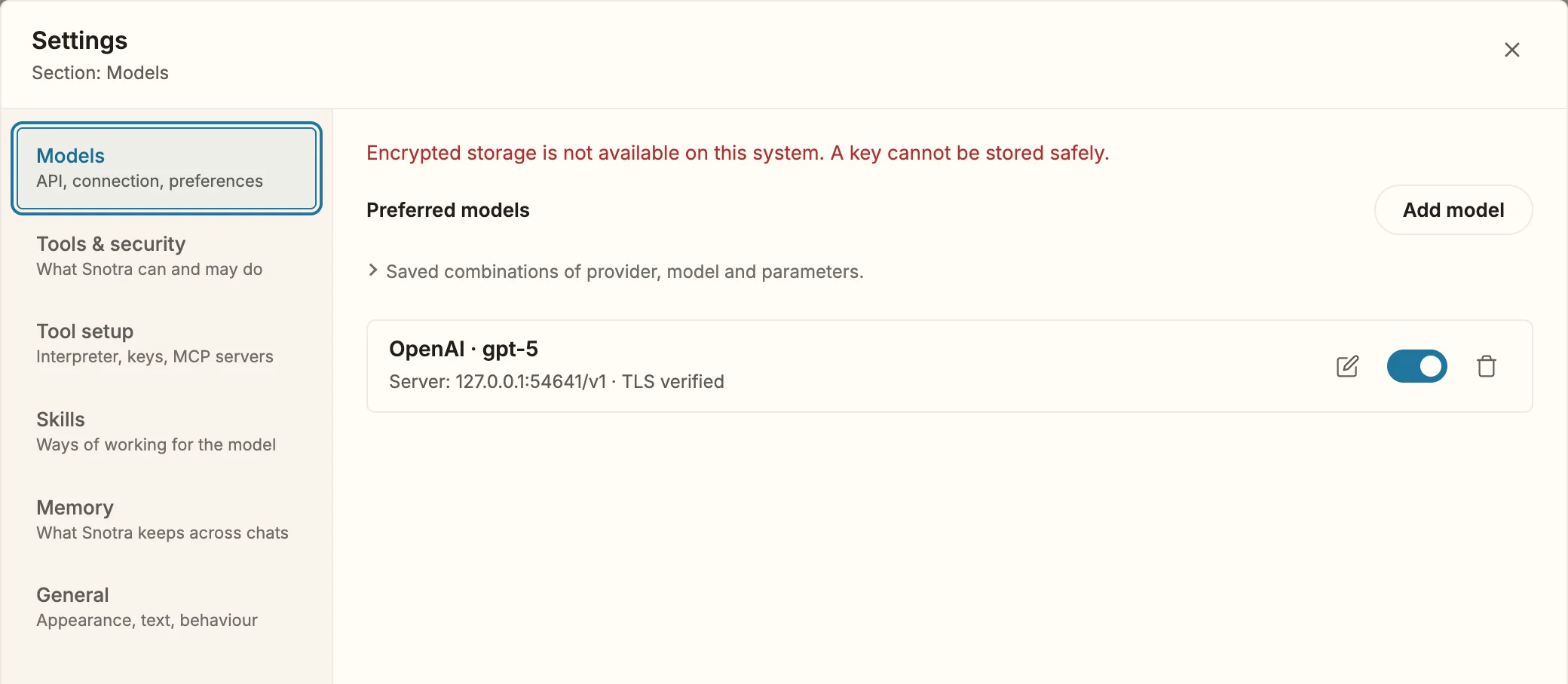
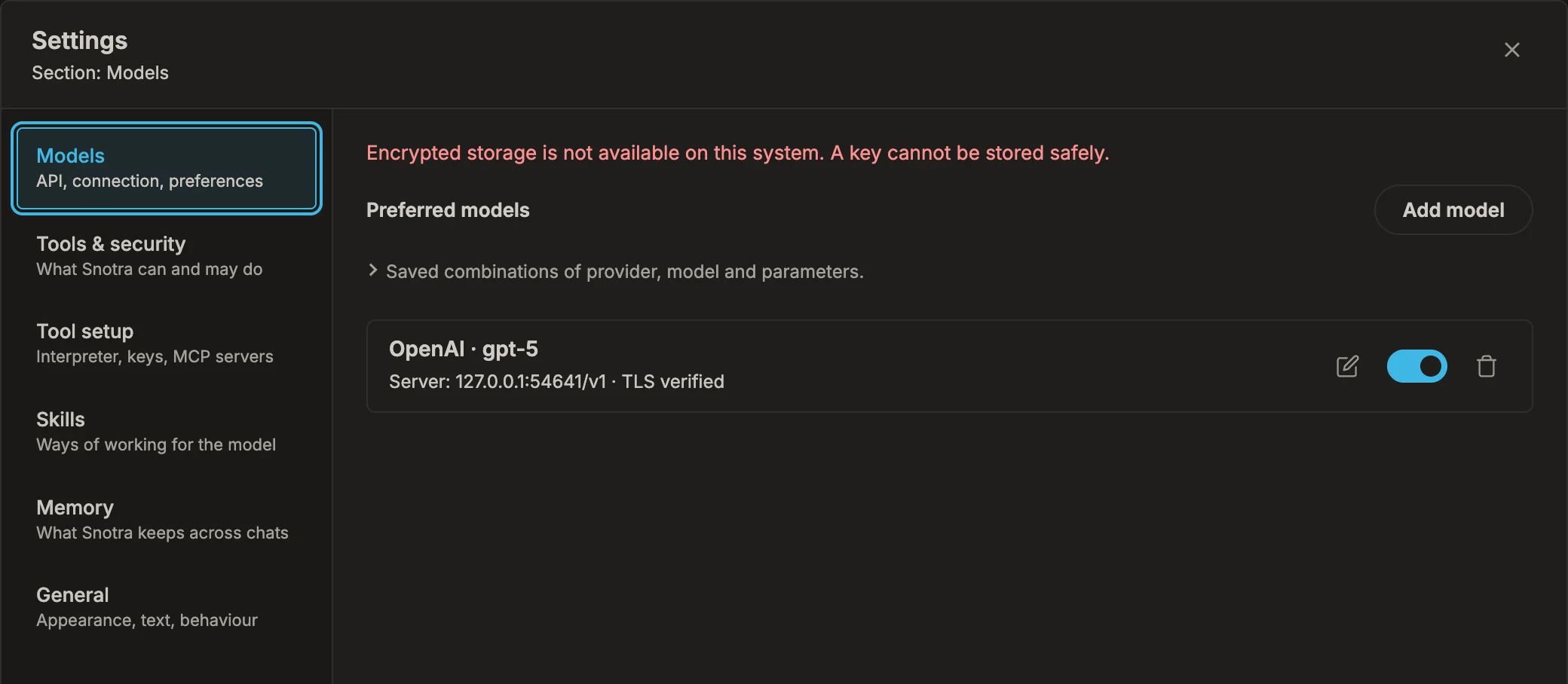
What still works and what does not:
| Without encrypted storage | |
|---|---|
| Cloud models that need a key (OpenAI, gateways) | Not usable: no key can be stored. The line above the chat input says Encrypted storage is not available. |
| Local servers without a key (LM Studio, Ollama) | Work as usual. |
| The chat history | Saved without encryption — unless an encrypted history is already there. That one stays untouched for a start with the key, and the chats of this start are not saved. |
| The modes Smart and Always ask | Work as usual. |
| The mode Auto, Always allow this command, permanent allowances | Not available: they need a record that cannot be tampered with. See Choose a mode. |
| Keys of MCP servers, the Tavily key | Cannot be saved as secrets. |
Steps: get the storage back
Section titled “Steps: get the storage back”- macOS, after Deny. Quit Snotra and start it again; macOS asks once more. Choose Always Allow. If it does not ask, open the app Keychain Access, find Snotra AI Safe Storage, and under Access Control add Snotra Agent to the apps that may use it.
- Linux. Install and unlock a keyring —
gnome-keyringor KWallet — and log in to the desktop session again. Then start Snotra. - Windows. The storage comes with your user account and is always there. Keys stored under one Windows account cannot be read under another one; enter them again there.
If it doesn’t work
Section titled “If it doesn’t work”- The models say enter the key again. The stored key can no longer be decrypted — after a move to another computer, for example, or after the keychain item was deleted. Enter the key once more with the pencil of the entry under Settings › Models.
- macOS asks at every start. You chose Allow instead of Always Allow. Choose Always Allow the next time.
- The history is back, but some chats are missing. Those are the chats of a start without the storage; they were not saved, so the encrypted history was not overwritten.
- The history stays empty although the storage works. The history could not be decrypted with this key — after a move to another computer, for example. Snotra does not overwrite it: it keeps it as
chat-history.json.undecryptable-…in the profile folder and starts a new one.