
Glossary
The terms in alphabetical order. Each entry says what the word means in Snotra and where to read more.
AGENTS.md
Section titled “AGENTS.md”A text file at the top of a folder in which you write down how work is done there. Snotra follows it in every chat in that folder. See Give a project its instructions.
Always ask
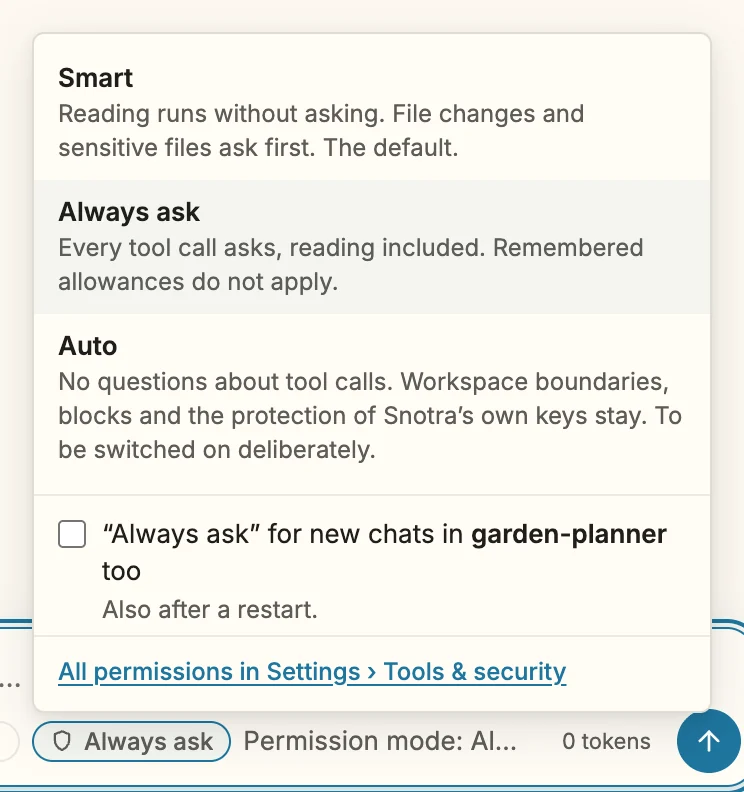
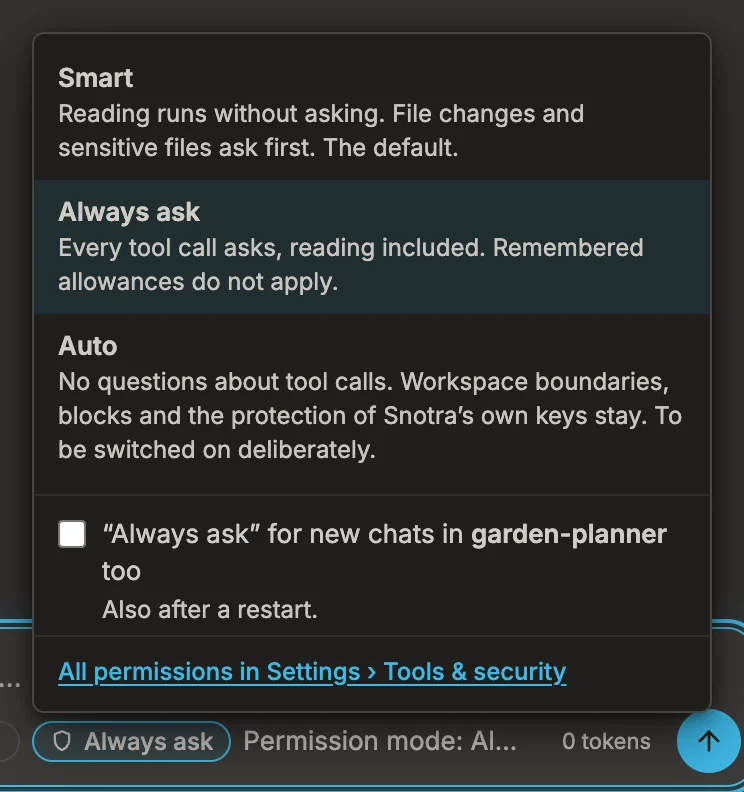
Section titled “Always ask”One of the three modes. Snotra asks before every tool call, reading included. See Choose a mode.
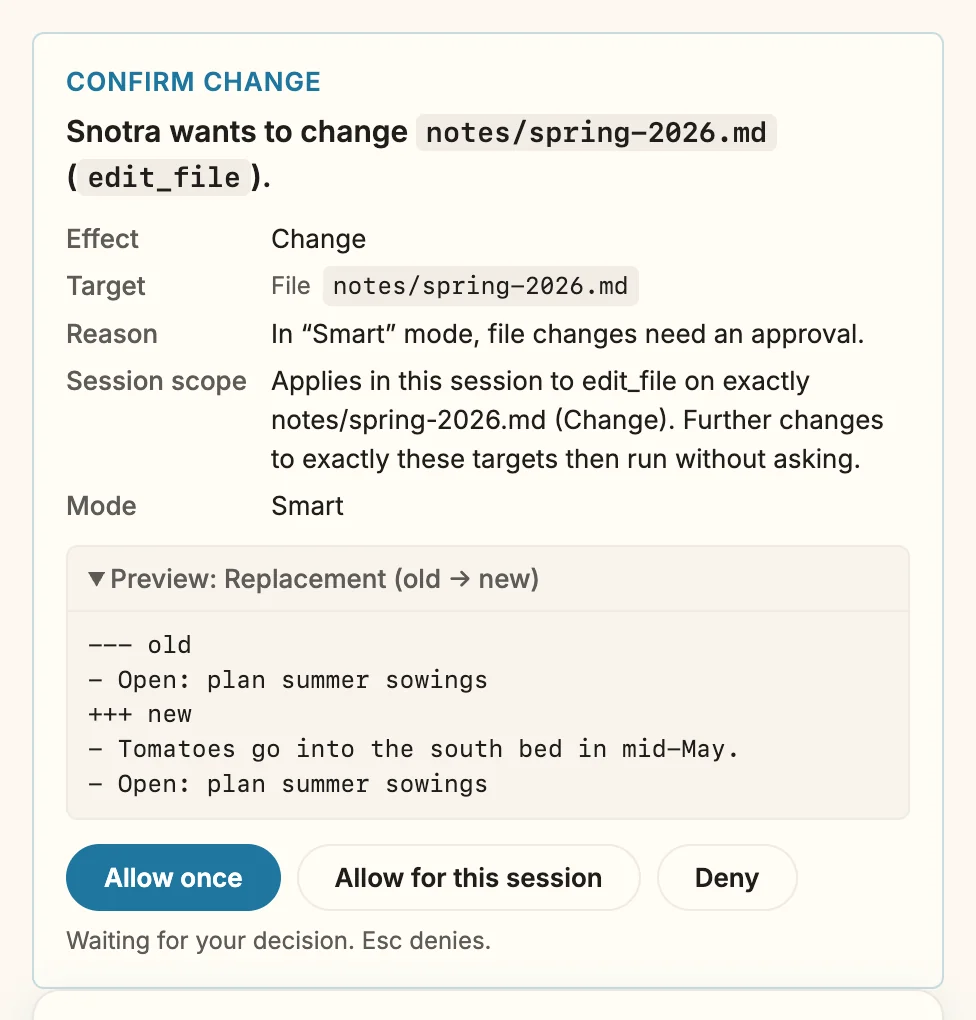
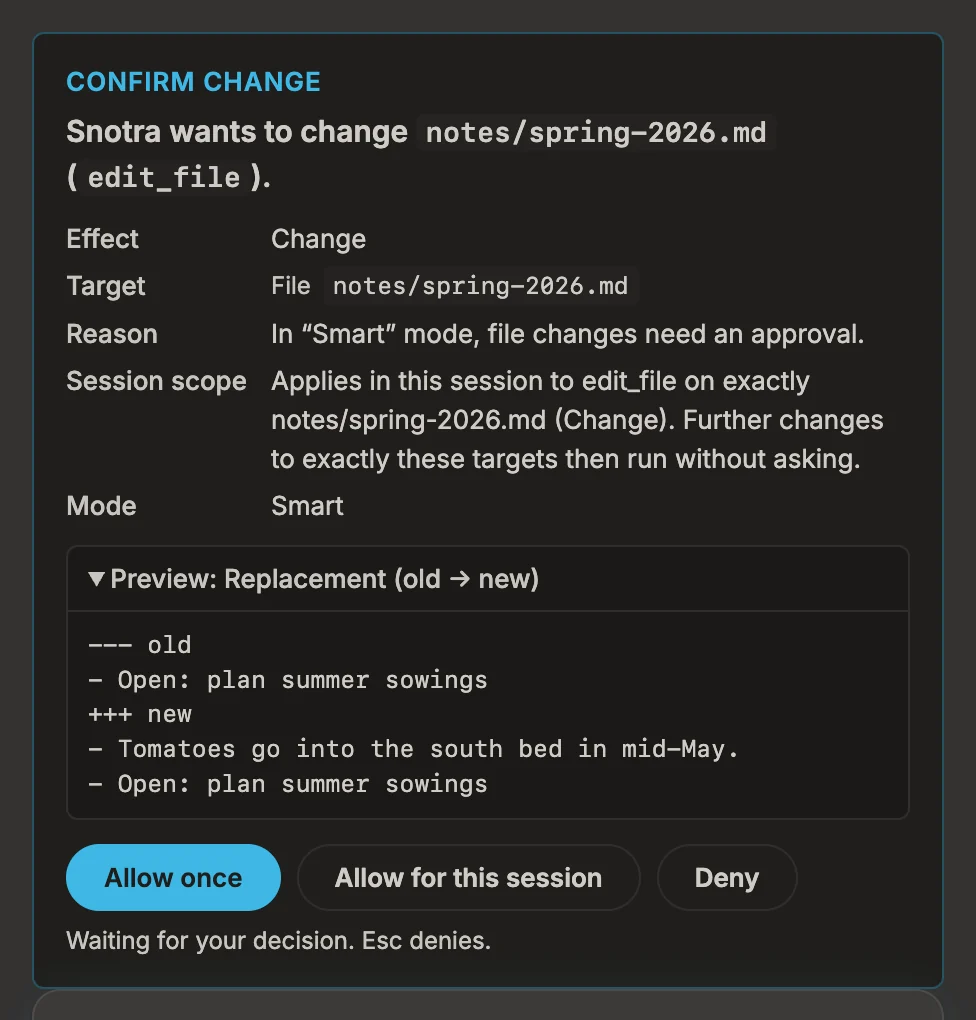
Approval card
Section titled “Approval card”The card that appears in the chat when Snotra wants to do something that needs your yes: change a file, run a command, reach a service. You allow it once, for the session, or refuse. See Answer an approval request.
One of the three modes. Snotra asks nothing; the folder boundary, your blocks and the protection of its own keys stay in force. Switching it on is confirmed in a system dialog.
A rule of yours that forbids a tool, or a whole risk class, for one folder or all. A block always wins over an allowance. See See and change what Snotra may do.
One conversation with Snotra, with its own mode, model and reasoning level. Chats are kept in the history.
Context window
Section titled “Context window”What the model receives with a request: the conversation, the instructions, the descriptions of the tools. The size is shown next to the send button; it has a limit that depends on the model. See Write a message.
Default mode
Section titled “Default mode”The mode a new chat starts in for one folder. Without one, it is Smart. See Choose a mode.
Global
Section titled “Global”Valid in every folder, as opposed to the open one: global memory, instructions and skills live in ~/.snotra/. See Find where Snotra keeps its files.
History
Section titled “History”The list of your earlier chats, on the right of the window. See Continue an earlier chat.
MCP server
Section titled “MCP server”A small program that offers Snotra tools from another system — an issue tracker, a database — through the Model Context Protocol. Snotra starts it on your computer. See Connect an MCP server.
Memory
Section titled “Memory”What Snotra keeps for later chats: .agents/memory.md for a project, ~/.snotra/memory.md for every folder. See Let Snotra remember.
How often Snotra asks you: Smart, Always ask or Auto. It belongs to the chat. See Choose a mode.
The language model that answers in a chat, offered by a provider. See Manage your models.
Open folder
Section titled “Open folder”The one project folder Snotra works in. It shows as the file tree on the left; Snotra cannot leave it. Many places in the app and in the code call it the workspace. See Open a folder.
Preview
Section titled “Preview”The middle column, which shows a file — rendered Markdown, code, an image, a PDF, an HTML page. See Look at a file.
Provider
Section titled “Provider”The company or server that runs a model: OpenAI, or an OpenAI-compatible server of your own. The text of a chat goes to it. See Connect a model.
Reasoning level
Section titled “Reasoning level”How much a model thinks before it answers; a setting of the chat, next to the model. See Switch the model or the reasoning level.
Risk class
Section titled “Risk class”The group a tool call belongs to, by what it can do: Read, Read sensitive data, Change, Overwrite with no way back, Execute, External services. The mode decides per class whether Snotra asks. See Why Snotra asks before it acts.
Sandbox
Section titled “Sandbox”The enclosure around the commands and Python programs Snotra runs on macOS and Linux: they may write only in the open folder and reach only the hosts they were allowed. Windows has none. See Run commands in the sandbox.
Sensitive
Section titled “Sensitive”A file or content that looks like a secret — .env, a private key, a token. Targeted access asks first (except in Auto), and broad searches leave such files out. See See and change what Snotra may do.
Session allowance
Section titled “Session allowance”A yes from an approval card that holds for the rest of one chat — exactly this tool on exactly these targets. It ends when you leave the chat, change its mode or a rule, or restart Snotra. See Answer an approval request.
A folder with a SKILL.md that tells the model how to do a kind of task. You switch skills on under Settings › Skills. See Use skills.
One of the three modes, and the default: reading in the open folder runs, everything else asks first.
System prompt
Section titled “System prompt”Your own instructions for every chat, under Settings › General. Empty by default. See Find your way around the settings.
The unit a model counts text in; roughly four characters. The size of a request is shown in tokens.
Something Snotra can do on its own account: read, search or change a file, run a command, search the web, generate an image. See Set up the built-in tools.
Tool log
Section titled “Tool log”The summary above an answer that lists what Snotra read, changed and ran. See Follow what Snotra does.
Tool round
Section titled “Tool round”One go of the model calling tools and getting their results. The number in a row is limited by Max. tool rounds under Settings › General, 14 by default, so that a loop cannot run for ever.