
Update Snotra Agent
Snotra Agent updates itself — but never on its own account. It looks for a new version quietly, and every step after that waits for your click and can be cancelled until the last one.
What you need
Section titled “What you need”- A connection to the internet. Snotra asks GitHub, where the releases are, and downloads from there; it needs no account.
- An installation that may replace itself. That is the case for the macOS app in Applications, the Windows folder, the AppImage and the extracted Linux folder. The
.debpackage does not, and neither does an app that sits in a folder you cannot write to — When Snotra cannot update itself covers those.
Wait for the hint, or ask yourself. At every start Snotra checks for a newer version in the background. It says nothing when there is none and opens the update dialog when there is. To ask at any time:
- Help › Check for Updates…, or
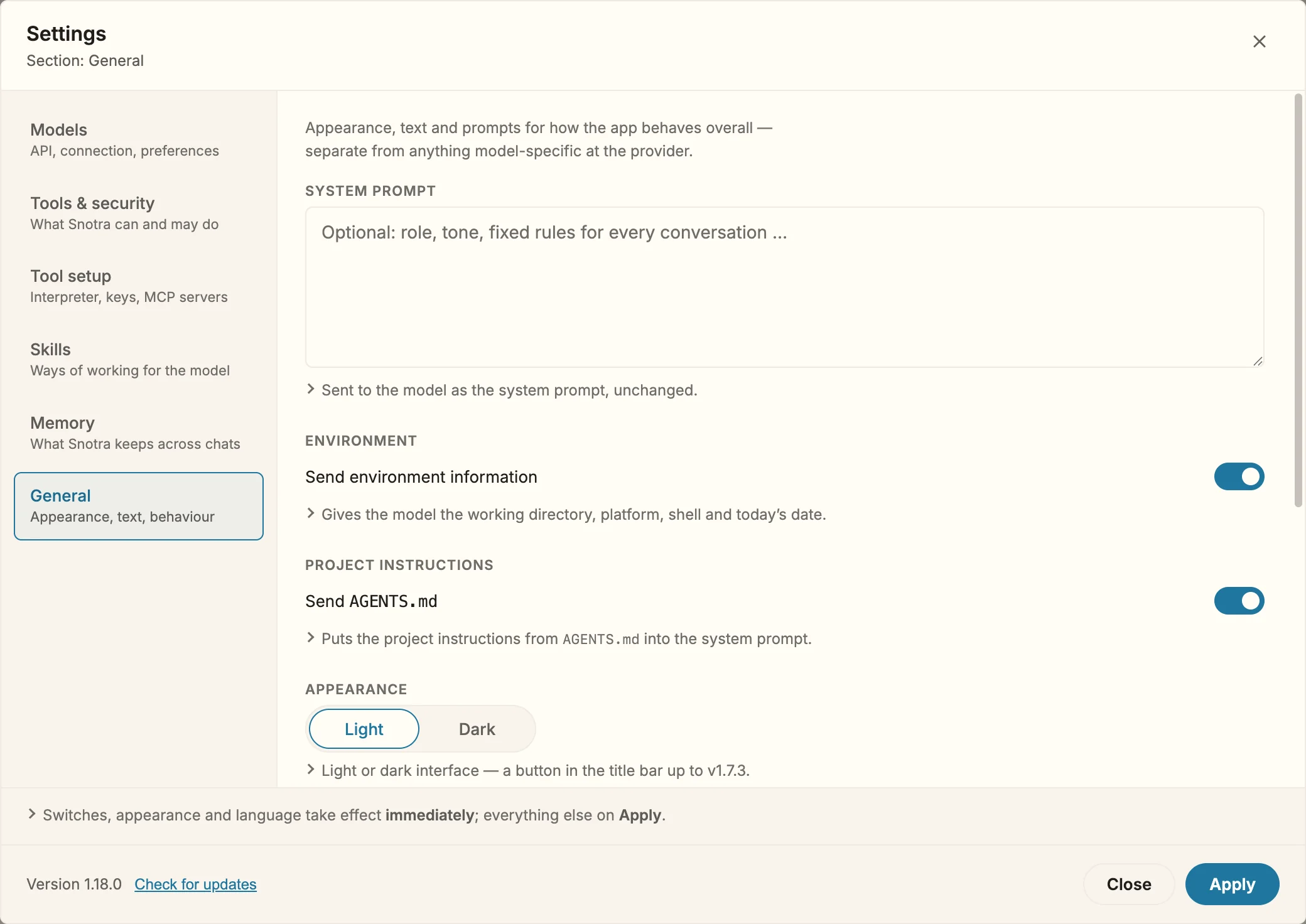
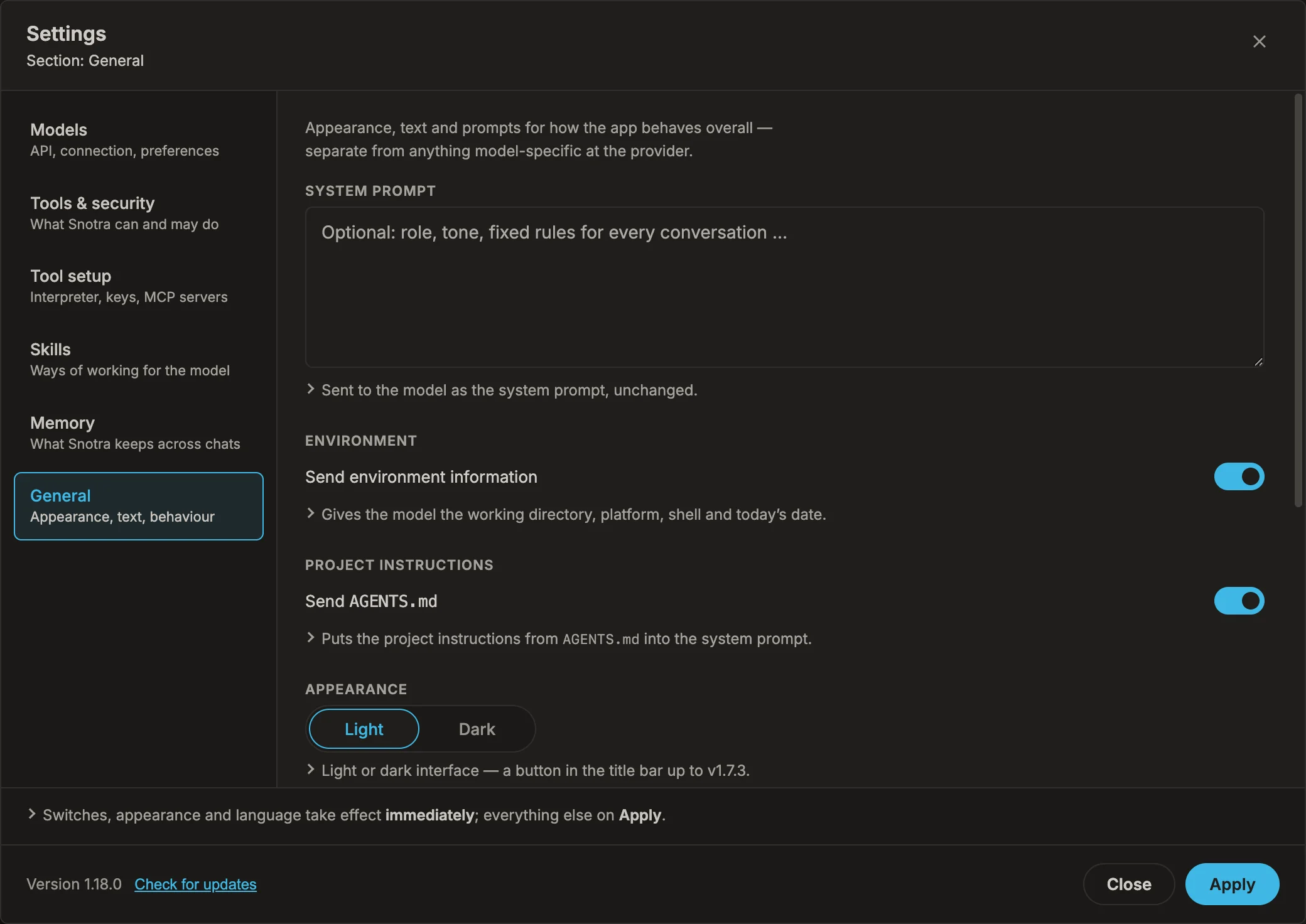
- Settings › General, the link Check for updates next to the version number at the bottom.
If you are up to date, the dialog says so and names your version.
1. Found. The dialog names the new version, its size and what you have now. Open What has changed to read the notes — Read the release notes says what you will find there. Then choose:
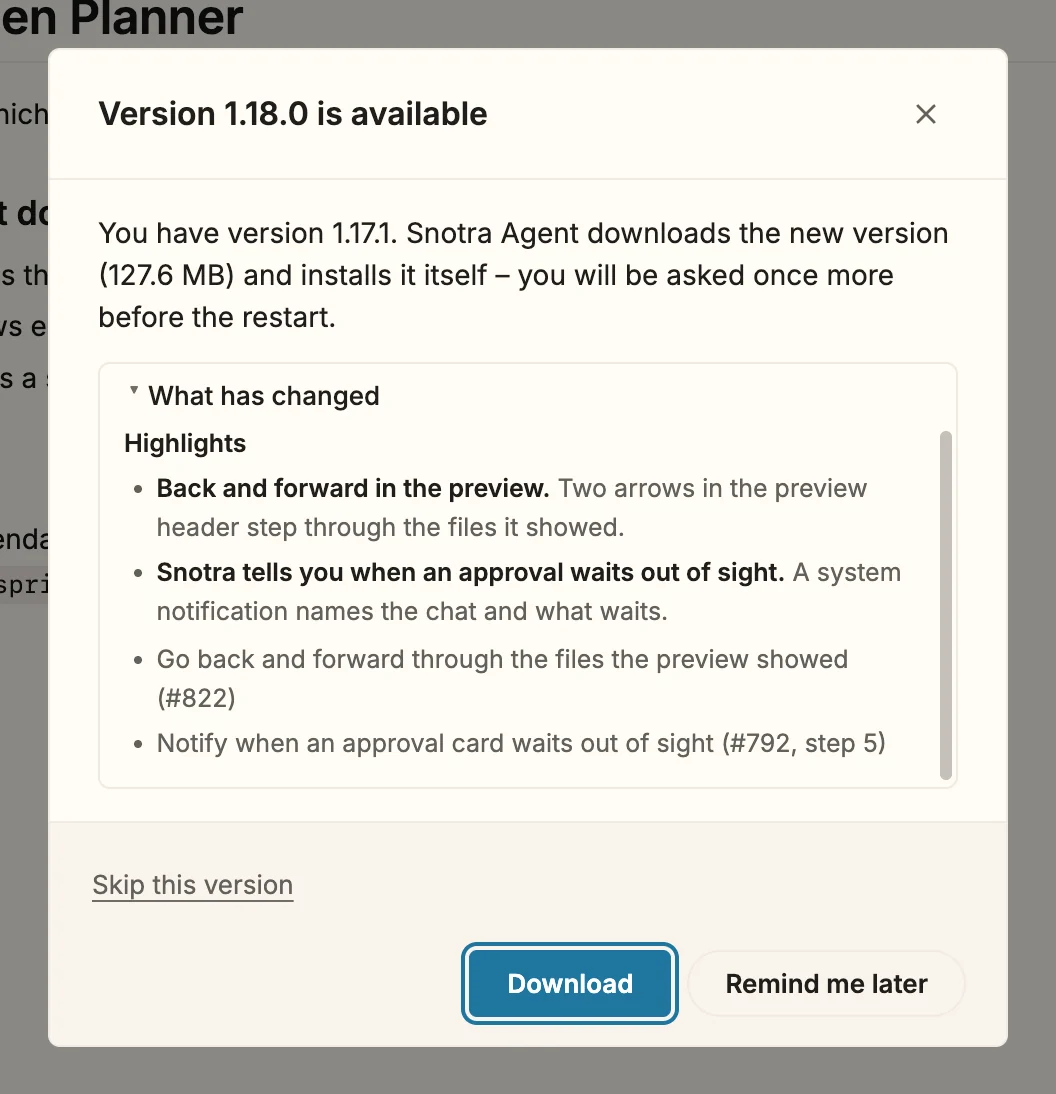
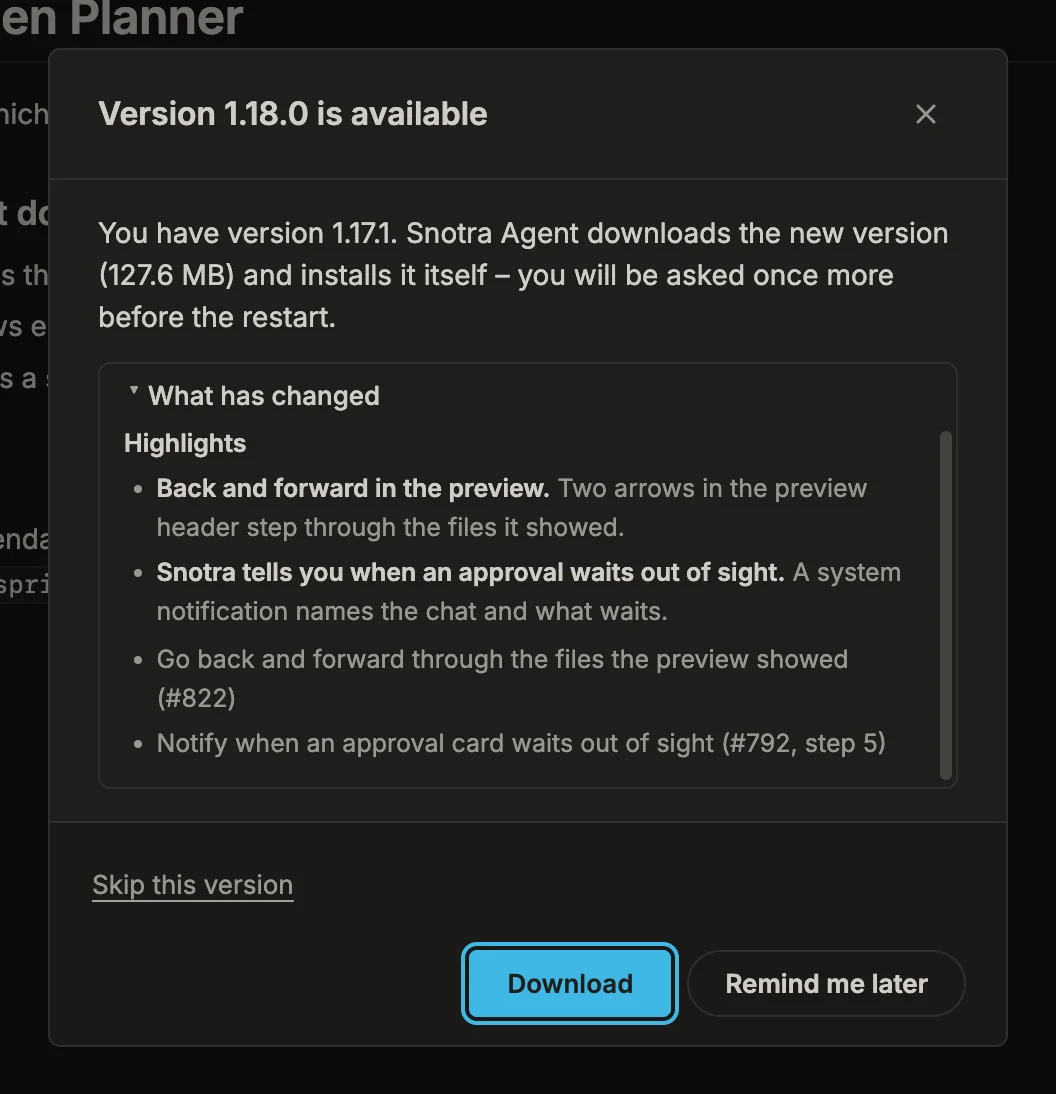
- Download starts the download.
- Remind me later closes the dialog; Snotra asks again at the next start.
- Skip this version never offers exactly this version again at the start. The next version is offered as usual, and Check for updates shows a skipped one again.
2. Downloading. The dialog shows the progress. You can keep working in Snotra while it runs. Cancel stops the download and removes the half-written file.
3. Ready. Only now does Snotra ask whether to install. Finish what you are typing first: installing quits the app, and an unsent message is lost. Cancel discards the downloaded file.
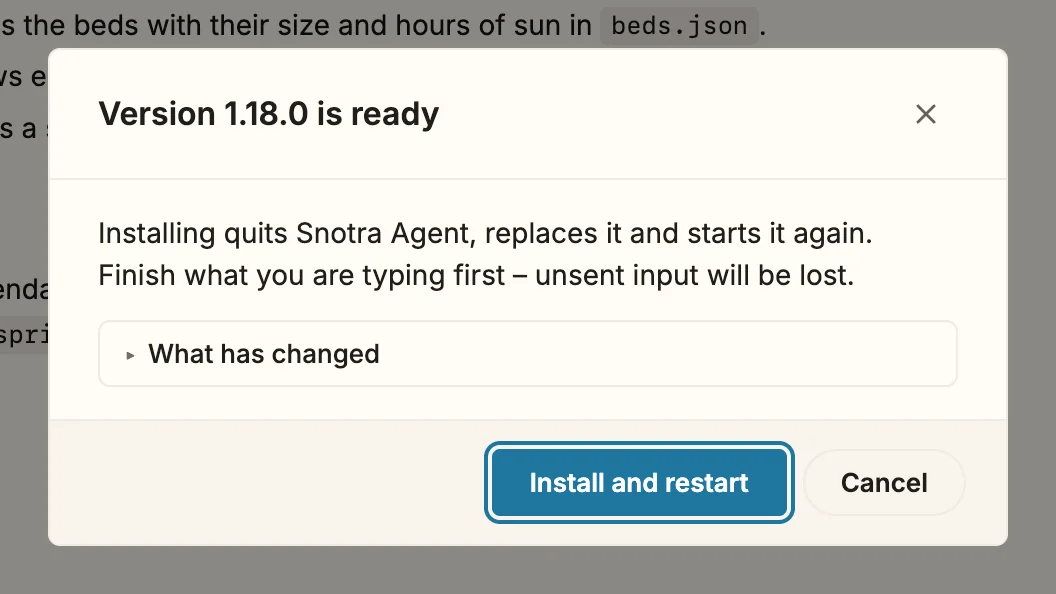
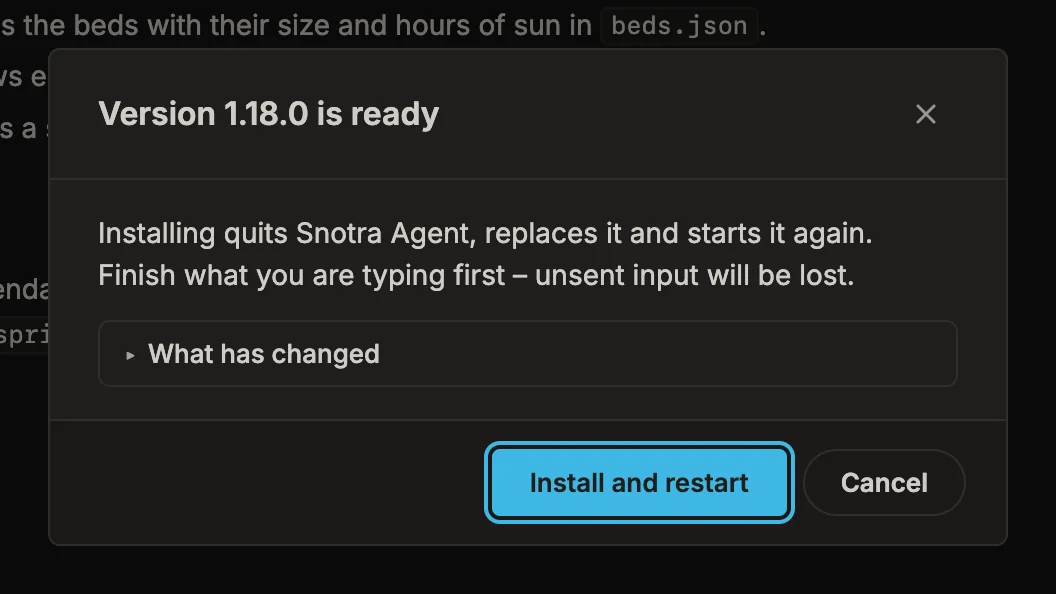
4. Installing. Install and restart quits Snotra, replaces it and starts the new version. This is the one step without a way back; the dialog says so.
What happens
Section titled “What happens”Your chats, settings and keys stay where they are: they live in the profile folder, which an update does not touch.
Snotra downloads only the file that GitHub names for your installation, and it checks it before replacing anything: the download must match the checksum GitHub lists for it, and on macOS the app inside must be Snotra Agent in the version announced. If a check fails, the file is thrown away and the running version stays untouched.
If it doesn’t work
Section titled “If it doesn’t work”- The update did not work. The dialog names the reason and the running version is unchanged. Try again repeats the download; Open release page lets you fetch the version yourself.
- The update server cannot be reached. You are offline, or something between you and GitHub — a proxy, a firewall — blocks it. Try again later, or use the release page from a connection that works.
- Windows: Last time, version … could not be put in place. The replacement failed after Snotra had quit, usually because a window or another program still had the Snotra Agent folder open. Close those and try again; the dialog gives the path of a log with the details.
- Nothing is offered although a new version exists. You may have skipped it: use Check for updates, which shows it anyway. Pre-releases are never offered; only the latest regular release is.