
Choose a mode
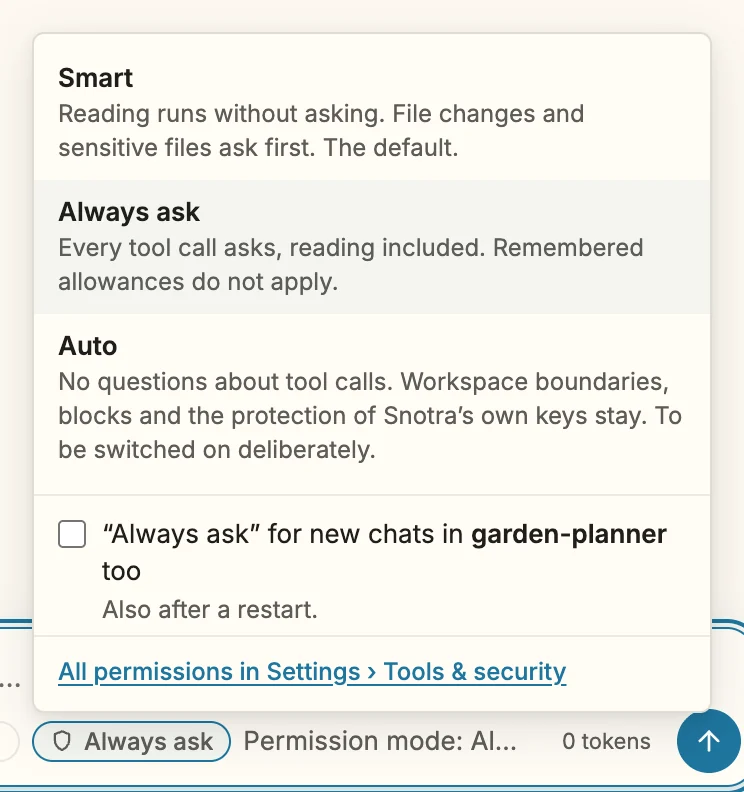
The mode decides how often Snotra asks you. It belongs to the chat: every chat has its own, and you switch it at any time.
The three modes
Section titled “The three modes”| Mode | Reading | Everything else: sensitive files, changes, commands, external services |
|---|---|---|
| Smart — the default | runs | asks first |
| Always ask | asks | asks first |
| Auto | runs | runs without asking |
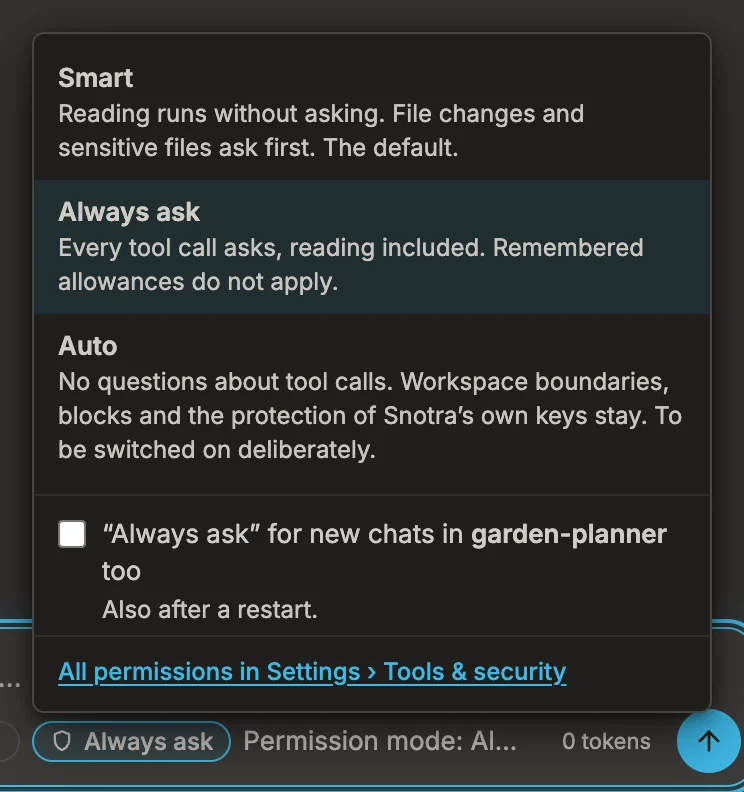
- Smart reads inside the open folder without asking and asks before anything else. Allowances you gave for a session or for good apply.
- Always ask asks before every tool call, reading included. Allowances do not apply. Choose it for a folder with content you want to watch closely.
- Auto asks nothing. The folder boundary, your blocks and the protection of Snotra’s own keys stay in force; what holds in every mode holds here too. Switch it on deliberately, for a task you trust.
- Click the mode pill in the chat input. It shows the current mode, for example Smart.
- Pick a mode from the menu.
- For Auto, the operating system asks once more: Switch on Auto (full access)? Confirm with Switch on Auto.
Going back to Smart or on to Always ask never asks — making Snotra more careful needs no confirmation.
Give a folder a default mode
Section titled “Give a folder a default mode”A new chat starts in Smart, unless its folder has a default of its own:
- From the chat: switch the chat to the mode you want, open the menu again and tick “‹mode›” for new chats in ‹folder› too.
- From the settings: choose it under Default mode at the top of Settings › Tools & security.
Auto as a default is confirmed once in a system dialog that names the folder, with Make “Auto” the default. From then on the menu marks that mode with Default in ‹folder›, and every new chat in the folder starts with it, also after a restart. A single chat can still be switched; that stays a decision for that chat.
The default is stored with your permissions, not in the folder. A repository you download cannot make itself Auto.
What happens
Section titled “What happens”- The pill shows the new mode, and every tool call from then on follows it.
- A chat from the history comes back with its own mode.
- Auto chosen for a single chat does not survive a restart: after the start that chat runs on Smart until you open it again from the history. A folder whose default is Auto stays on Auto.
If it doesn’t work
Section titled “If it doesn’t work”- The pill reads Auto · not isolated, in amber. In this folder, commands or Python would run without the sandbox and without asking — because you switched the sandbox off for the folder, or because the system has none (Windows). The menu says which. See Run commands in the sandbox.
- Auto cannot be chosen. It needs the system’s encrypted storage, to keep your permissions safe from tampering. Without it — on a Linux desktop without a keyring, for example — Smart and Always ask work as usual.
- The checkbox for new chats is missing. It appears as soon as the chat or the folder’s default is not Smart.