
Find a keyboard shortcut
Copy, paste, undo, select all, full screen and minimising work as in any other app on your system and sit in the Edit, View and Window menus. This page lists what Snotra adds. Cmd is the command key on macOS; on Windows and Linux read it as Ctrl.
Anywhere in the window
Section titled “Anywhere in the window”These work with the focus in the chat input as well.
| What it does | macOS | Windows / Linux | Menu |
|---|---|---|---|
| Start a new chat | Cmd+N | Ctrl+N | File › New Chat |
| Open the settings | Cmd+, | Ctrl+, | Snotra Agent › Settings… on macOS, View › Settings… elsewhere |
| Show or hide the sidebar | Cmd+B | Ctrl+B | View › Toggle Sidebar |
| Show or hide hidden files in the tree | Cmd+Shift+. | Ctrl+Shift+. | View › Show Hidden Files |
| Filter the file tree | Cmd+P | Ctrl+P | View › Filter Files… |
| Go back to the file the preview showed before Since 1.18 | Cmd+[ | Alt+← | View › Back |
| Go forward again Since 1.18 | Cmd+] | Alt+→ | View › Forward |
| Switch a Markdown or SVG file between its preview and its source | Cmd+Shift+M | Ctrl+Shift+M | View › Preview or Source |
| Open this manual Since 1.19 | F1 | F1 | Help › Snotra User Manual |
Hidden files, Back and Forward follow the key, not the character on it: Cmd+Shift+. works on a German keyboard, where Shift+. types a colon, and Cmd+[ and Cmd+] work on the keys in their place. The settings have no button in the window on purpose — see Find your way around the settings.
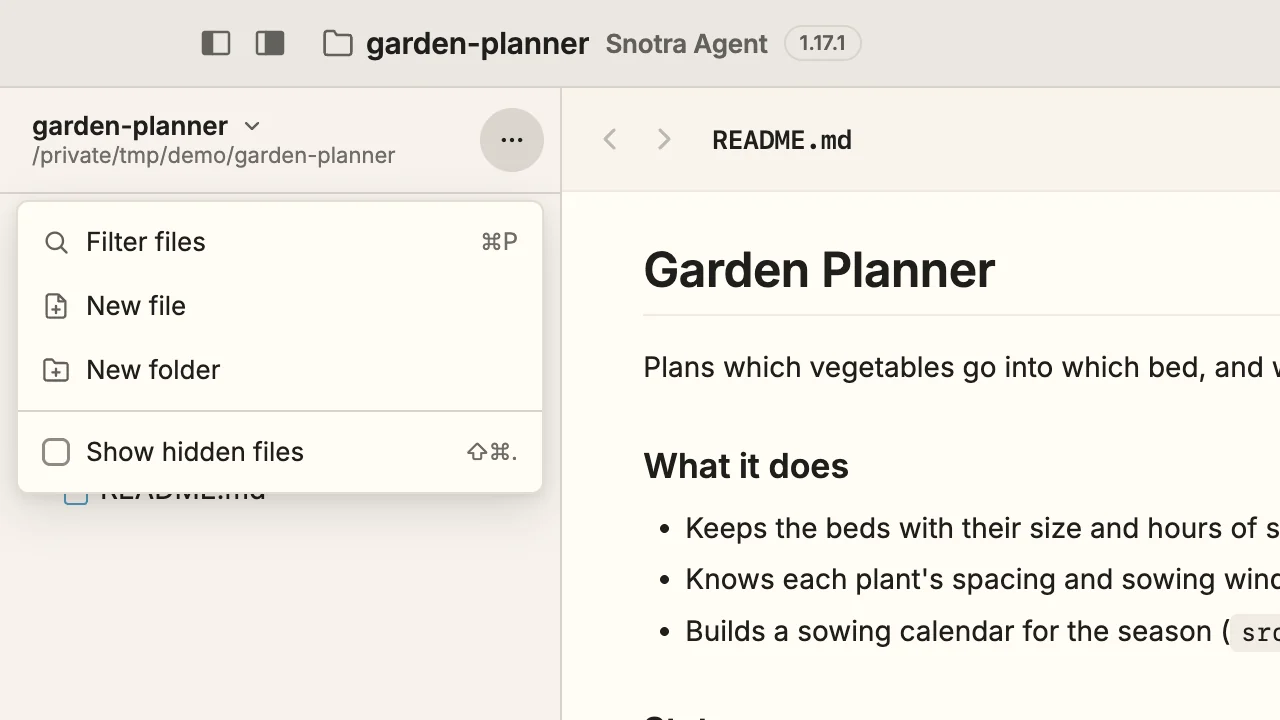
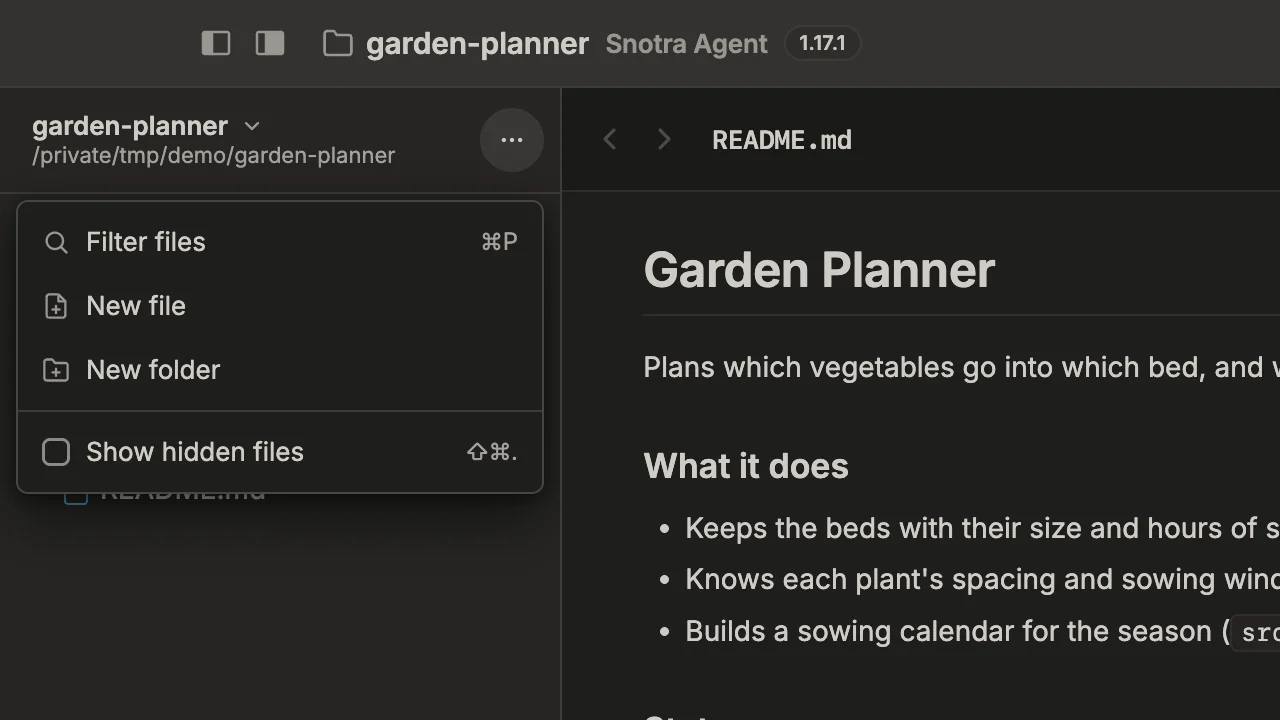
The menus show the shortcut next to each entry, as in the ⋯ menu of the tree above.
In the chat input
Section titled “In the chat input”| What it does | Keys |
|---|---|
| Send the message | Enter |
| Start a new line | Shift+Enter |
| Paste an image as an attachment | Cmd+V / Ctrl+V |
In the list after @ or /: choose · take it · close it | ↑ ↓ · Enter or Tab · Esc |
| Refuse the approval card that is on screen | Esc |
| Copy the tool log’s diagnostics as JSON, for a bug report | Cmd+Shift+D / Ctrl+Shift+D |
Esc refuses an approval card only when no menu or other field is waiting for the key. No button on a card is preselected: see Answer an approval request. The lists are explained in Refer to a file and Use skills.
The model menu and the mode menu above the input take ↑ ↓ to move and Esc to close.
In the file tree
Section titled “In the file tree”Click into the tree, or move there with Tab. The full table with what each key does is in Work in the file tree.
| What it does | Keys |
|---|---|
| Move from row to row · to the first or last row | ↑ ↓ · Home End |
| Open a folder · close it | → · ← |
| Open the file, or open or close the folder | Enter |
| Rename the row | F2 |
Insert the row as @path into the chat input | Shift+Enter |
| Open the context menu | Shift+F10, or Cmd-click / Ctrl-click |
| Start the filter with a letter | type the letter |
| In the filter: choose · by page · open · close | ↑ ↓ · PgUp PgDn · Enter · Esc |
| While renaming: take the name · leave it as it was | Enter · Esc |
| In the list of recent folders: open · remove from the list | Enter or Space · Delete or Backspace |
In the preview
Section titled “In the preview”| What it does | Keys |
|---|---|
| Zoom a PDF, an image or a Markdown file in · out · back to its fitted size | Cmd and + · Cmd and − · Cmd and 0 (Ctrl on Windows and Linux) |
| In a PDF: first page · last page | Home · End |
The zoom keys act on the document only while the preview has the focus — click into it first. Otherwise they zoom the whole window, as View › Zoom In does. A Markdown file returns to 100 % with Cmd+0, a PDF or an image to its fitted size. The Markdown zoom is Since 1.19. Details in Look at a file.
Columns, menus and dialogs
Section titled “Columns, menus and dialogs”| What it does | Keys |
|---|---|
| Move a focused column divider · in larger steps · to its end | ← → · Shift+← Shift+→ · Home End |
| In the settings: previous or next section · first or last | ↑ ↓ or ← → · Home End |
| Close a dialog, a menu or an enlarged image | Esc |
If it doesn’t work
Section titled “If it doesn’t work”- A shortcut does nothing. Look at View, File or Edit in the menu bar: the menu shows the shortcut next to each entry. The ones that follow the physical key — hidden files, Back, Forward — are shown there but handled by the window itself.
Cmdand+makes the whole window larger. The preview did not have the focus. Click into the document and press it again; View › Actual Size puts the window back.