
Refer to a file
When your question is about a particular file, name it with @: @notes/spring-2026.md. Snotra then knows exactly which one you mean and reads it when it needs to.
What you need
Section titled “What you need”An open folder. Without one, @ stays ordinary text.
By typing
- Type
@in the input field. A list of the files and folders of the open folder opens above it. - Type on to narrow it down. The match is fuzzy:
@rlsefindsdocs/release.md. - Choose an entry with
↑and↓, and take it withEnterorTab.Esccloses the list.
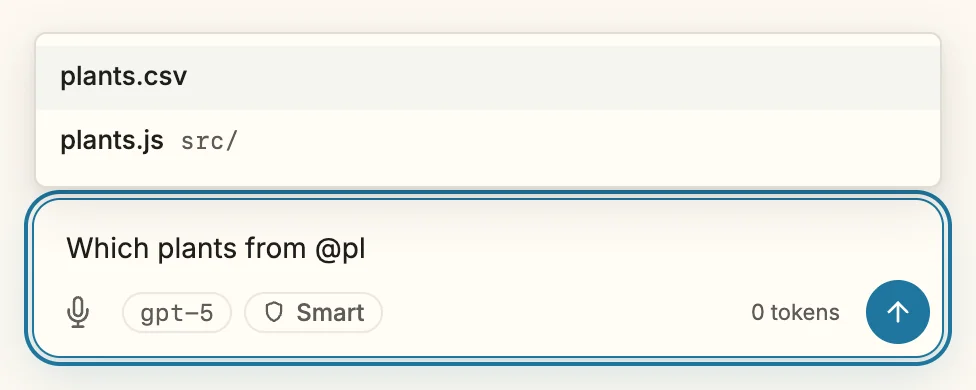
For a folder the list stays open (@src/), so you can go on into it.
From the file tree
- Drag a file or folder from the tree into the input field. It is inserted where the cursor is.
- Or hover over a row in the tree and click the
@button at its right edge. With the keyboard,Shift+Enteron the focused row does the same.
Either way the path is inserted relative to the open folder, the same as when you type it.
What happens
Section titled “What happens”The model receives the path in your message, not the content of the file. It reads the file with its tools when it needs it — which keeps a long file out of the conversation until it matters. Reading inside the open folder runs without asking in Smart; see Why Snotra asks before it acts.
If it doesn’t work
Section titled “If it doesn’t work”- The list does not open. No folder is open, or the cursor is not right after the
@. - A file is missing from the list. The list leaves out what the model’s file search leaves out as well: hidden files,
.git, and whatever the folder’s.gitignoreexcludes. Hidden files appear once you show them in the tree withCmd+Shift+./Ctrl+Shift+..