
Edit a text file
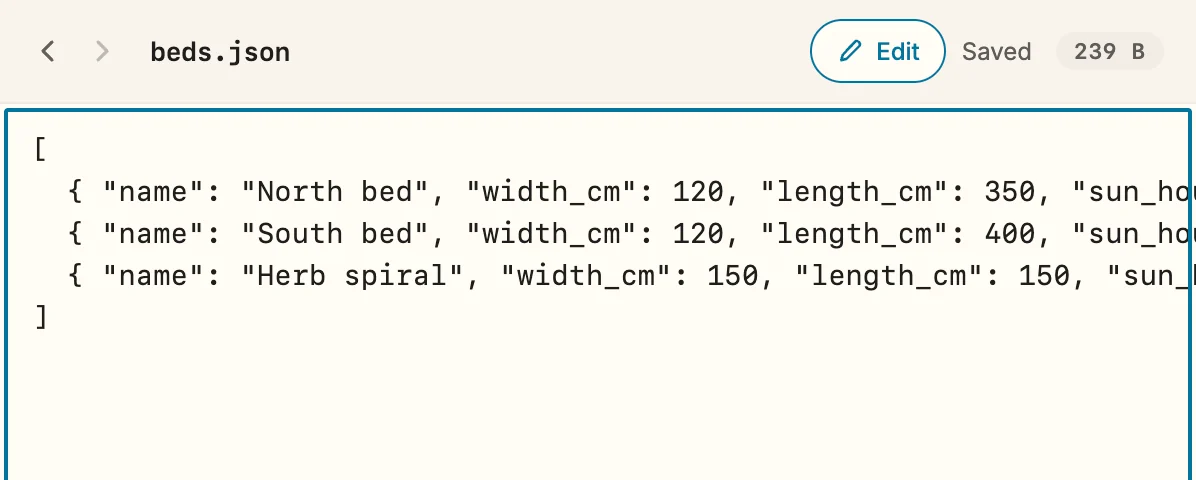
Since 1.24 A small correction — a typo in a note, a value in a configuration file — doesn’t need another editor. Switch the preview to Edit, type, and Snotra saves the file by itself.
What you need
Section titled “What you need”- An open folder, and a text file from it in the preview: source code, a configuration file, plain text, or a Markdown file on its Source side.
- The file is UTF-8 text. That is what almost every text file is today.
- No chat answer is running. While the agent works, Edit is paused — see below.
- Click the file in the tree. The preview shows it, read-only as always.
- Click Edit in the header. For a Markdown file, switch to Source first; Edit sits next to Preview | Source.
- Type. The text stays in the same place, without colours while you edit.
- To stop, click Edit again or press
Esc. The colours come back.
There is no save button. Snotra saves a second after you stop typing, when you click elsewhere, when you leave the editor and when you open another file. Cmd+S / Ctrl+S saves at once if you want to be sure.
What happens
Section titled “What happens”- The header says where things stand: Saving… while it writes, Saved once the file on disk is your text, Not saved when something stands in the way — then a bar above the text says what.
- Undo works as in any text field:
Cmd+Z/Ctrl+Z, or Edit › Undo; Edit › Redo brings it back. - Line endings stay as they were. A file written with Windows line endings is saved with them again.
Tabmoves the focus on, as everywhere in Snotra. To indent, type spaces.- Nothing is overwritten silently. Before each save Snotra checks that the file on disk is still the one you started from. If another program changed it meanwhile, the bar offers Keep my version or Use the version on disk. If nothing you typed would be lost, Snotra simply shows the new version.
- The agent and you never write at the same time. When a chat answer starts, Snotra saves what you typed, closes the editor and pauses Edit until the answer is done. Hold the pointer over the button to see why.
- Saving writes the file in one step: a crash halfway leaves either the old or the new version, never half of each. No copy goes to the trash — unlike the agent’s changes, which you can see under Show changes.
If it doesn’t work
Section titled “If it doesn’t work”- Edit is greyed out and says the agent is working. Wait until the chat answer is finished, or stop it.
- Edit is greyed out: not UTF-8 text. The file uses another encoding. Snotra shows it with placeholder characters and would destroy what it cannot show, so it doesn’t edit it. Open it in its own app from the tree’s context menu.
- Your changes could not be saved. The bar names the reason — no permission to write the file, the file is larger than 2 MB, it lies in a folder Snotra doesn’t write to. Try again once the cause is gone, or Discard my changes. Your text stays in the editor until you choose; another file doesn’t open over it.
- Another program changed this file. Something else wrote the file while you were typing. Keep my version writes yours over it; Use the version on disk throws yours away and goes on from the other one.
- This file was deleted. Keep my version writes it again; Discard my changes closes it.
- Images, PDFs, HTML pages and the source of an SVG can’t be edited here. Only text files and Markdown in Source.