
See what you spent across chats
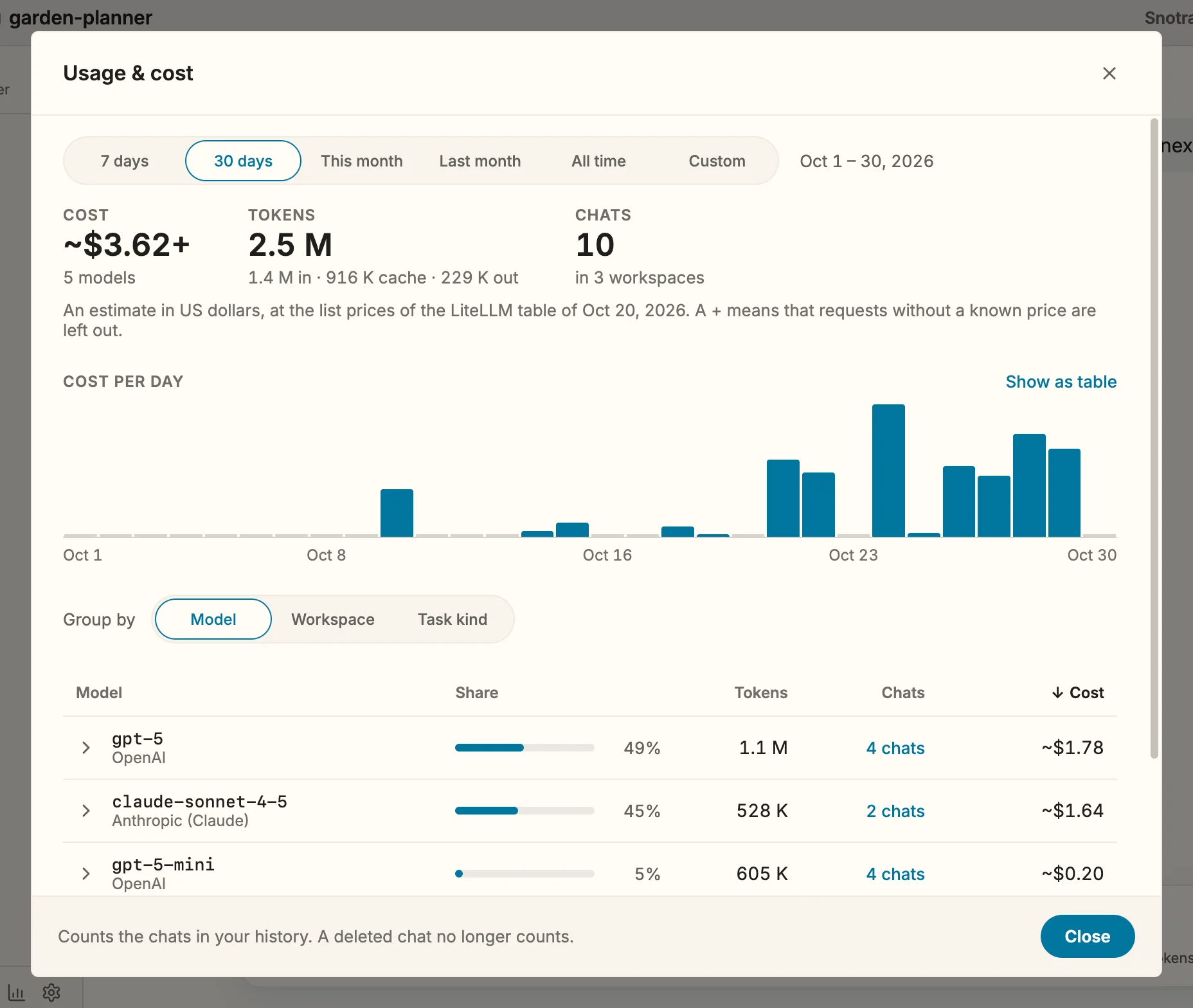
Since 1.28 The usage report adds up what your chats spent over a period you pick: which models you used and how much they cost, in which workspaces, and Since 1.29 on what kind of work. It answers questions like “would a cheaper model do for most of my work?”, “which project is the expensive one?” or “what does my coding cost compared with my writing?”. Like the cost of a single chat, every figure is an estimate, not your bill.
What you need
Section titled “What you need”Chats that used a model. Nothing has to be set up: the report reads the same estimates as See what a chat costs.
- Open the report in one of three ways:
- the chart button at the foot of the sidebar, next to Send feedback… and the settings,
- View › Usage & Cost… in the menu bar,
Cmd+Shift+Kon macOS,Ctrl+Shift+Kon Windows and Linux — with the focus anywhere, including the chat input.
- Pick a period: 7 days, 30 days, This month, Last month, All time, or Custom with a first and a last day. The arrow keys move between them.
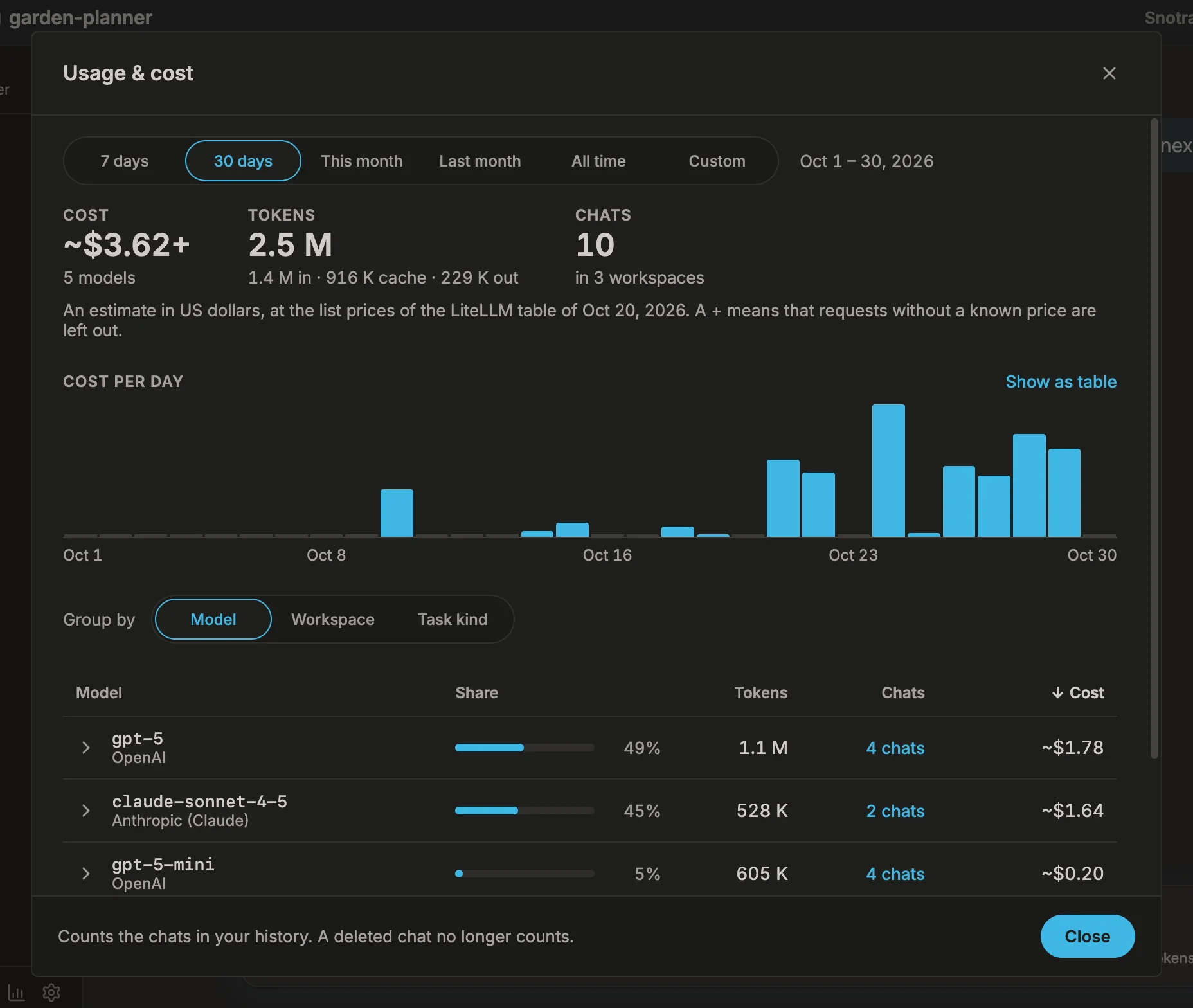
- Read the totals at the top: the cost, the tokens with what went in, came from the cache and came out, and the number of chats. Below them, the chart shows the cost per day — per week or month for a long period. Show as table lists the same figures as a table.
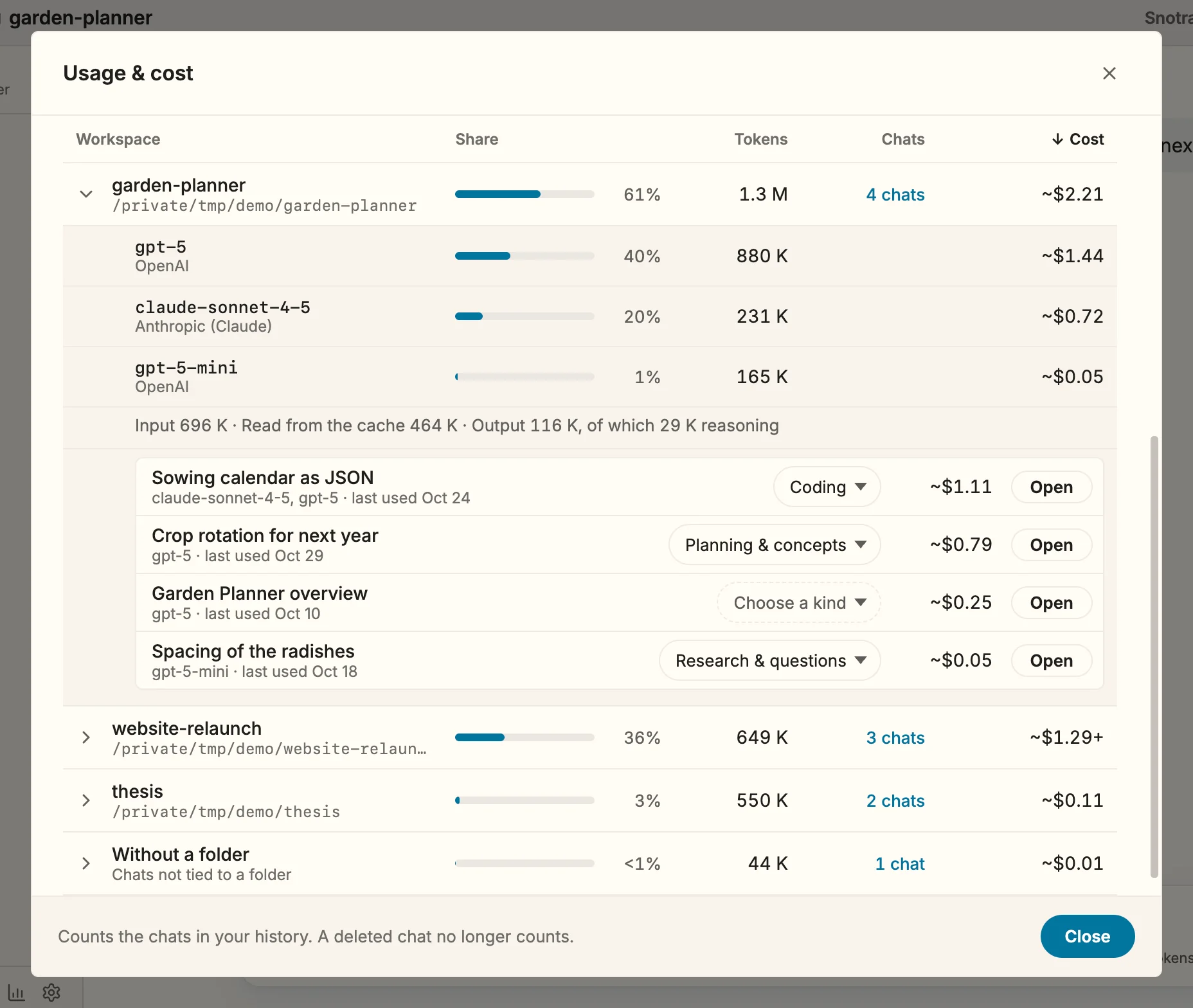
- Choose how to group the table: by Model, by Workspace or Since 1.29 by Task kind. Click a column heading to sort by it; click it again to reverse the order.
- Click the arrow in front of a row to unfold it. A workspace or a kind of task shows the models it used, a model the workspaces it was used in, and each row shows its tokens by kind.
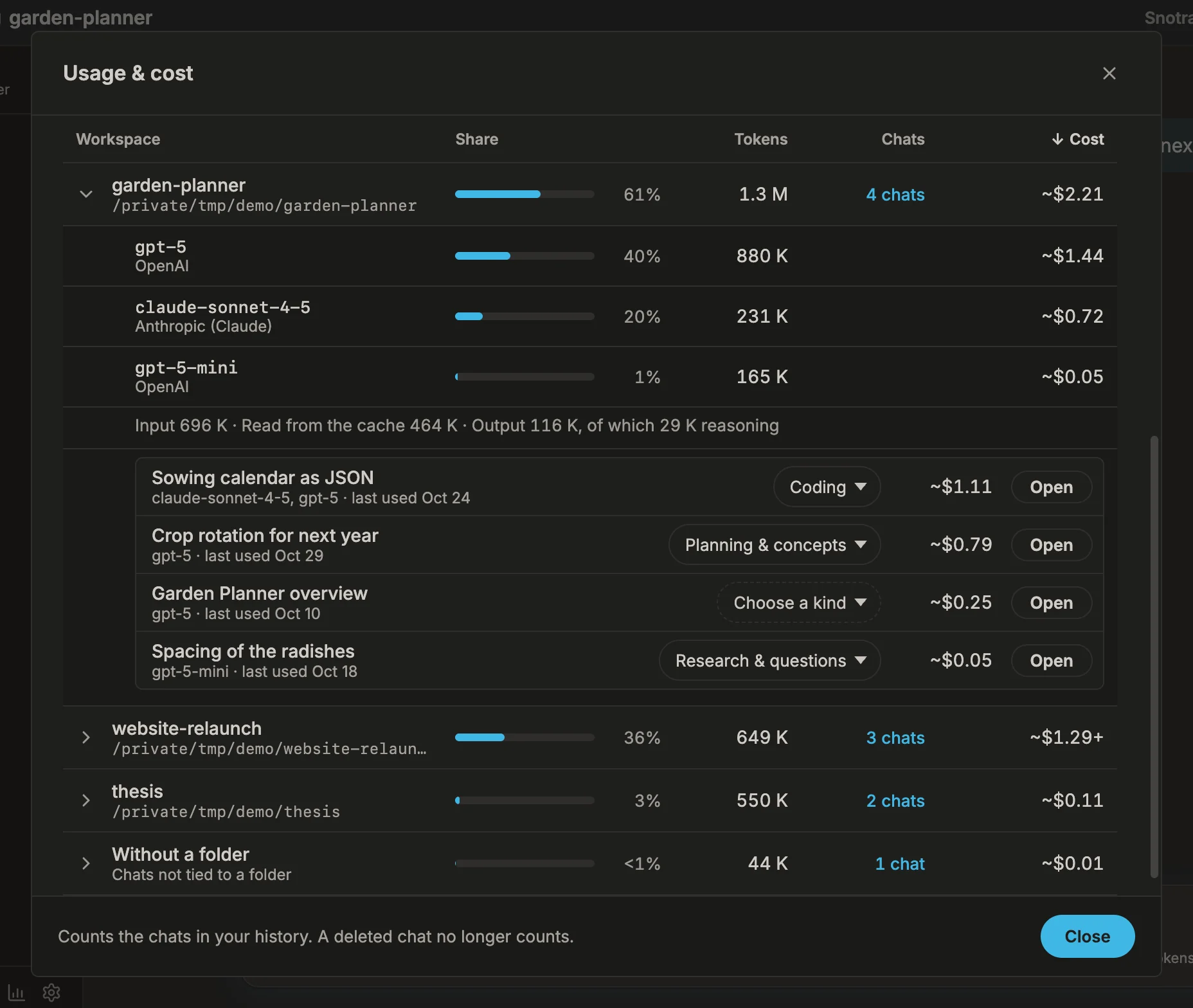
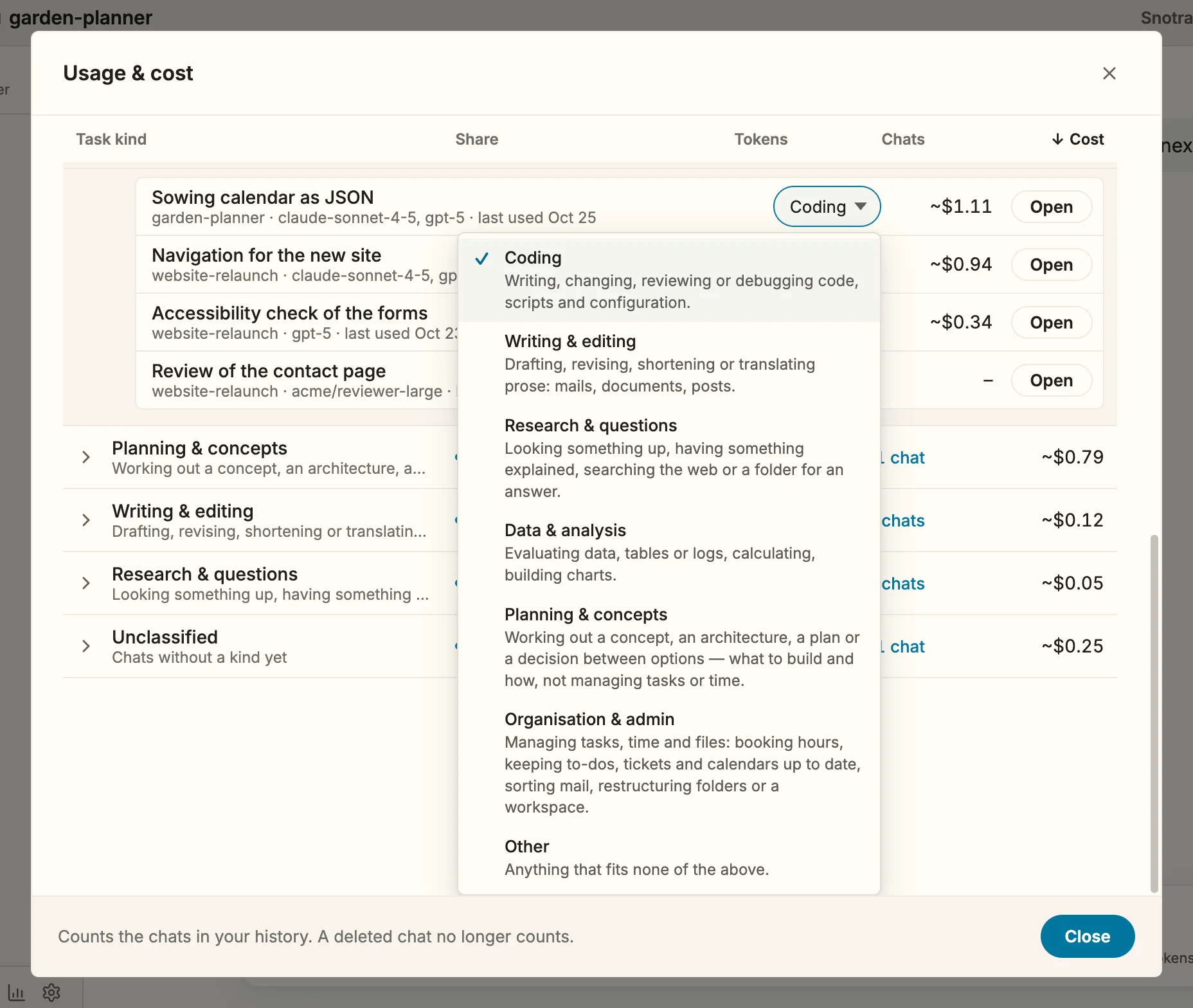
- Click n chats in a row to list the chats behind it, with their kind of task, what each spent and when it was last used. Open takes you to the chat — in its own folder: when another folder is open, Snotra switches to it first.
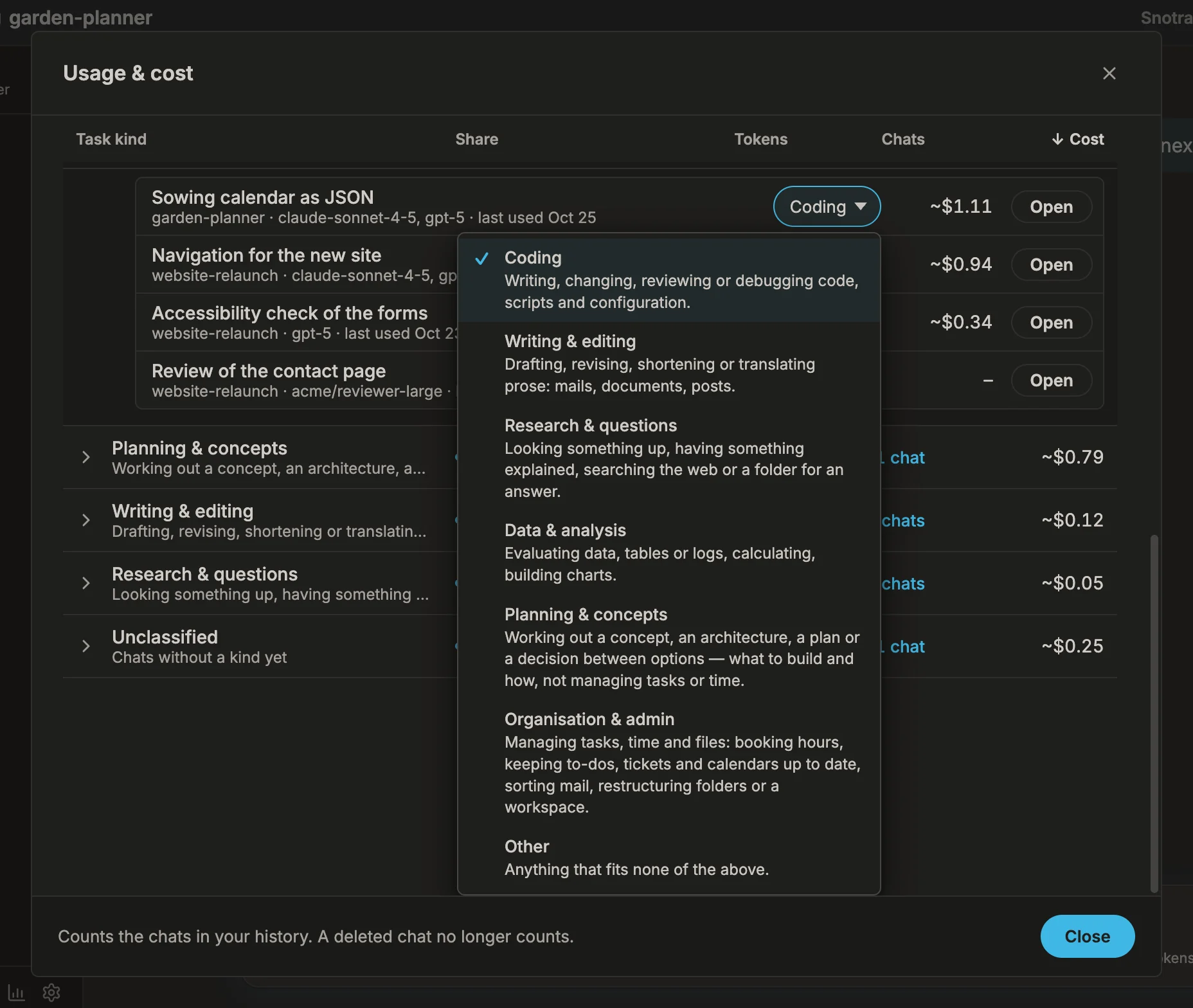
- Since 1.29 To change a chat’s kind of task, click the kind next to its cost — Choose a kind when it has none yet — and pick one of the seven. Each comes with a line on what it covers. The figures follow at once: grouped by kind, the chat moves to its new row.
- Close the report with Close, the cross or
Esc. The focus returns to where it was.
What happens
Section titled “What happens”- The period counts what was spent inside it. A chat that ran over three weeks contributes to each week only what it spent in that week — not its whole cost on the day it started or was last opened. Days are your local calendar days.
- Every view adds up to the same total. Each request counts once by model, once by workspace and once by kind of task, so the three tables, the chart and the totals agree.
- The seven kinds of task are Coding, Writing & editing, Research & questions, Data & analysis, Planning & concepts, Organisation & admin Since 1.30 and Other. A chat gets its kind when it is named: the model suggests one together with the title, and when that fails Snotra estimates one from what the chat did. Your own choice always wins and is never replaced.
- Chats without a kind are a row of their own, Unclassified, always at the bottom of the table by kind, so nothing drops out of the total. Chats from before 1.29 stay there until you continue them or choose a kind for them.
- An unknown price shows a dash. A model the price table does not know shows – and no price, never $0.00, and a total that leaves such requests out ends in +, for example ~$3.62+. Set a price for it under Settings › Models, as described in See what a chat costs.
- A model on your computer costs nothing. Ollama, LM Studio and other servers at a local address show their tokens and $0.00 local.
- Chats without a folder are a group of their own, Without a folder. They open only while no folder is open, so their rows have no Open button while one is.
- The report is your history as it is. A chat you delete no longer counts, and neither does one the history let go: it keeps the 200 most recent chats.
- Chats from before 1.28 have a total but no days. They count in full on the day they were last used. Once you continue such a chat, its new requests count on their own days.
- Prices: the note under the totals names the date of the price table the chats were priced with. Prices are list prices in US dollars, as for a single chat.
- Helper requests count. Since 1.28 The requests that name a chat and, with Ask the model, suggest a skill are part of the chat’s cost, so they are part of the report too, on the day they were made.
- Not included: image generation and voice input — the same gaps as in the cost of a single chat.
If it doesn’t work
Section titled “If it doesn’t work”- The report shows Nothing spent in this period. No chat used a model in that period. Pick a longer one, or All time.
- A chat seems to be missing. It was deleted, or it is older than the 200 chats the history keeps. A chat with a model that reported no token counts has nothing to add up.
- The shortcut does nothing. Another program may have taken
Cmd+Shift+K/Ctrl+Shift+Kfor itself. Use View › Usage & Cost… or the button at the foot of the sidebar. - Most of the cost is Unclassified. Those chats are older than 1.29, or their naming request failed and Snotra could not estimate a kind. Choose a kind in the chat list of that row — that is enough for the report.
- The kind of a chat could not be changed. The report says The kind could not be stored. The chat may have been deleted in the meantime; close the report, open it again and try once more.
- A chat does not open. Its folder was moved or deleted; the report says The folder … could not be opened. Open the folder from its new place with Open folder… and try again.